Creating a PostgreSQL database using bit.io

Creating a PostgreSQL database using bit.io


bit.io provides a fast and easy way to set up a serverless PostgreSQL database. It also offers a free plan that is a great alternative for users with a low data volume and wish to replicate data using Kondado. Follow the steps below to start using bit.io and Kondado:

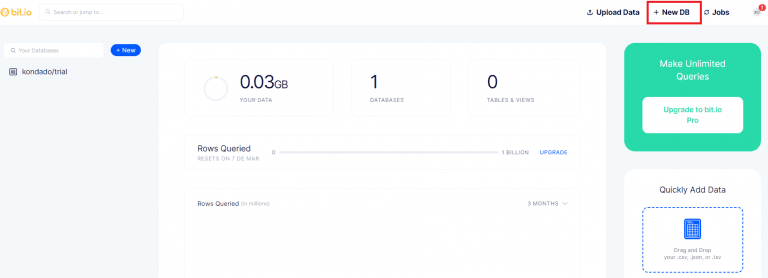
2. Once you have created your bit.io account, click on "+New DB" on the top right corner
ximage-2-768x278.png.pagespeed.ic.JU5iLwqq76.png


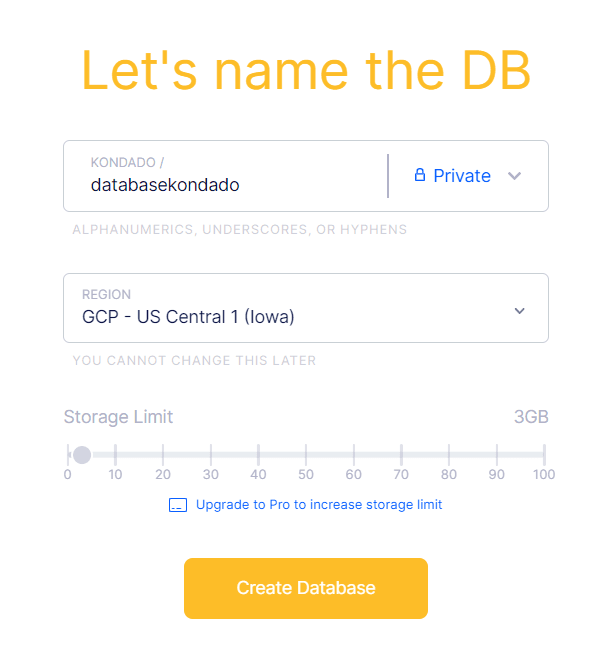
3. Give a name to your database then click on "Create Database"
ximage-3.png.pagespeed.ic.VVK6-ci1MK.png

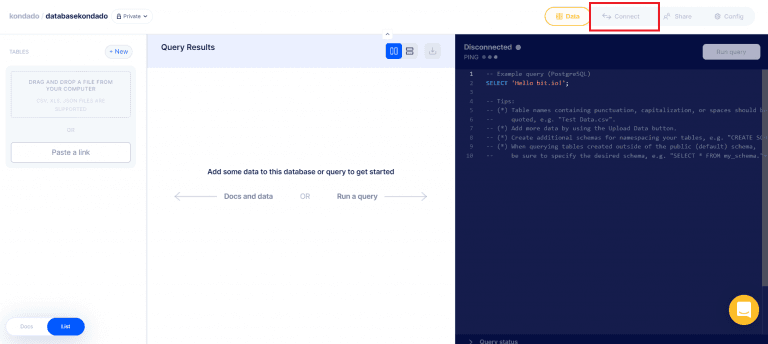
4. That's it! Your database has been created. Now on the top right corner, click on "Connect" to see your connection details and use it on Kondado
ximage-4-768x344.png.pagespeed.ic.Mf1WIyWJzb.png

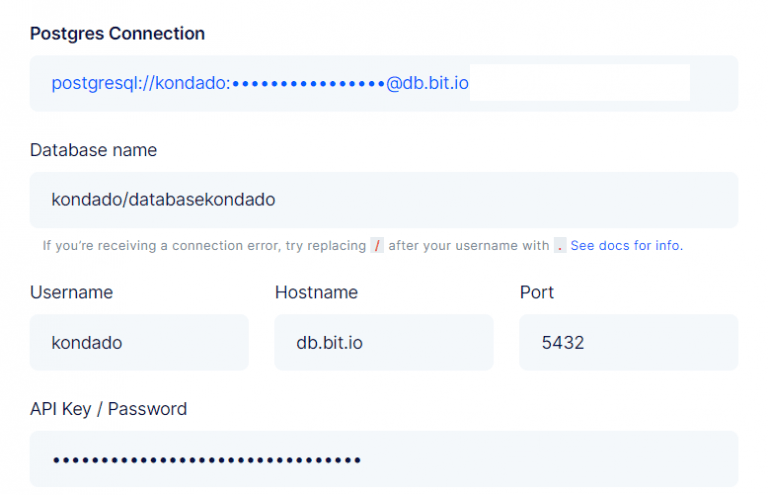
5. That's the info you will nee

d for Kondado:
ximage-5-768x495.png.pagespeed.ic.eobGTY6241.png

6. To create your data destination using bit.io's database, click here (or here if you don't yet have a Kondado account) - then select PostgreSQL as the data destination

ximage-6-768x371.png.pagespeed.ic.EGPF6iZTna.png

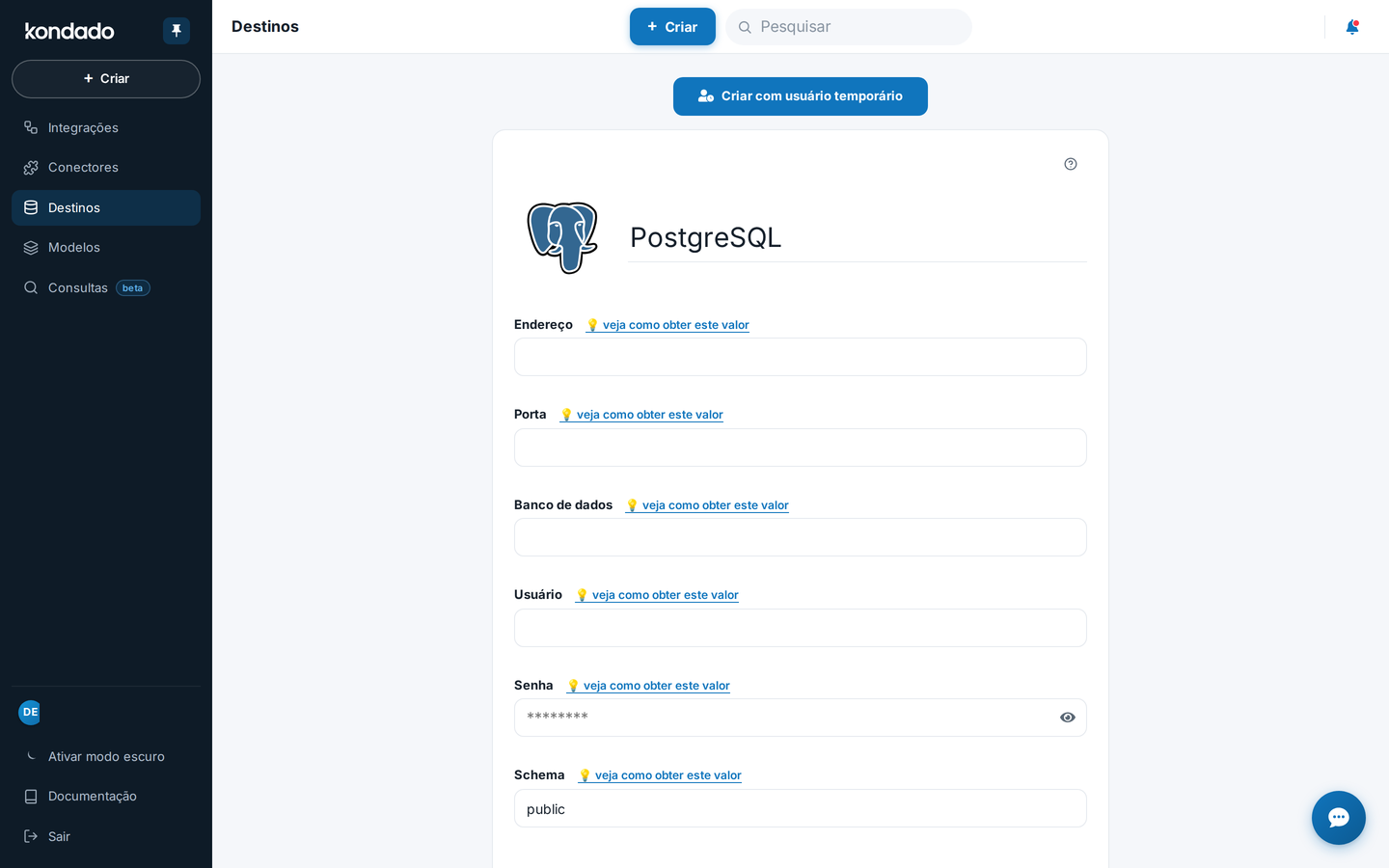
7. Fill out the destination parameters as follows:

7.1. Name: That's an internal description of your destination, use something that's easy to remember

7.2. Host: Use db.bit.io

7.3. Port: Use 5432

7.4. Database: use the "Database name" value from step 5

7.5. User: use the "Username" value from step 5

7.6. Password: Use the "API Key / Password" value from step 5

7.7. Schema: Leave the default value "public"

7.8 Then click save and your data destination will be created!
 

ximage-7.png.pagespeed.ic.CRxhGRjQcJ.png

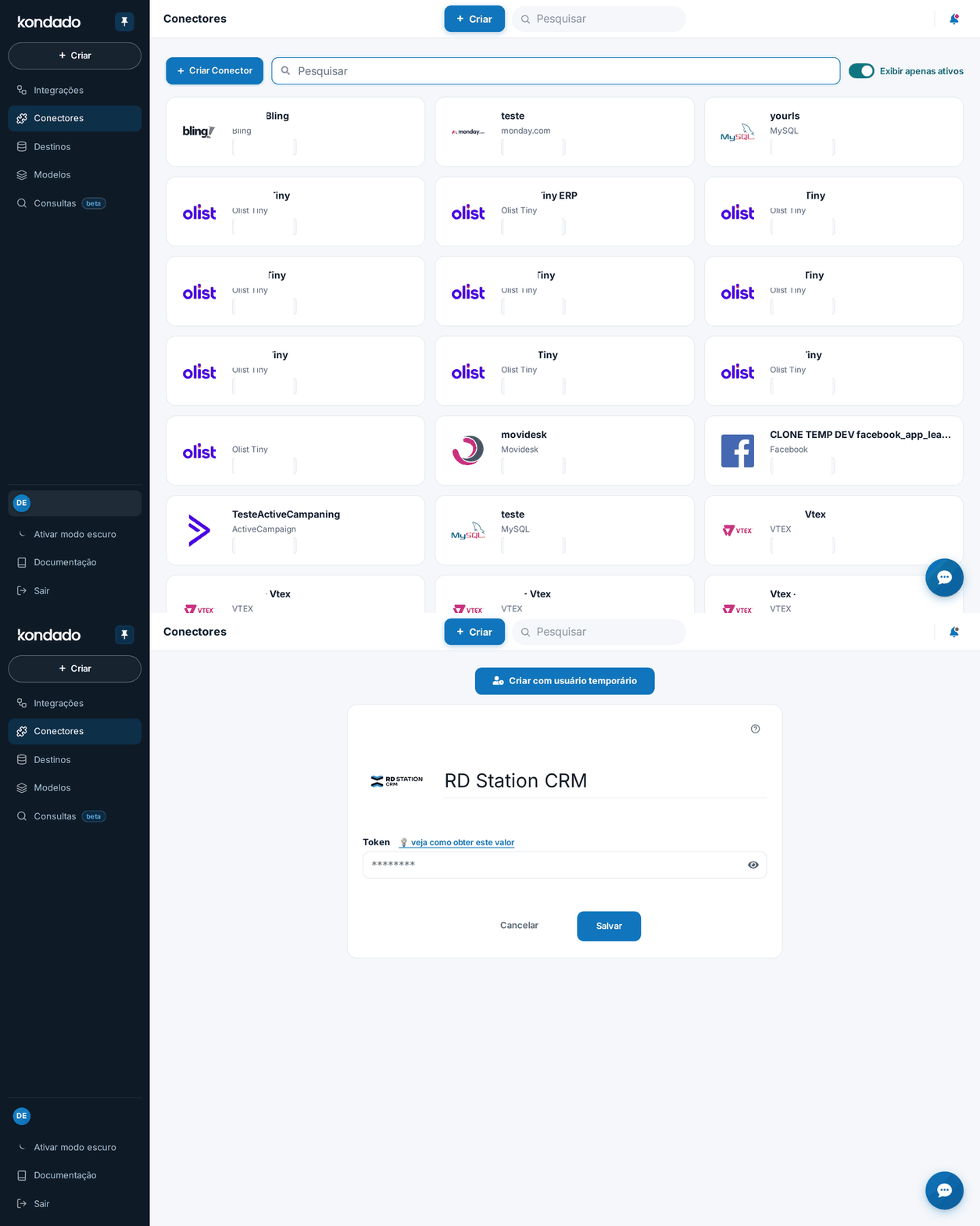
8. Once your destination has been created, click on "TEST CONNECTION" on the top left to make sure everything is working out fine!
ximage-8.png.pagespeed.ic.nfbZjwEqBM.png

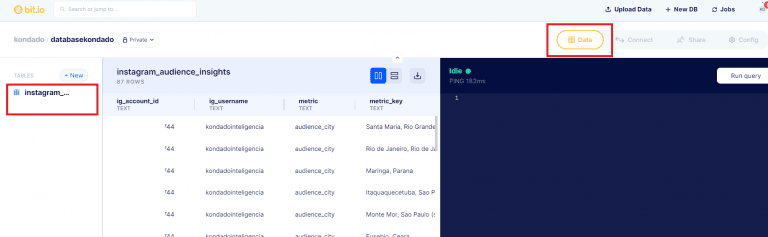
9. Now carry on with creating your Kondado data source and creating your data pipeline to your new bit.io destination. Once your data has been replicated, you can see it on bit.io's "Data" tab
ximage-9-768x237.png.pagespeed.ic.ZqaApcpJ5J.png

As of March 1st 2023, bit.io's free plan offers 3GB of storage, 3 databases and up to 1 billion queried rows per month

Create a PostgreSQL Database on bit.io for Kondado

Provision a serverless PostgreSQL database on bit.io and use it as a Kondado destination.

1
Register on bit.io

Go to <a href="https://bit.io/register">bit.io and create your account.

2
Create a new database

Once logged in, click +New DB in the top-right corner and give the database a name.

3
Copy the connection details

Click Connect and note the host (db.bit.io), port (5432), database name, username, and API key (used as the password).

4
Add bit.io as a Kondado destination

In Kondado, create a new PostgreSQL destination and paste the bit.io connection details, including a schema name.

5
Test and start replicating

Click TEST CONNECTION. Once it succeeds, create your sources and pipelines to start replicating data into your bit.io PostgreSQL database.

Frequently asked questions

What is bit.io and why should I use it with Kondado?
bit.io provides a fast and easy way to set up a serverless PostgreSQL database. It offers a free plan that is a great alternative for users with low data volume who wish to replicate data using Kondado. As of March 1st 2023, the free plan includes 3GB of storage, 3 databases and up to 1 billion queried rows per month.
What connection details do I need from bit.io to use as a Kondado destination?
After creating your database on bit.io, click "Connect" in the top right corner to see your connection details. You will need: Host (db.bit.io), Port (5432), Database name, Username, and API Key / Password. For the Schema field, leave the default value "public". You can then configure PostgreSQL as your data destination on Kondado.
How do I create a data pipeline after setting up my bit.io destination?
Once your destination has been created and you've clicked "TEST CONNECTION" to verify everything works, carry on with creating your Kondado data source and creating your data pipeline to your new bit.io destination. After your data has been replicated, you can see it on bit.io's "Data" tab. Learn more about data integration on our platform.
What are the limitations of bit.io's free plan?
As of March 1st 2023, bit.io's free plan offers 3GB of storage, 3 databases and up to 1 billion queried rows per month. This makes it suitable for users with low data volume who want to replicate data using Kondado without incurring costs.
How do I test if my bit.io destination is properly connected to Kondado?
After filling out all destination parameters (Name, Host, Port, Database, User, Password, and Schema) and clicking save, click on "TEST CONNECTION" on the top left to make sure everything is working correctly before proceeding to create your data source and pipeline.

Written by·Published 2023-10-20·Updated 2026-04-26