Creating the data source
Adding the data source
Kondado connects to Salesforce through an External Client App (OAuth 2.0 client credentials flow), created once in your org. You will only need to copy three values: the Consumer Key, the Consumer Secret and the My Domain URL. Follow the steps below with a Salesforce administrator user.
1. Create the External Client App
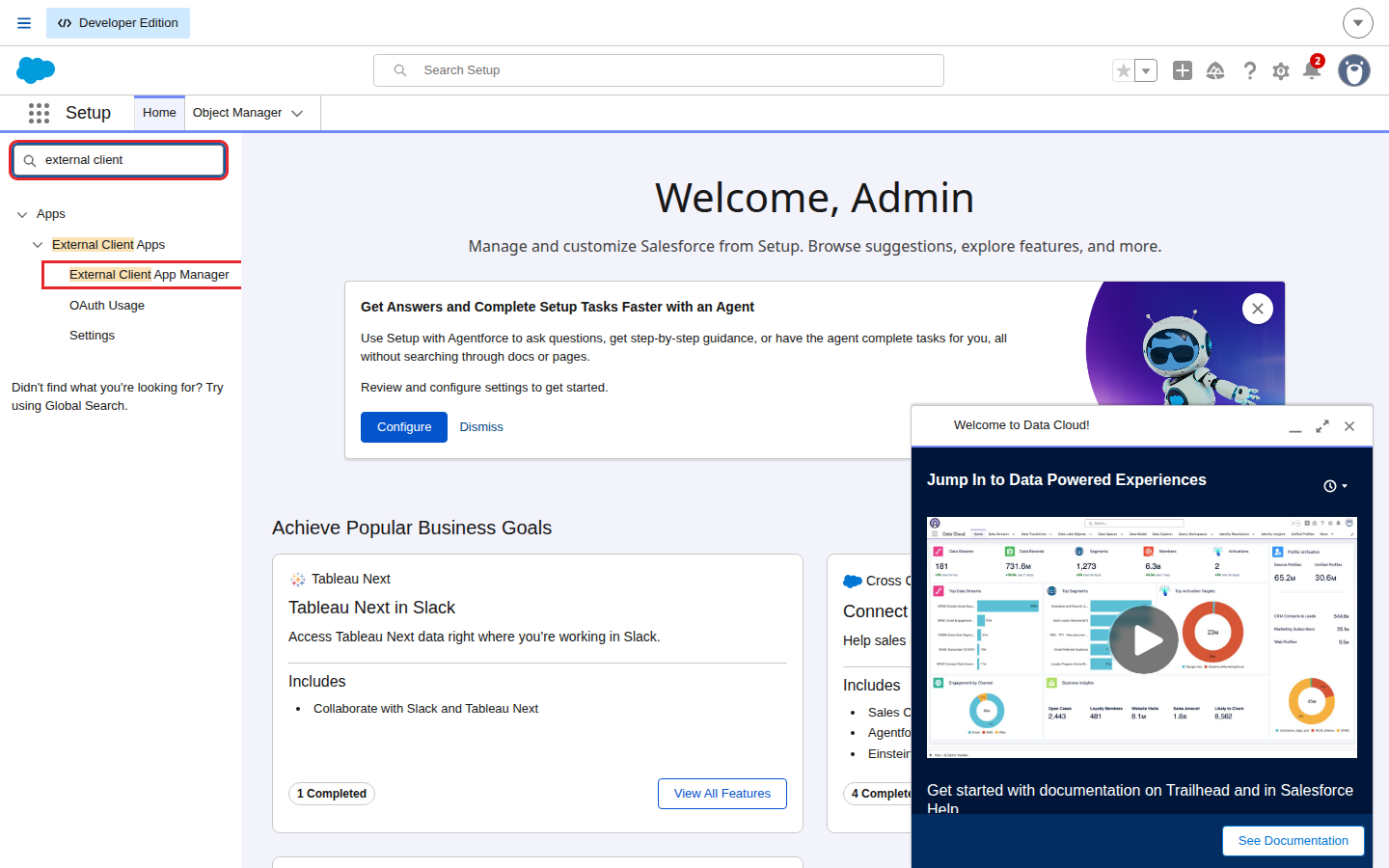
1) In Salesforce, open Setup, type external client in the Quick Find box and click External Client App Manager
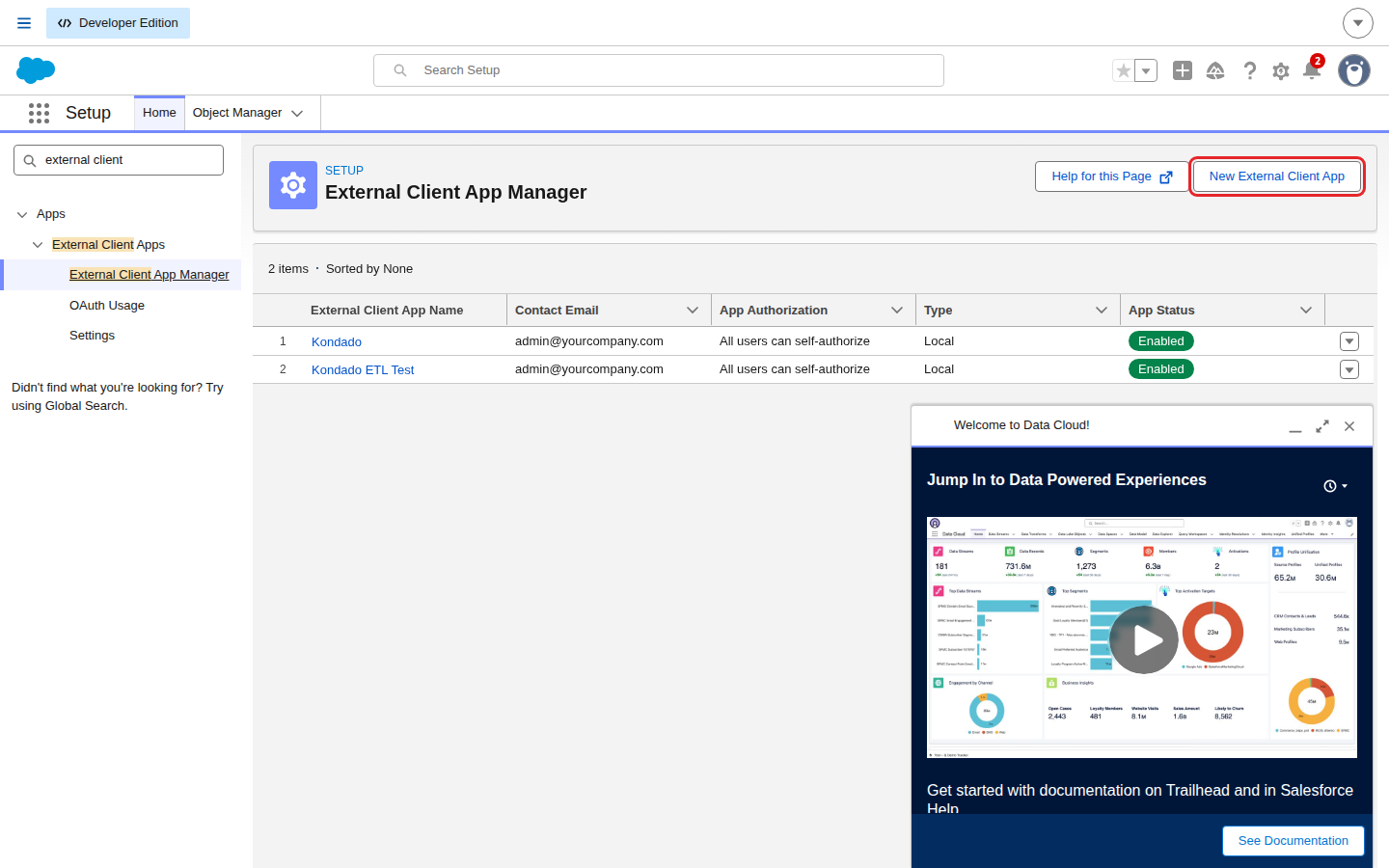
2) Click New External Client App
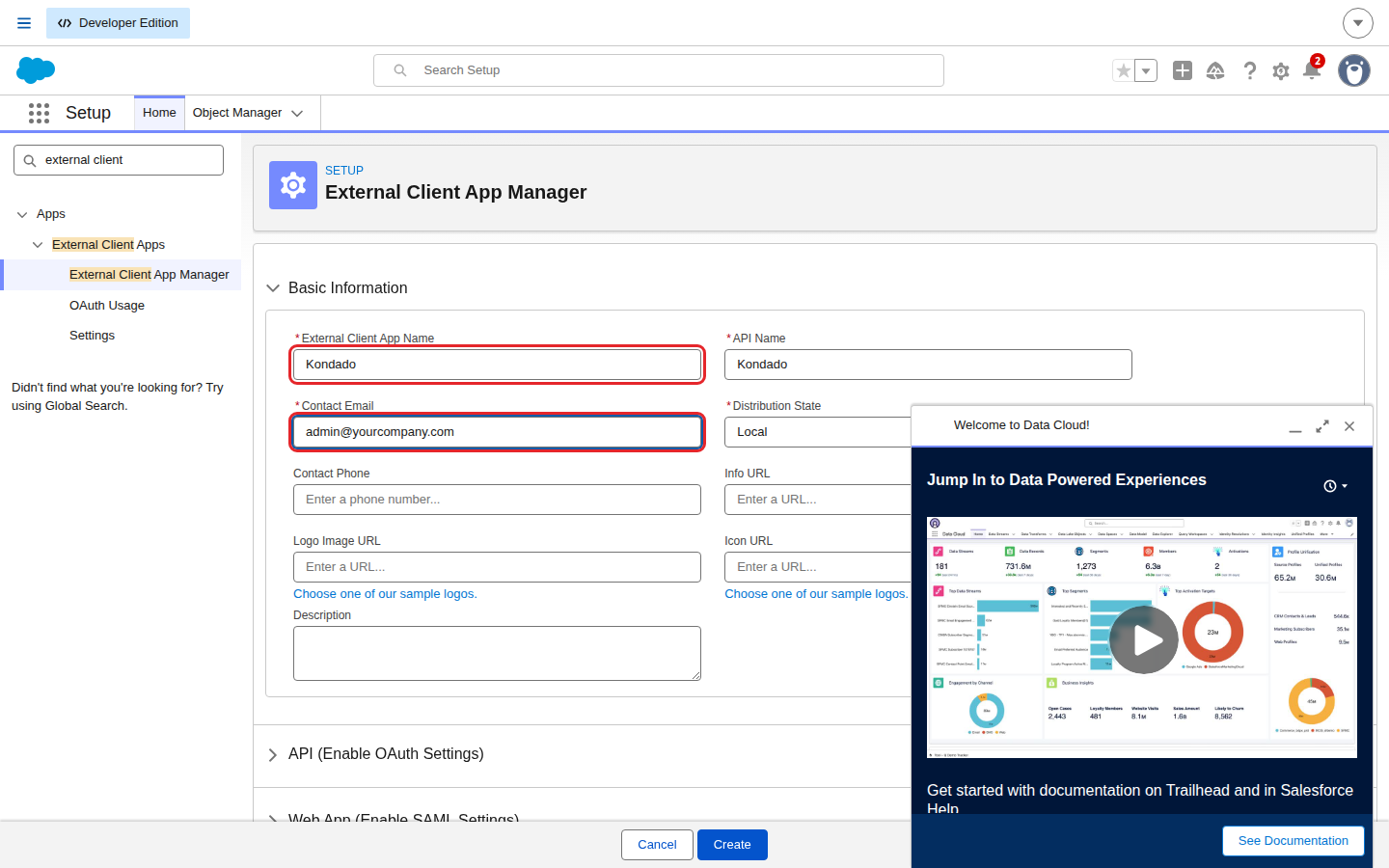
3) Under Basic Information, fill in the app name (for example, "Kondado") and a contact email. The other fields can stay as they are
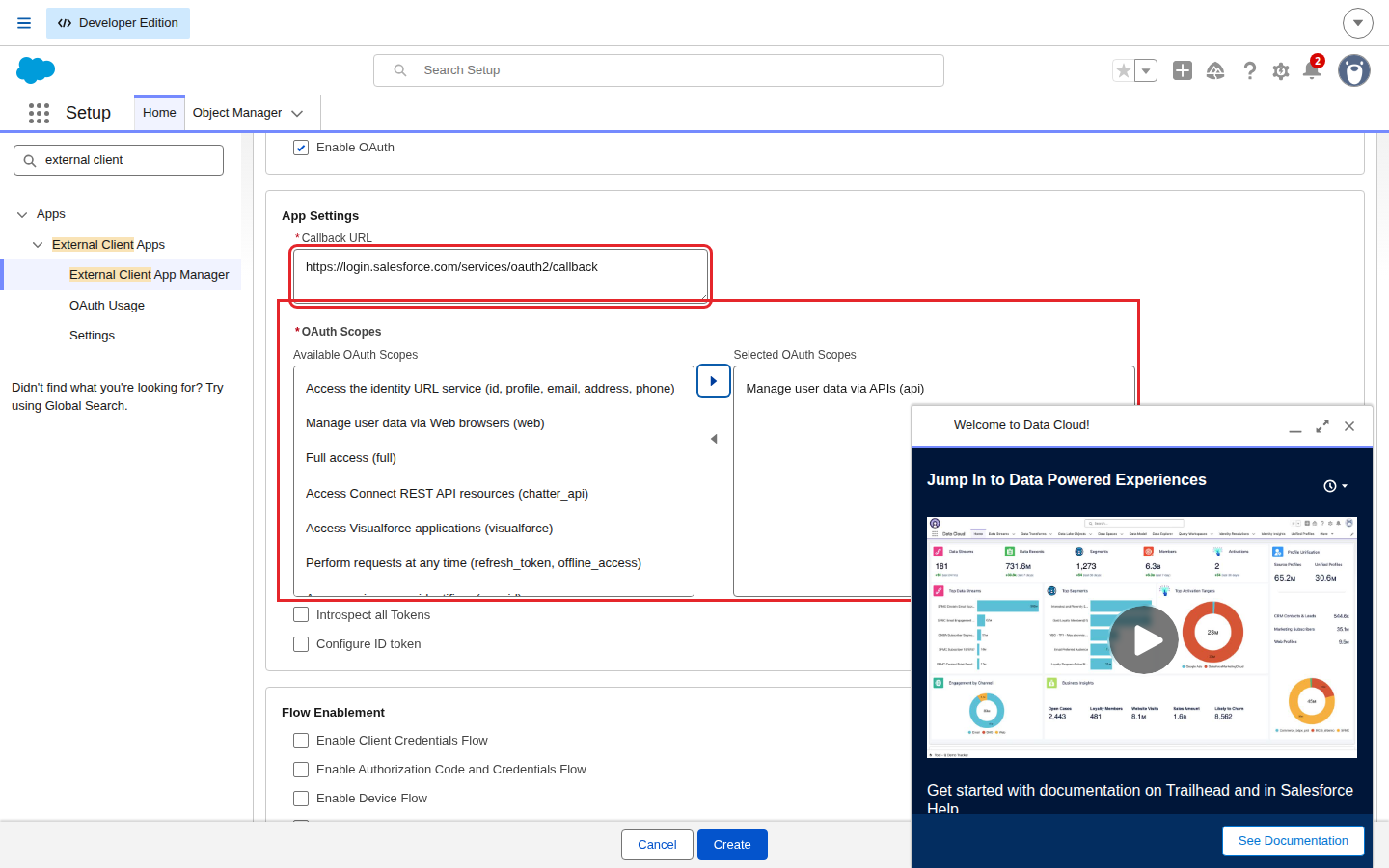
4) Open the API (Enable OAuth Settings) section, check Enable OAuth, fill in the Callback URL with https://login.salesforce.com/services/oauth2/callback (Kondado does not use it, but the field is required) and add the Manage user data via APIs (api) scope
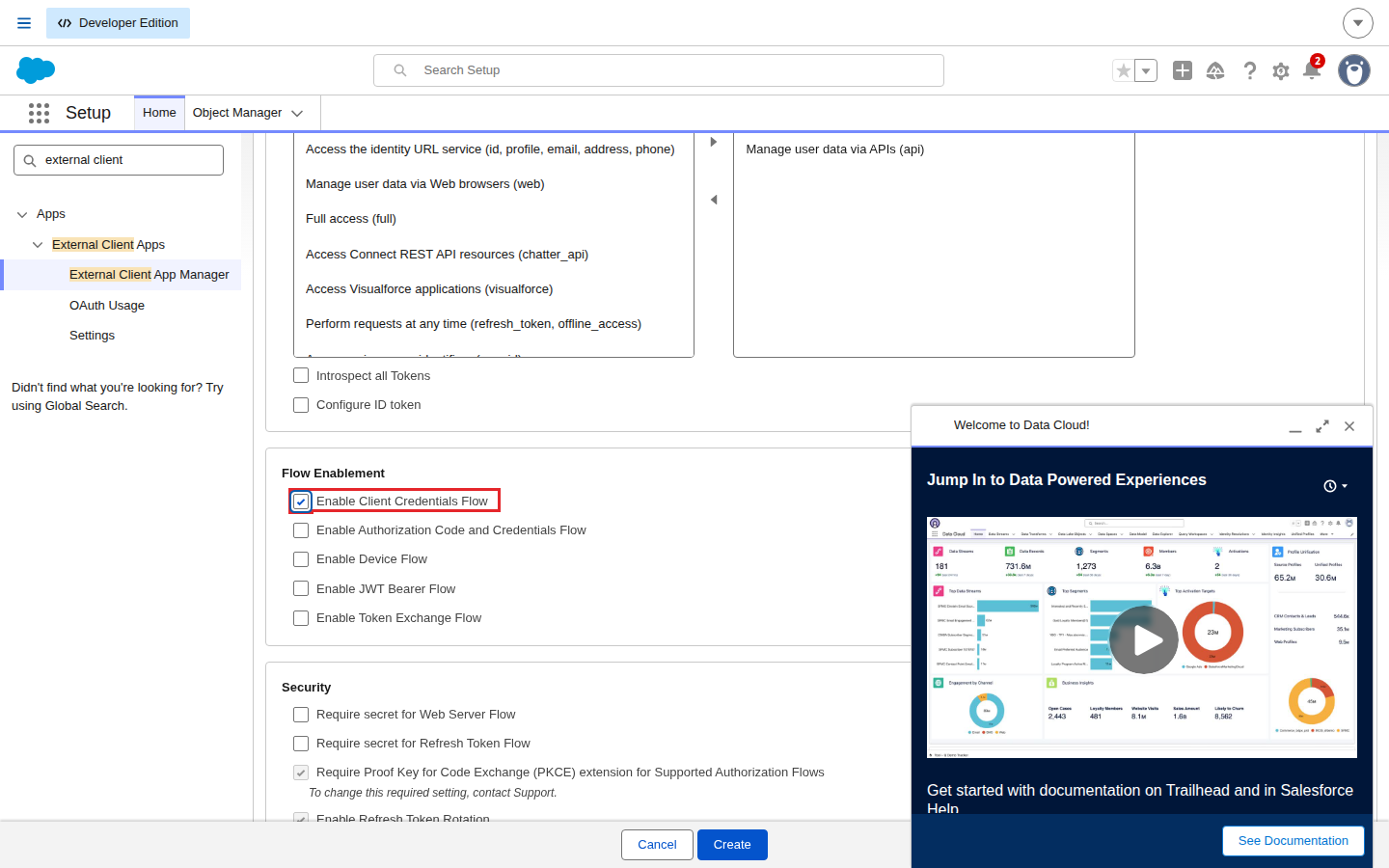
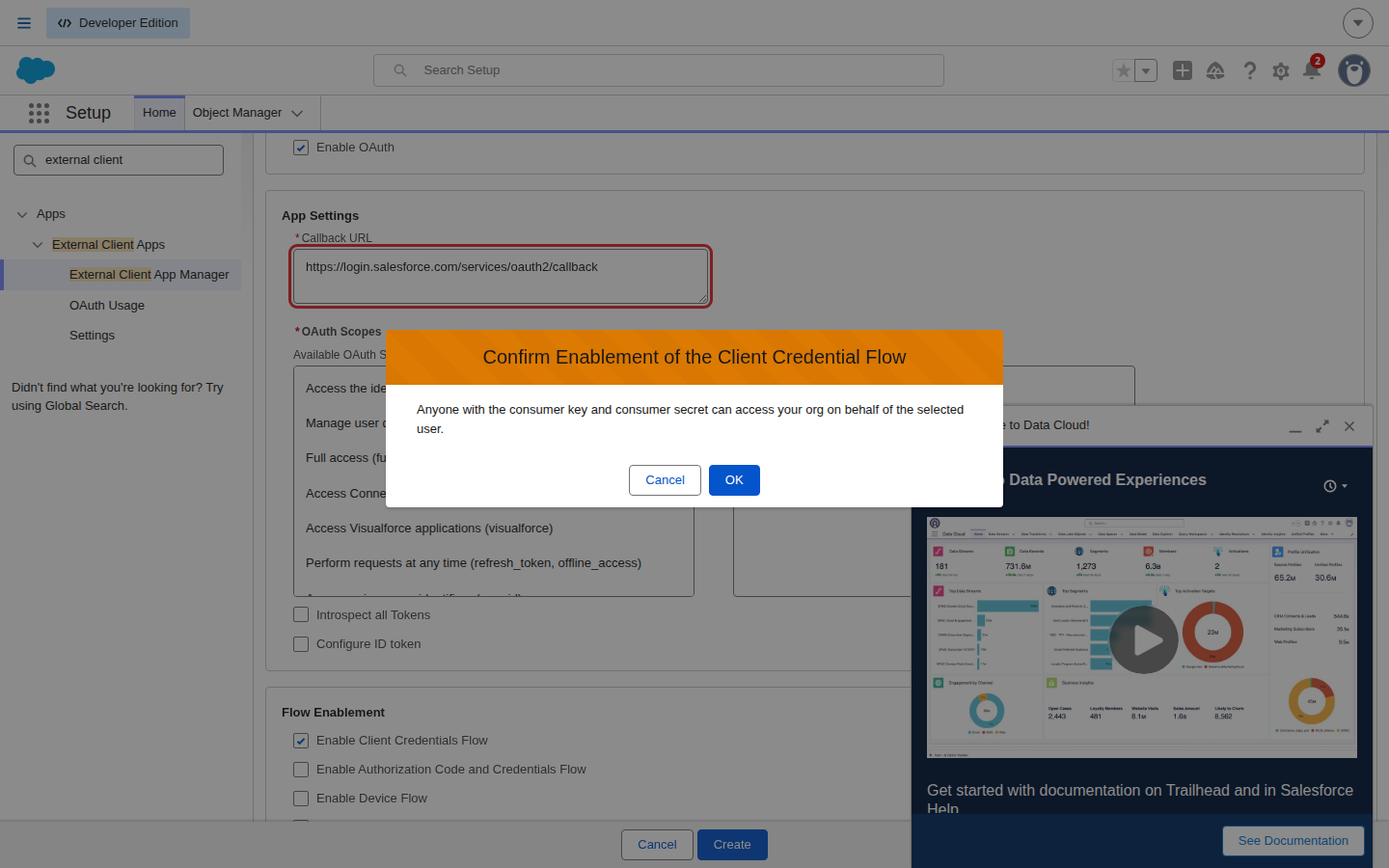
5) Still in that section, under Flow Enablement, check Enable Client Credentials Flow, confirm with OK and click Create
2. Set the run-as user and the IP policy
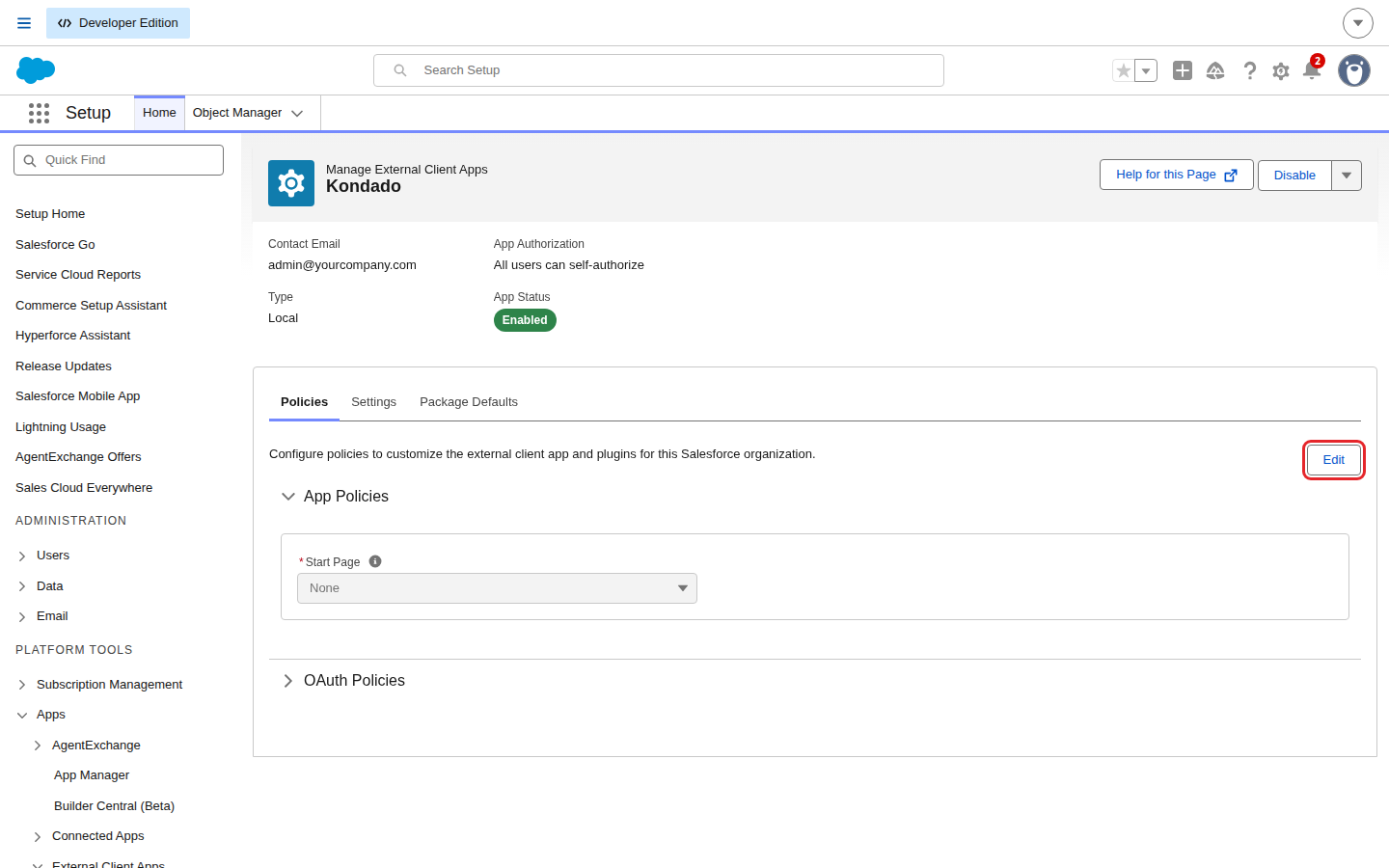
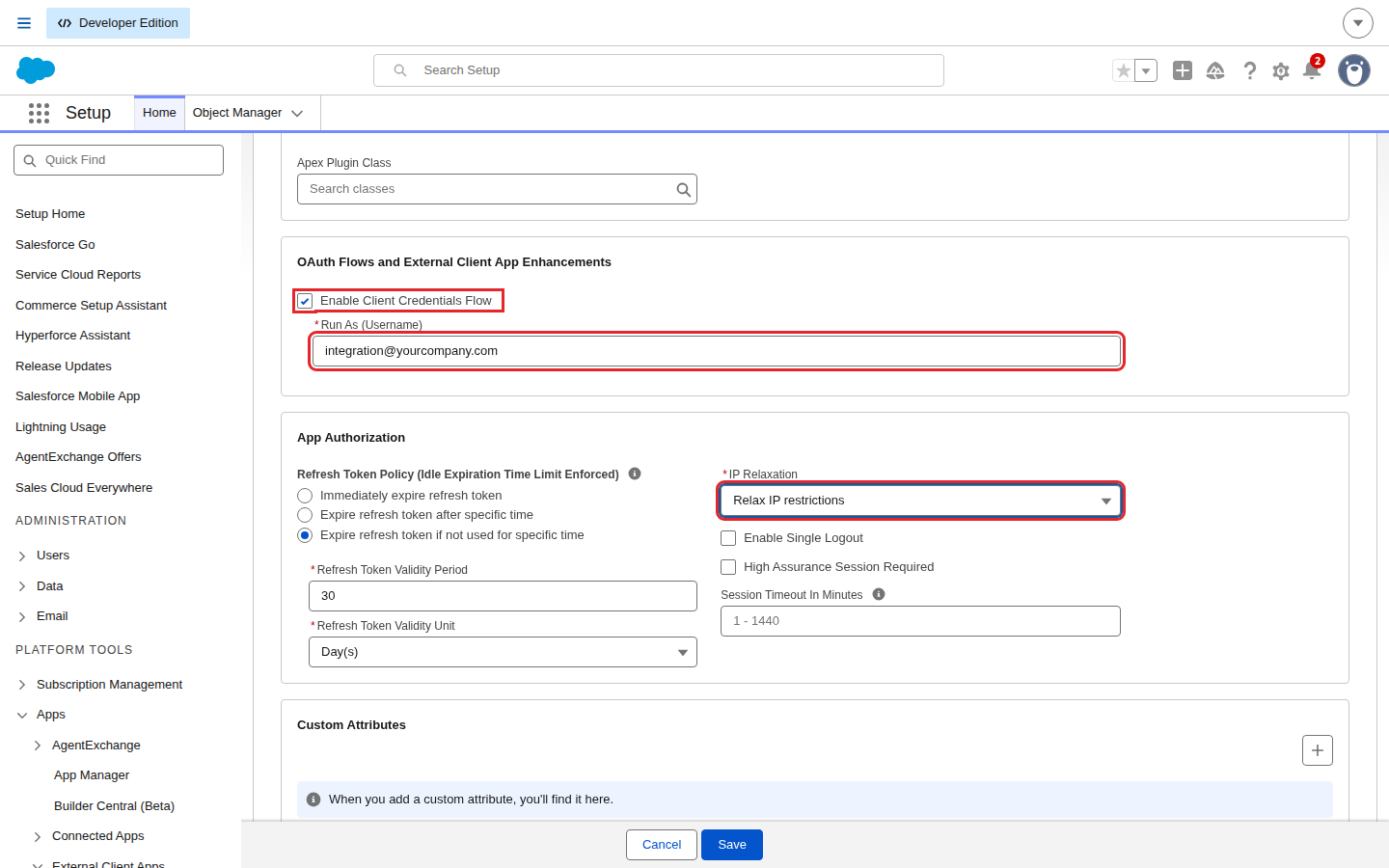
6) On the app page, on the Policies tab, click Edit
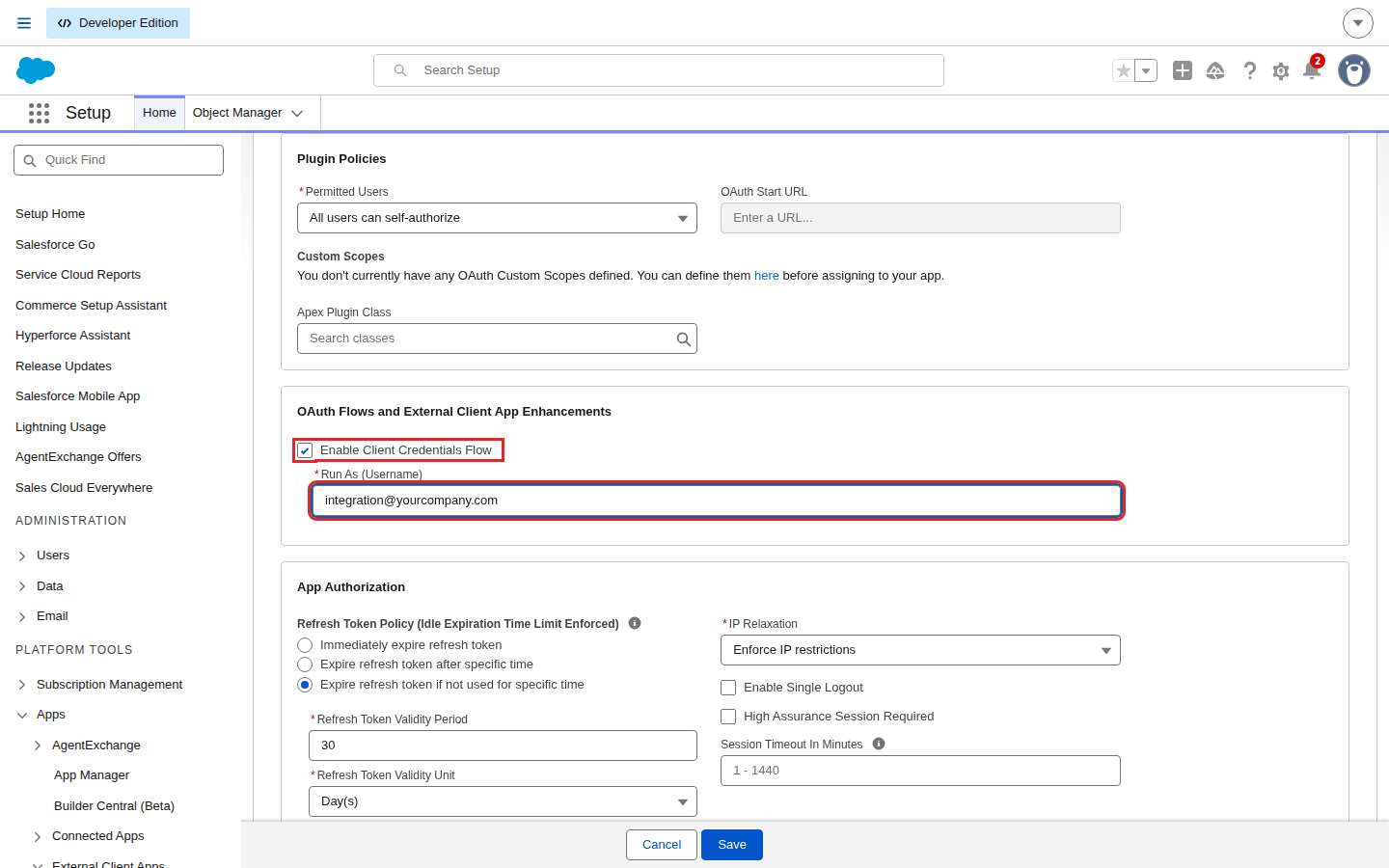
7) Under OAuth Policies, check Enable Client Credentials Flow and set Run As (Username) to the Salesforce username with access to the objects you want to replicate. Kondado only sees what this user sees
8) Under IP Relaxation, choose Relax IP restrictions (Kondado does not use a fixed IP) and click Save
3. Copy the key, the secret and the domain
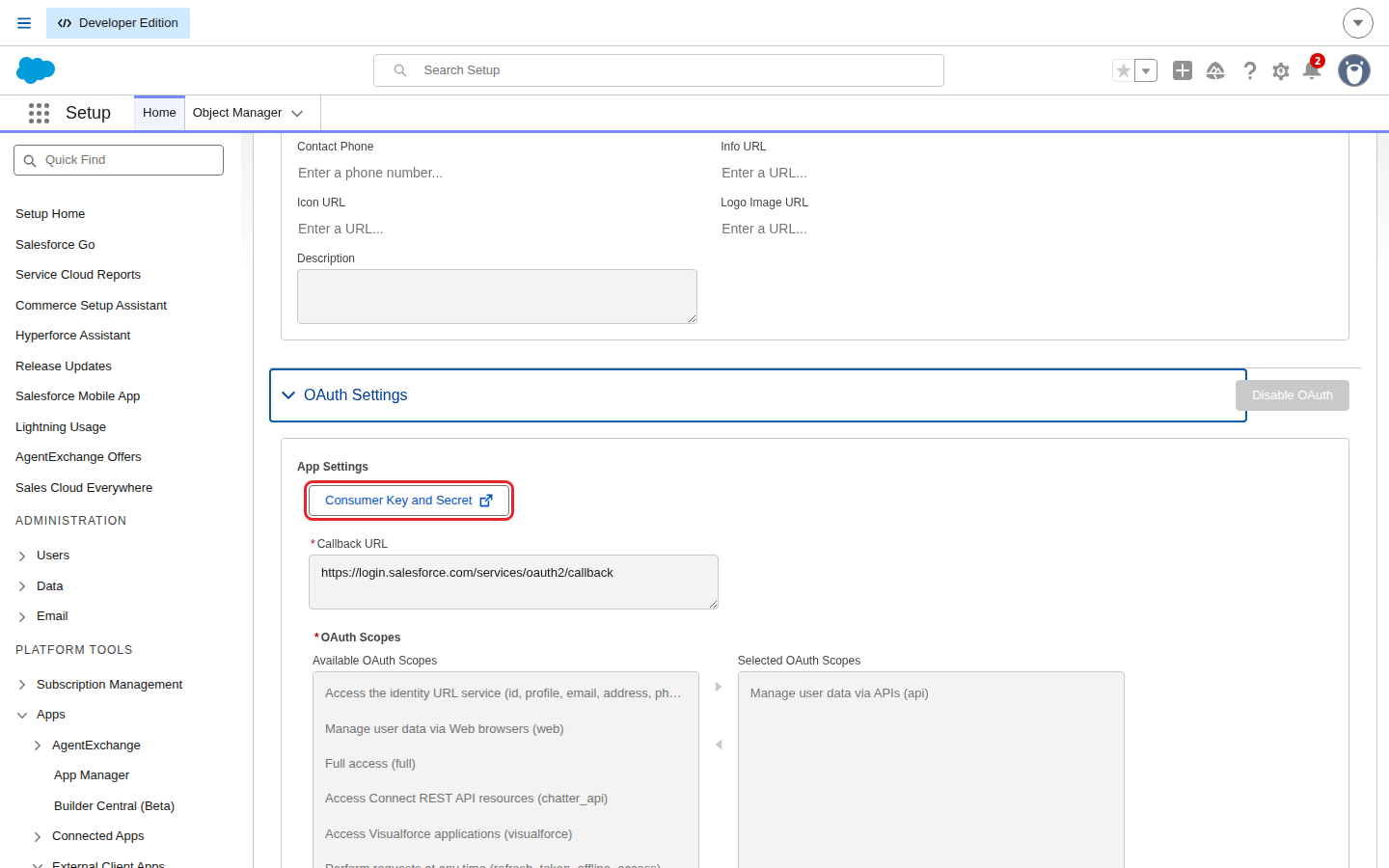
9) On the Settings tab, open OAuth Settings and click Consumer Key and Secret. Salesforce will ask for the verification code sent to your email
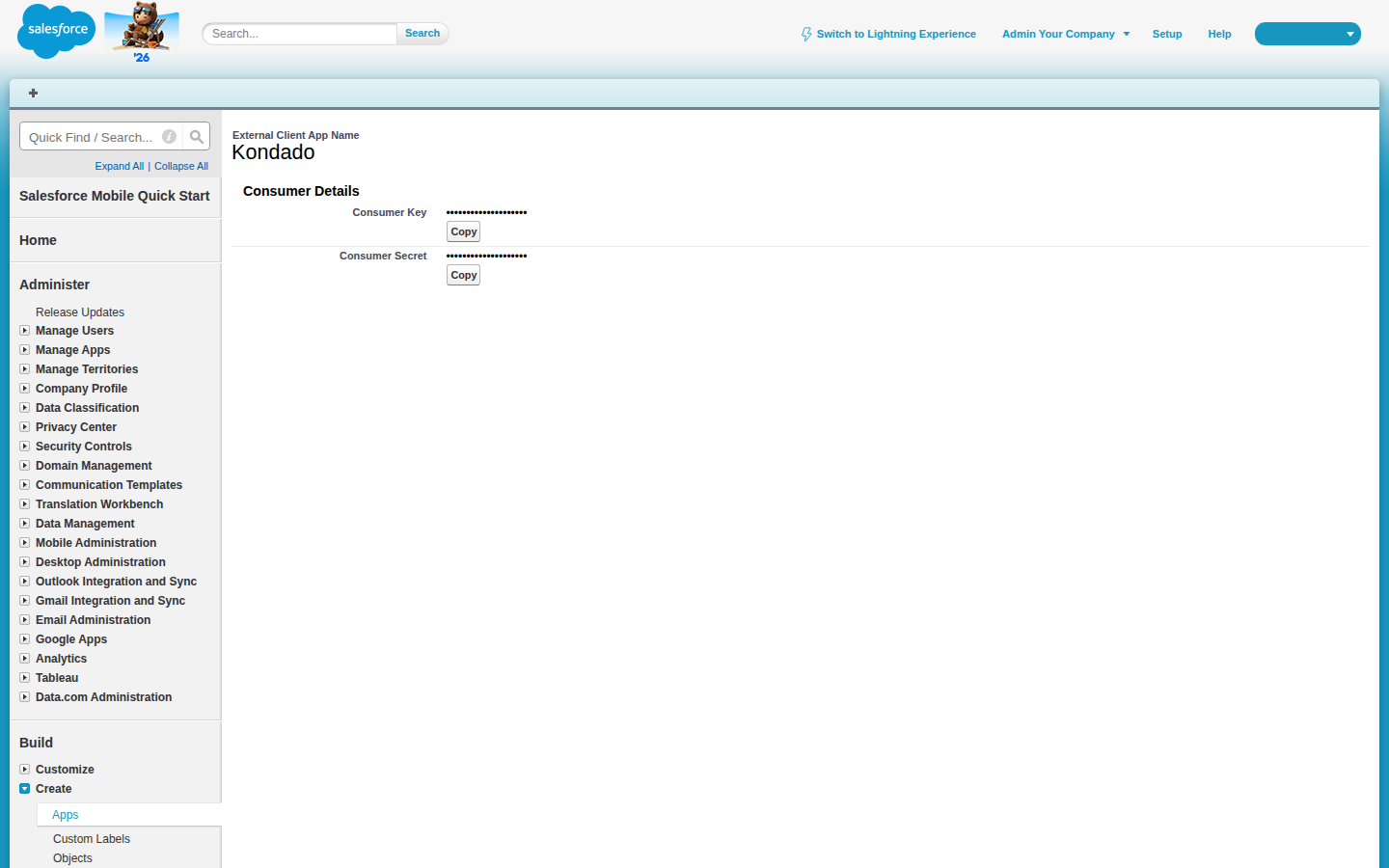
10) Copy the Consumer Key and the Consumer Secret
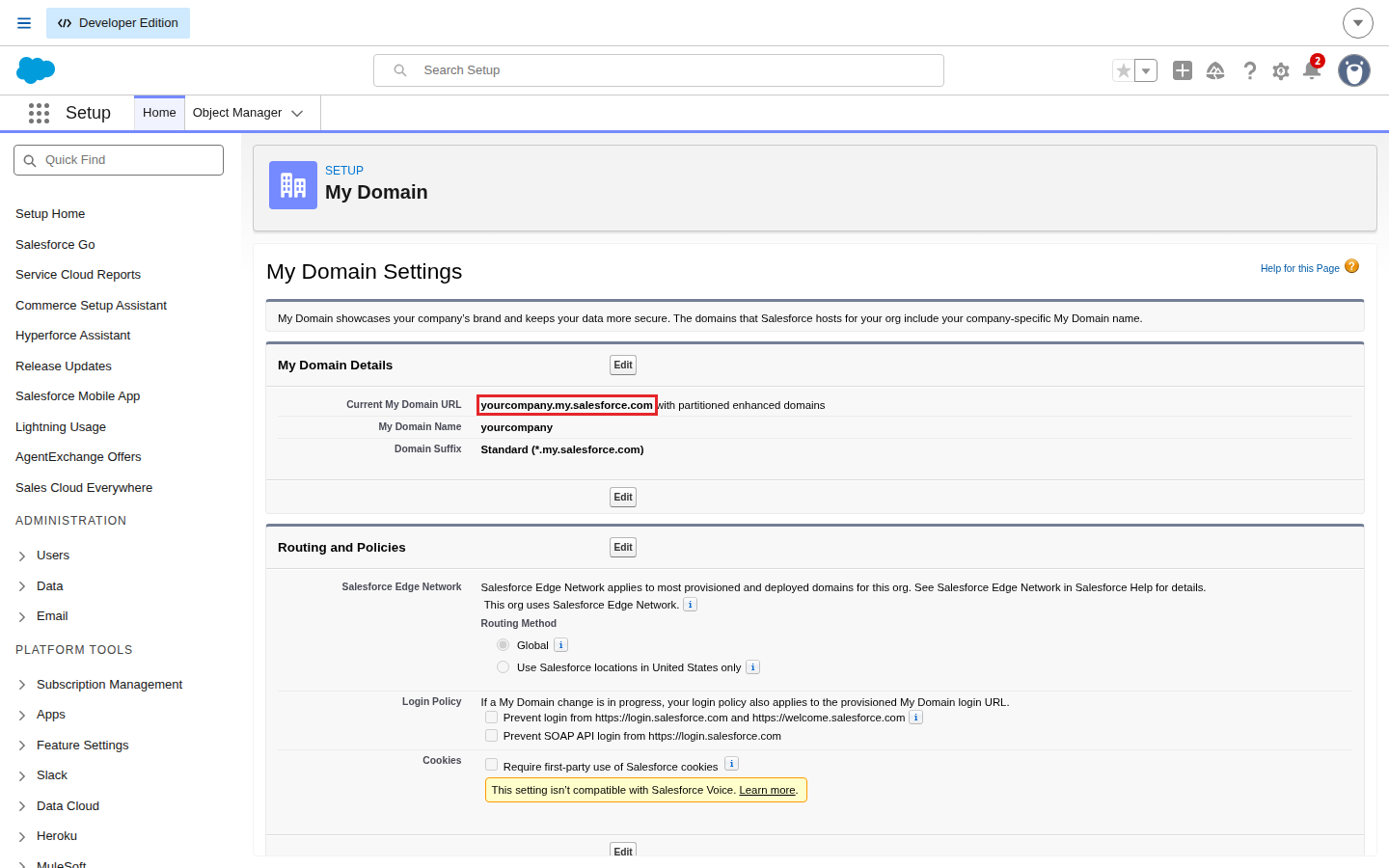
11) In Setup, search for My Domain and copy the Current My Domain URL. You can also paste the address shown in your browser while logged in to Salesforce
4. Add the data source on Kondado
12) On the Kondado platform, go to the add new sources page, select the Salesforce data source and fill in Consumer Key, Consumer Secret and My Domain URL with the copied values
Now you can save the data source and start replicating your Salesforce Service Cloud or Sales Cloud objects into your Data Warehouse or Data Lake!
Already have a Salesforce data source with email, password and security token? It keeps working for now, but Salesforce will retire that login method starting with Summer '27 (from May 2027). To avoid any interruption, create the app following the steps above and edit your data source on Kondado filling in the new fields.
Pipelines
Summary
Relationship chart
Click to expand
Object
- Only objects that the user who created the data source has access to — and that exist in the organization — will be available
- Returned records can be filtered according to the access of the user who created the data source
- When creating an incremental pipeline (using, for example, the LastModifiedDate column), deleted records will not be synchronized. To reflect removals, use the integral (full) replication mode
Replication type: Incremental or Full (user configurable)
Parameters:
- Object: Select the Salesforce object (table) you want to read
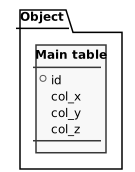
Table for the Salesforce object selected when the pipeline is created. The Salesforce connector is dynamic/self-service: each pipeline replicates an object chosen by the customer (a standard object such as Account, Contact or Opportunity, or a custom object ending in __c). Each row corresponds to one record of that object and the columns are determined at runtime from the object's schema in Salesforce. This catalog entry is a generic template; the actual table and field names depend on the configured object.
| Campo | Tipo | |
|---|---|---|
|
text |
[en] Unique Salesforce record identifier (Salesforce Id), assigned automatically. Primary key of the table. |
|
|
text |
[en] Generic example column (placeholder). The Salesforce connector is dynamic/self-service: the table's real columns are defined at runtime from the fields of the selected Salesforce object. This field represents an arbitrary column of that object and has no fixed meaning of its own. |
|
|
text |
[en] Generic example column (placeholder). The Salesforce connector is dynamic/self-service: the table's real columns are defined at runtime from the fields of the selected Salesforce object. This field represents an arbitrary column of that object and has no fixed meaning of its own. |
|
|
text |
[en] Generic example column (placeholder). The Salesforce connector is dynamic/self-service: the table's real columns are defined at runtime from the fields of the selected Salesforce object. This field represents an arbitrary column of that object and has no fixed meaning of its own. |
Notes
- Part of this documentation was automatically generated by AI and may contain errors. We recommend verifying critical information
Add Salesforce as a Data Source on Kondado
Follow these steps to connect your Salesforce Sales Cloud or Service Cloud data to your Data Warehouse or Data Lake through Kondado.
Create the External Client App in Salesforce
As an administrator, open Salesforce Setup, search for "External Client App Manager" and click "New External Client App". Under "API (Enable OAuth Settings)", check "Enable OAuth", add the "Manage user data via APIs (api)" scope, check "Enable Client Credentials Flow" and click "Create".
Set the run-as user and the IP policy
On the app's "Policies" tab, click "Edit", check "Enable Client Credentials Flow", set "Run As" to a user with access to the objects you want to replicate, choose "Relax IP restrictions" under "IP Relaxation" and save.
Copy the key, the secret and the domain
On the "Settings" tab, under "OAuth Settings", click "Consumer Key and Secret" and copy both values. In Setup > "My Domain", copy the Current My Domain URL.
Add the data source on Kondado
On the Kondado platform, go to the add new sources page, select Salesforce and fill in the Consumer Key, Consumer Secret and My Domain URL. Save the data source to start replicating standard and custom objects, with optional incremental sync using columns like LastModifiedDate.
