
One of the most powerful features of Looker Studio is the ability to create calculated fields. These fields are derived from formulas that combine one or more existing fields in your data source. They allow you to apply mathematical operations, text transformations, conditional logic, and various other functions directly within Looker Studio.
For example, you can use calculated fields to create custom metrics such as profit margin, conversion rate, or any specific measure not present in your original data source.
Tutorial for Creating Calculated Fields in Looker Studio
- Access the Report where you want to create a calculated field.

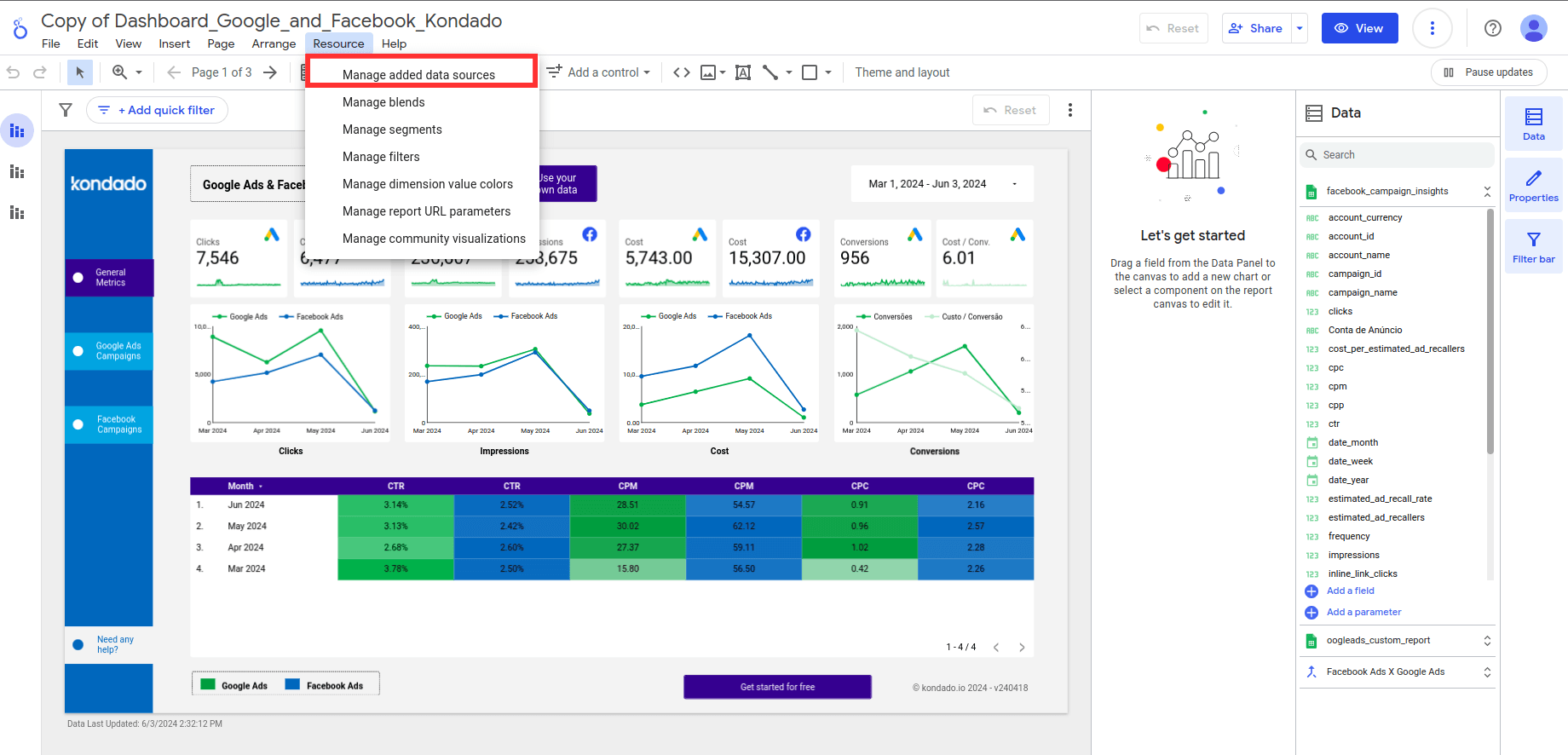
- Click on “Resources” in the top menu and then select “Manage added data sources”.
- Click on “Edit” next to your data source.
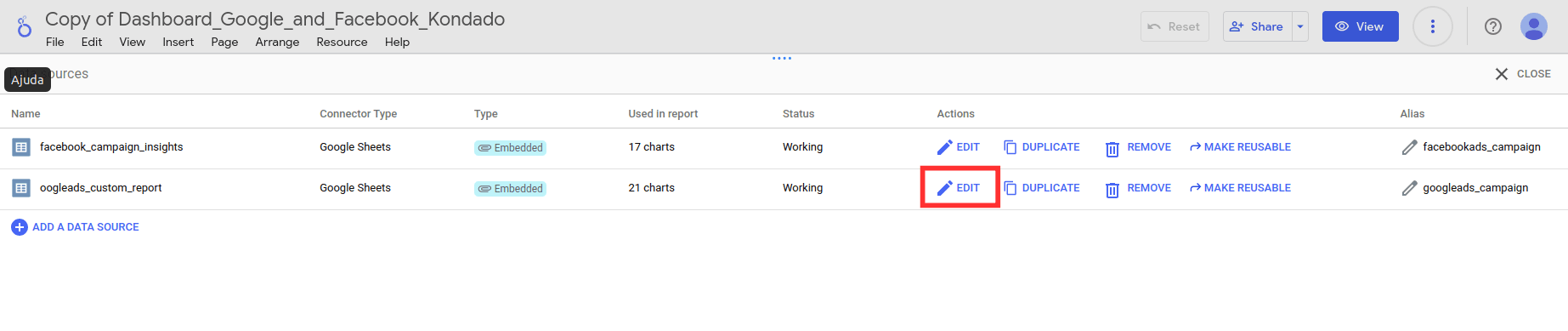
If you don’t have a data source added yet, click “Add data” and select the data source containing the necessary information for your calculated field.
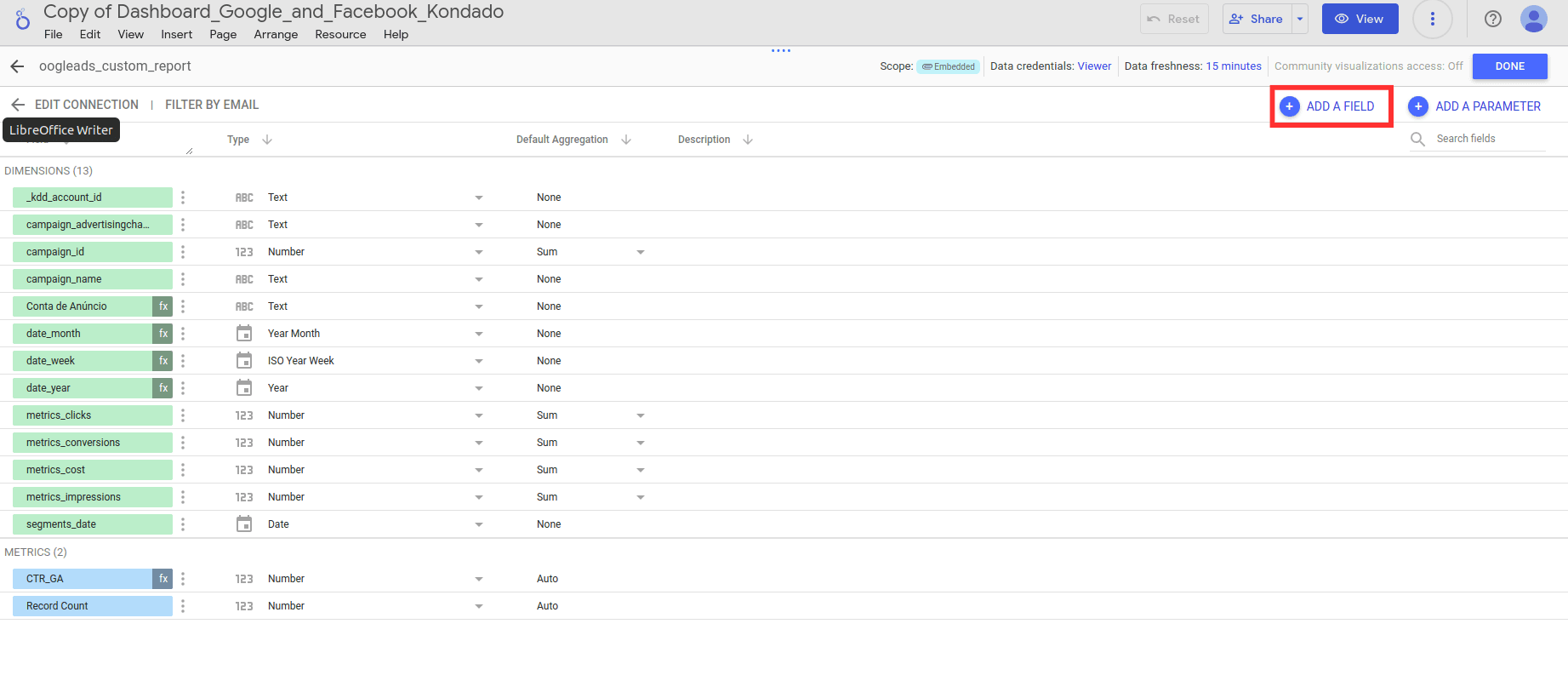
- Then, click on “Add a Field” and select “Add calculated field”.
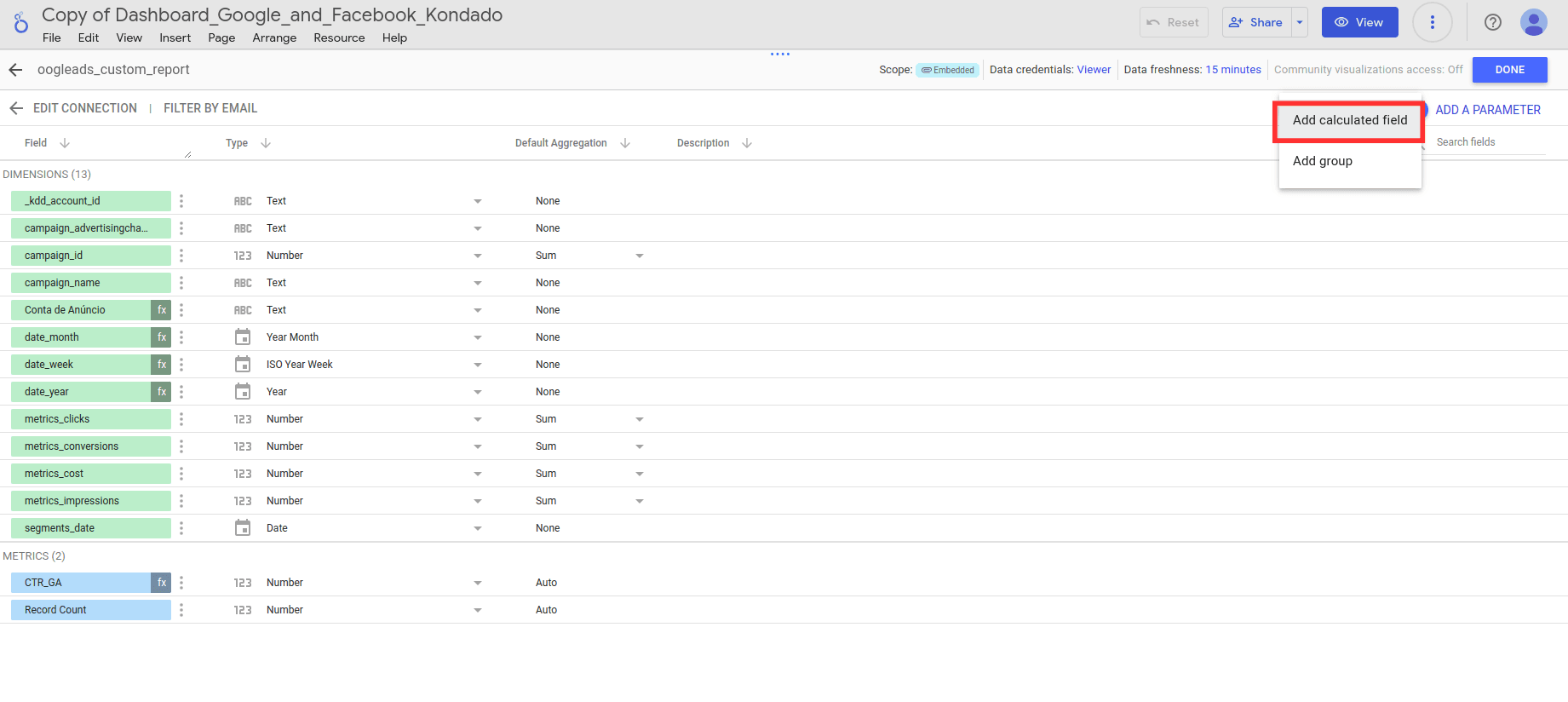
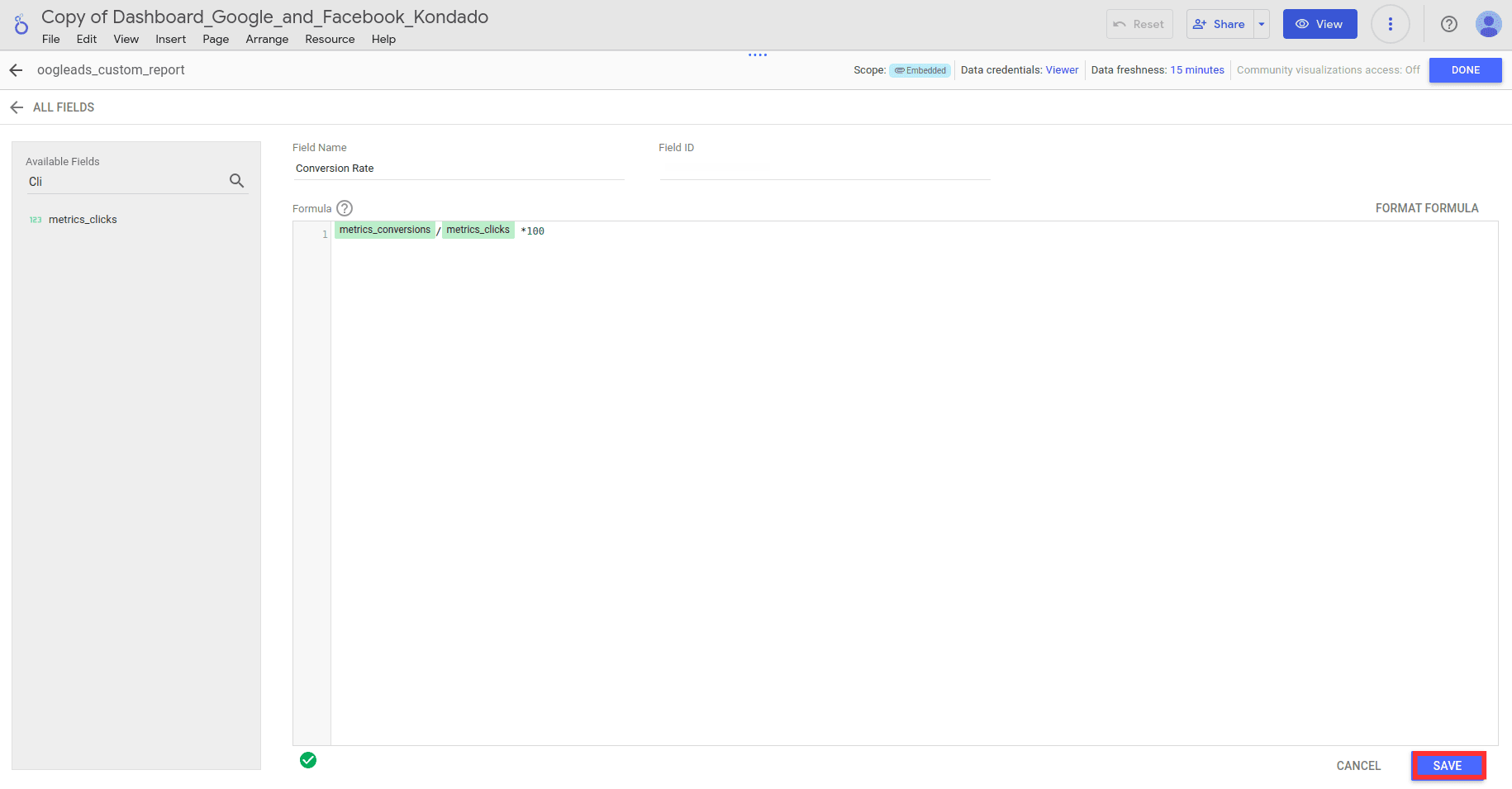
After entering the function , click “Save” to create the calculated field. It will now be available for use in your charts, tables, and other visualizations within Looker Studio.
- To use your new calculated field, select a visualization (such as a chart or table), click the pencil icon, and add the calculated field as a metric or dimension as appropriate.
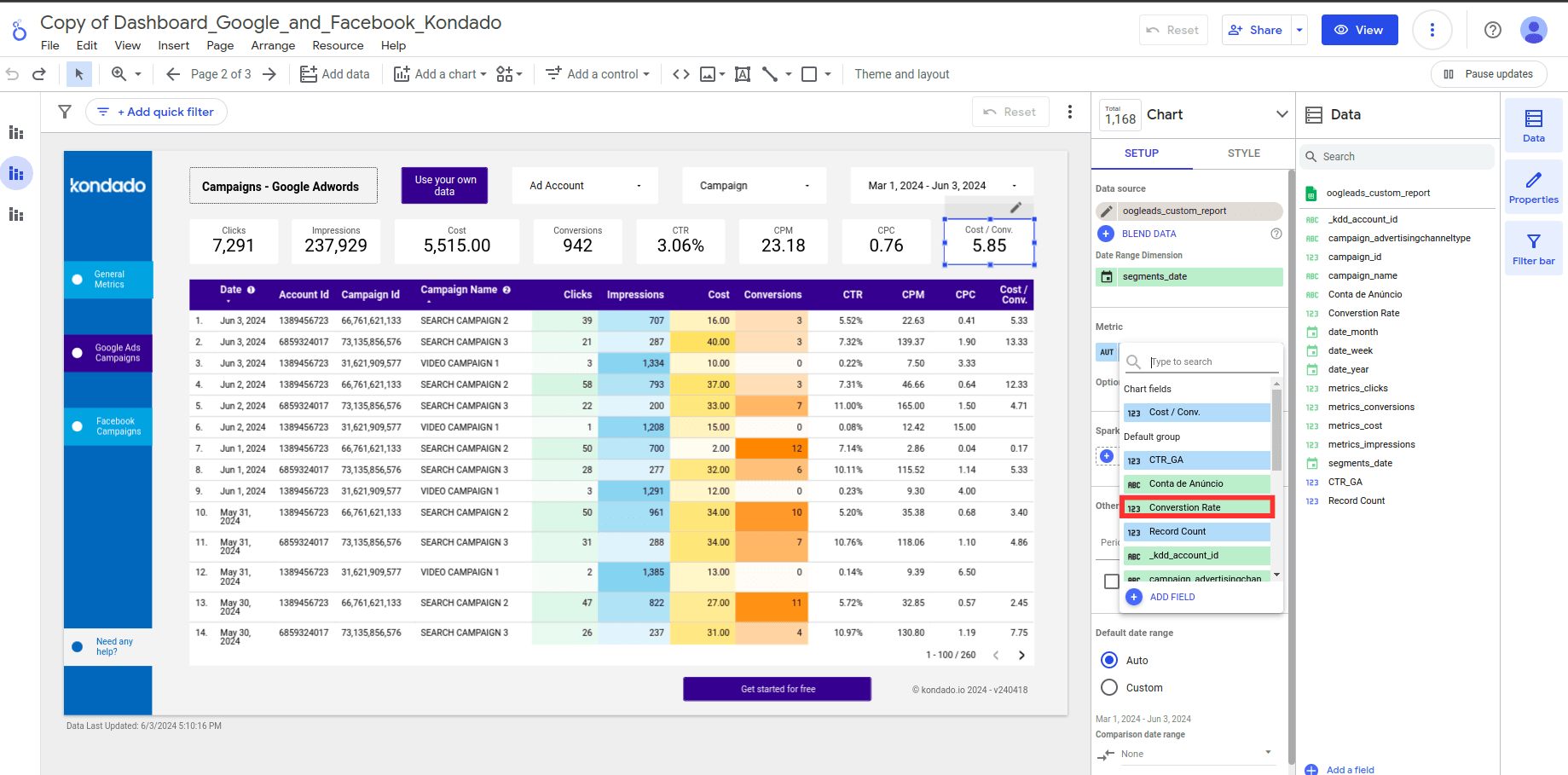
- Adjust the visualization settings as needed to display your data clearly and informatively.
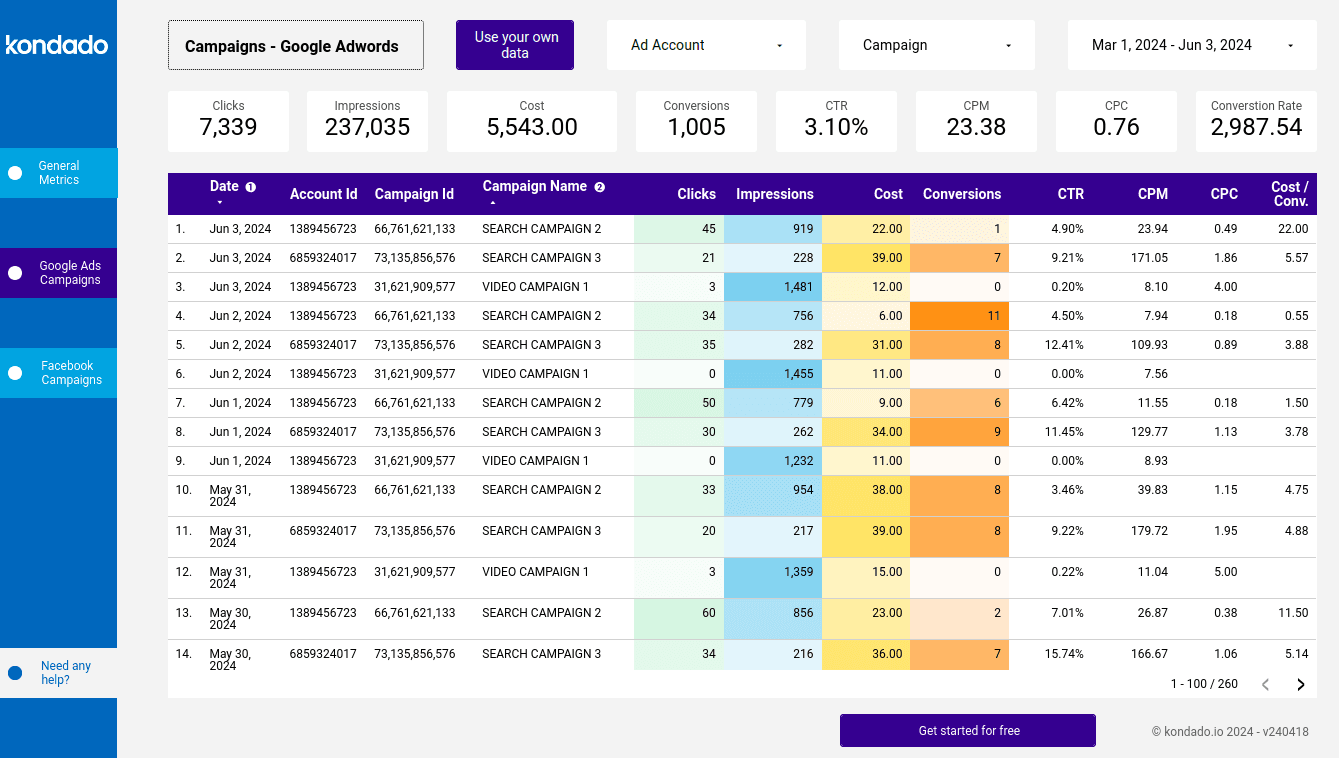
At Kondado, we make data analysis easier with agile tools and integrations designed for seamless connectivity without requiring coding. Our templates for Looker Studio include:
Conclusion
Calculated fields are an essential tool in Looker Studio, enabling the creation of custom metrics that help answer specific questions and generate valuable insights. With this functionality, you can elevate your data analyses, tailoring visualizations precisely to your needs.
Create a Calculated Field in Looker Studio
Add a custom metric or dimension to a Looker Studio report by defining a calculated field on the data source.
Open the report and access data sources
Open your Looker Studio report, click Resource > Manage added data sources, and choose the data source that should host the calculated field.
Edit the data source
Click Edit next to the data source. If no source is connected yet, use Add data and pick the connector containing the fields you need.
Add the calculated field
Click Add a Field > Add calculated field. Enter a clear field name (it will appear in your report) and write the formula using existing fields and Looker Studio functions.
Save and use the calculated field in visuals
Click Save, return to the report, select a chart, click the pencil icon, and add the new field as a metric or dimension.
Feed Looker Studio with consolidated data
Connect more sources via Kondado and route them to BigQuery, Google Sheets, or another destination so your calculated fields work on a complete dataset.
