
What is SUMIF?
The SUMIF function in Excel allows for the summation of values based on specific criteria. Ideal for accounting, data analysis, and other situations where conditional value summation and spreadsheet control are necessary, it offers flexibility and precision when working with large volumes of information. In this article, we will explore with examples how to apply the SUMIF function in Excel, highlighting its importance and versatility.
Understanding the SUMIF Function:
The SUMIF function allows summing values in a range that meet a defined criterion. Its syntax is =SUMIF(range, criteria, [sum_range]), where:
- range: Is the set of cells that will be evaluated by the criterion.
- criteria: Defines the condition that cells must meet to be included in the sum.
- [sum_range]: (Optional) Is the range of cells you want to sum. When not specified, Excel uses the "range."
The criteria accepted by the function are:
- (greater than)
- < (less than)
- = (greater than or equal)
- <= (less than or equal)
- <> (not equal)
- = (equal)
- * (asterisk)
- ? (question mark)
Tip: Ensure that the "range" and the "sum_range" have the same number of rows and columns to avoid errors.
Understanding in Practice
Example 1
In this example, we have a list of expenses at the market during the month, as shown in the image below, and want to know how much was spent on strawberries only.
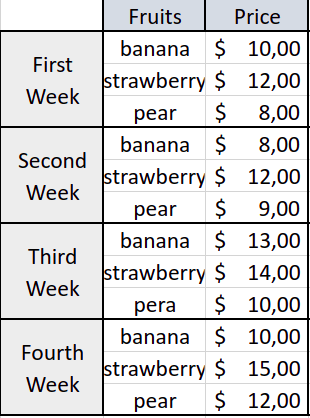
For this, we will use the SUMIF function, so that the "range" is the "Fruits" column, the "criteria" will be the fruit "strawberry," and the "[sum_range]" will be the "Value" column.

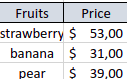
Thus, we arrive at a total of $53.00 spent on strawberries in the month.
Example 2
In this example, we have the following scenario: a store that sells car parts wants to know the store's revenue up to 12/01/24. For this situation, we will use the table below.
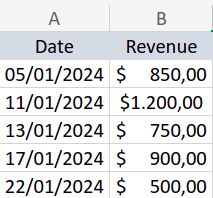
The "range" will be the "Dates" column, and before we add the "criteria," we will write "<&" in front to indicate that the selected dates must be earlier than the "criteria," which is 12/01/24. Finally, the "[sum_range]" will be the "Revenue" column.

The result obtained was $2,050.00.

Centralizing data in Excel
Conclusion
Mastering the SUMIF function in Excel is fundamental for those working with large data sets, offering an efficient and quick way to perform conditional calculations. This feature significantly expands the analytical and data management capabilities in Excel.
Now you have a practical guide on how to do SUMIF in Excel, a valuable addition to any data analysis. Continue exploring and improving your Excel skills to get the most out of your spreadsheets.
Frequently asked questions
=SUMIF(range, criteria, [sum_range]), where range is the cells evaluated by the criterion, criteria defines the condition to meet, and [sum_range] is the optional range of cells to sum. If omitted, Excel uses the range itself.> (greater than), < (less than), >= (greater than or equal), <= (less than or equal), <> (not equal), = (equal), * (asterisk wildcard), and ? (question mark wildcard) as criteria in the SUMIF function.< operator combined with the date as your criteria. For example, to sum revenue before 12/01/24, you would write "<"&DATE(2024,1,12) or "<12/01/24" as the criteria, with the Dates column as range and Revenue column as sum_range, yielding $2,050.00 in the example.