How to Use the COUNTIF and COUNTIFS Functions in Excel

How to Use the COUNTIF and COUNTIFS Functions in Excel

Introduction to Excel and the Advantages of COUNTIF:

Excel , a fundamental tool of Microsoft Office , is known for its ability to manage and analyze data efficiently. One of its most powerful and useful functions is COUNTIF, which allows counting cells according to specific criteria. This function not only saves time by avoiding manual counting but also ensures accuracy and provides valuable insights for more in-depth data analysis.

What is the COUNTIF Function?

COUNTIF in Excel is an essential tool for counting cells that meet a defined criterion. It is recommended for analyzing data in different contexts, such as sales, education, or market research.
 

Function Syntax:

COUNTIF(range; criterion)

Range: The cells to be analyzed.

Criterion: The condition that defines the count.

Practical Example

In this situation, we have an image of a store's table that contains information on who sold on which day and the value of customer purchases, and we want to know how many sales Lara made.
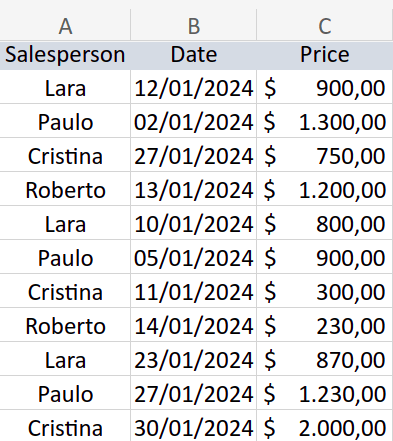
foto 1 countif.png

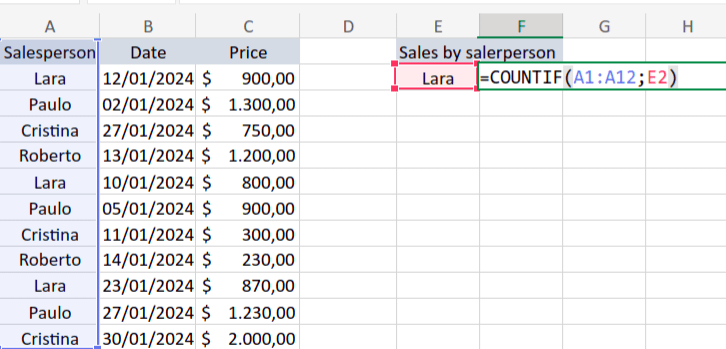
For this, we will use the COUNTIF function so that the "range" will be the "Seller" column and the "criterion" will be the seller's name (Lara), then press the "Enter" key.
countif foto 2 exp 1.png

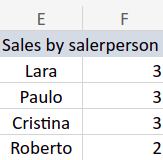
We then conclude that Lara made 3 sales.
countif foto 3 exp 1.png

To find out the number of sales by other sellers, it is first necessary to lock the search range so that it does not change when it is "copied" to other names. Add the $ symbol to the range (A2:A12) by clicking F4, so it becomes $A$2:$A$12.

Then, write their names one below the other in different cells, select Lara's result, and drag down.

In situations that require multiple simultaneous criteria, the COUNTIFS function is the ideal choice. This function expands the capabilities of COUNTIF, allowing counting cells that meet multiple criteria, offering more flexibility and depth for your data analyses.

COUNTIFS Function Syntax:

COUNTIFS(range1; criterion1; [range2; criterion2]; ...)

Practical Example of COUNTIFS:

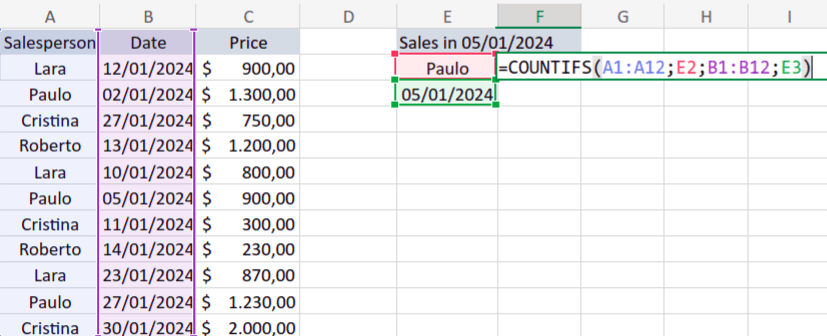
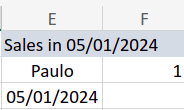
To exemplify COUNTIF, we will use the same table from the previous example to find out how many sales were made by Paulo on 01/05/2024.

We apply the formula so that “range1” is the “Seller” column, “criterion1” is Paulo's name, “range2” is the “Dates” column, and “criterion2” is the date 01/05/2024.
countif foto 1 exp 2.png

Seller Paulo made 1 sale on 01/05/2024.
countif foto 2 exp 2.png


Centralizing Data in Excel

Use the COUNTIF and COUNTIFS functions for more in-depth analysis and discover how Kondado and select the Pushwoosh data source

can help to centralize data from more than 80 sources directly in Excel. Try our platform today for free, with no need for a credit card. Transform your approach to data analysis and elevate your Excel skills with Kondado! Try Kondado now.


Conclusion:

Both COUNTIF and COUNTIFS are exceptional formulas in Excel for data analysis. They offer efficient and accurate methods for performing counts based on unique or multiple criteria. Mastering these functions enables more complex and detailed analysis, elevating the potential of your spreadsheets.

Frequently asked questions

What is the COUNTIF function in Excel and how does it work?
COUNTIF is an Excel function that counts cells that meet a specific criterion. Its syntax is COUNTIF(range; criterion), where 'range' defines the cells to be analyzed and 'criterion' is the condition that determines which cells are counted. For example, you can count how many sales a specific seller made by using the seller's name as the criterion.
How do I lock a range in COUNTIF so it doesn't change when copied to other cells?
To lock the search range in COUNTIF, add the $ symbol to the range by selecting it and pressing F4. For example, A2:A12 becomes $A$2:$A$12. This absolute reference ensures the range stays fixed when you drag the formula down to apply it to other criteria, such as counting sales for multiple different sellers.
What is the difference between COUNTIF and COUNTIFS in Excel?
COUNTIF counts cells that meet a single criterion, while COUNTIFS counts cells that meet multiple simultaneous criteria. COUNTIFS syntax is COUNTIFS(range1; criterion1; [range2; criterion2]; ...), allowing you to analyze data across several conditions at once—such as counting sales made by a specific seller on a specific date.
Can I use COUNTIFS with more than two criteria?
Yes, COUNTIFS supports multiple criteria pairs beyond just two. You can add additional range and criterion pairs as needed: COUNTIFS(range1; criterion1; range2; criterion2; range3; criterion3; ...). This flexibility makes it ideal for complex data analysis scenarios in sales, education, market research, and other fields.
How can Kondado help with Excel data analysis?
Kondado helps centralize data from more than 80 sources directly into Excel, streamlining your analysis workflow. You can import data to spreadsheets automatically and use functions like COUNTIF and COUNTIFS on consolidated, up-to-date information. Try Kondado for free with no credit card required.
What are some practical use cases for COUNTIF and COUNTIFS?
COUNTIF and COUNTIFS are valuable across many contexts: counting sales by seller or region, tracking student attendance or grades, analyzing survey responses, monitoring inventory levels, and filtering marketing campaign results. These functions save time versus manual counting and improve accuracy for data visualization and reporting workflows.

Written by·Published 2024-02-08·Updated 2026-04-25