A key is a sensitive text that can be registered in Kondado for use with our functions. For example, you can register a key that will be used by a function to pseudonymize an email address.
Once saved, your key will be stored and encrypted in a location accessible only by our pipeline servers. This means that once your key is saved, the text will no longer be displayed in plain form on our platform.
For our servers to access your sources and destinations, you need to provide some access data, such as keys and tokens. This sensitive information is stored with the same level of security as your keys.
Keys and access information provided are two distinct components within the Kondado platform. Therefore, they should not be confused.
Keys are composed of three (3) fields:
- **Name**: A free, open, and required field that serves as an identifier to help you easily locate your key. Example: "Key for Email Hashing."
- **Description**: A free, open, and optional field that provides additional information about your key. Example: "256-character key generated on 2020-09-10 for email encryption functions."
- **Text**: The sensitive component that will be used by our functions. This is your key.
Now that you are familiar with the concept of keys, it's time to see how to use them:
1) Log in to your Kondado account:
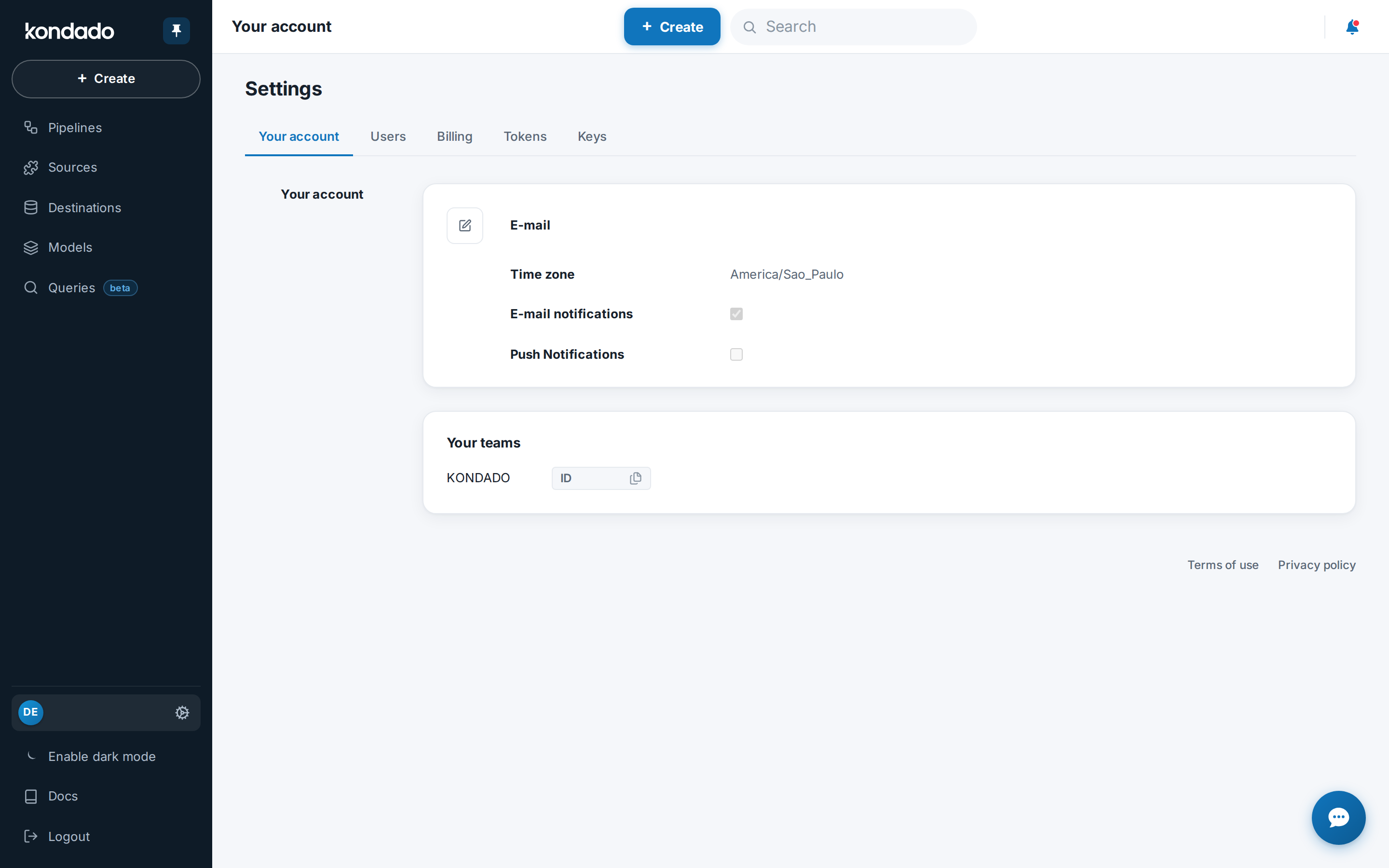
2) At the bottom of the side menu, click the block with your email to open "Settings":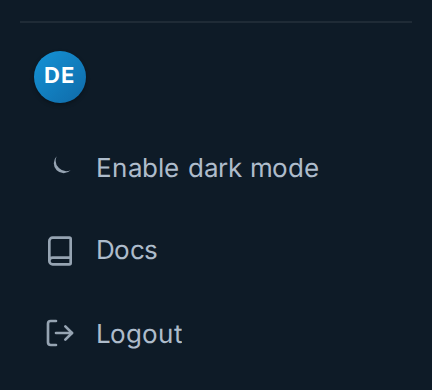
3) On the settings page, click the "Keys" tab:
4) In the keys section, you will see, on the left, a button called "+ Create". Click on this button: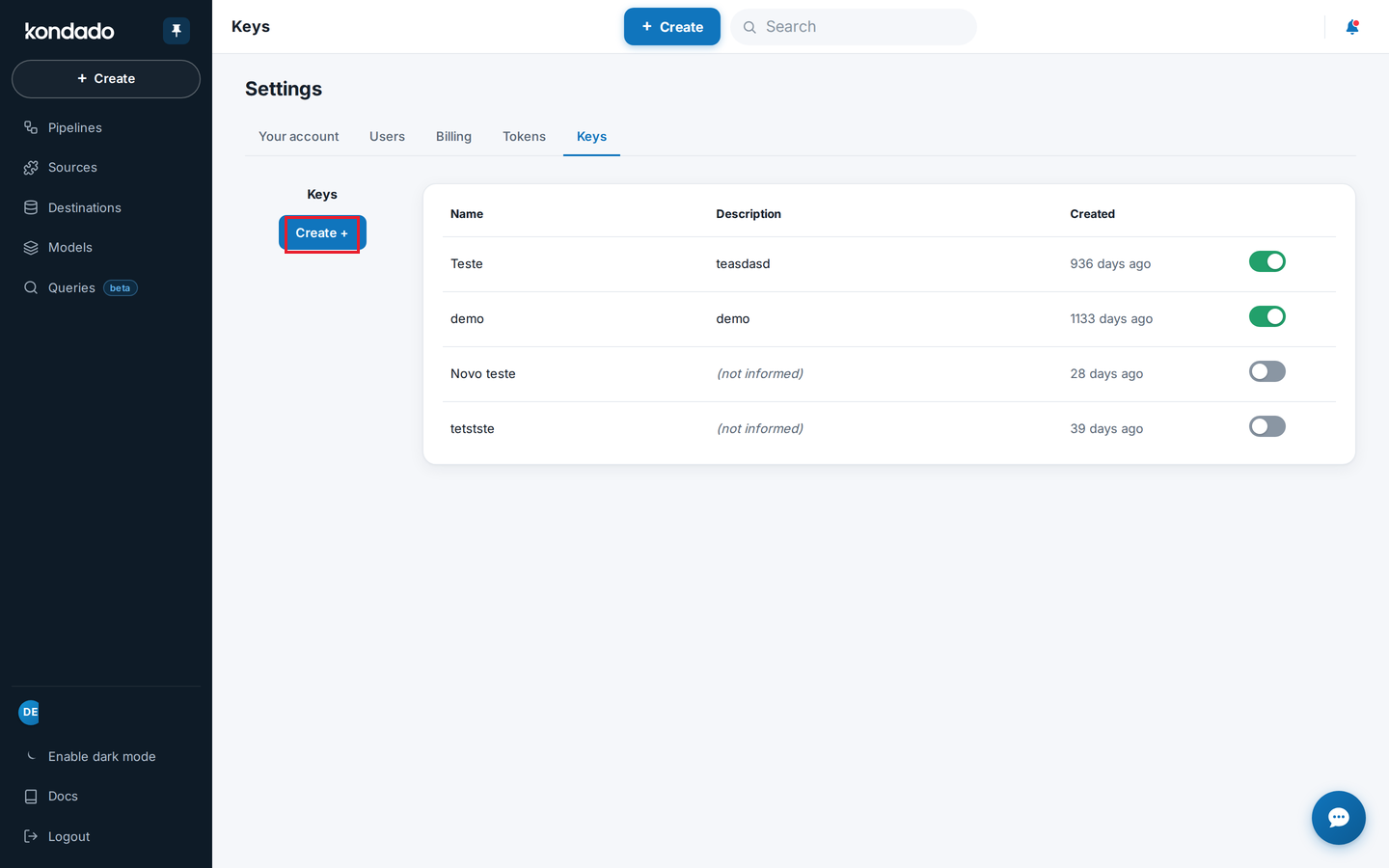
5) In the menu that opens, you will need to fill in the components of your key as explained earlier. If you prefer, Kondado can also generate your key automatically by clicking the "AUTO GENERATE" button.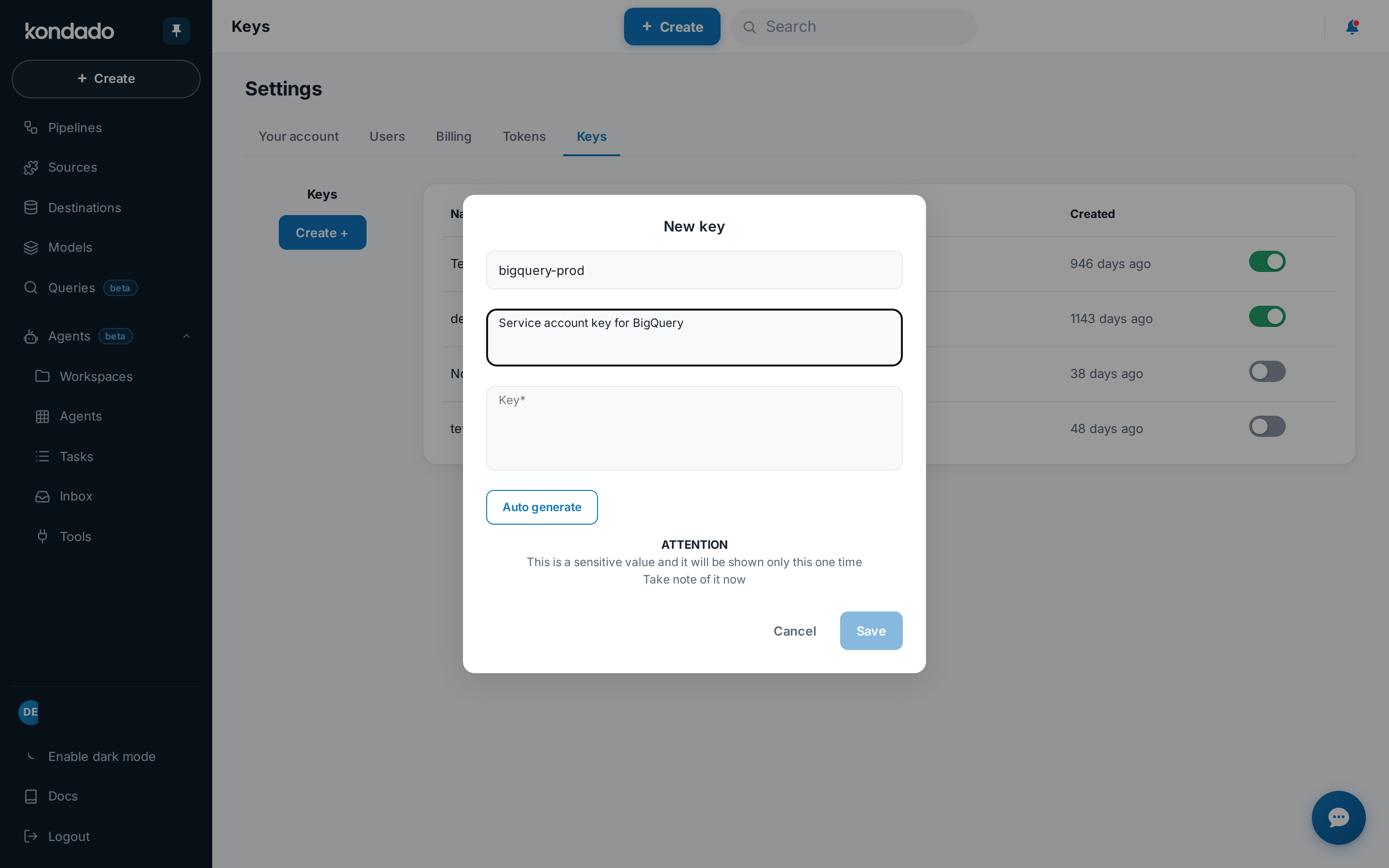
6) Fill in the required fields and click "CREATE." Remember that once the key is created, the key text will no longer be displayed: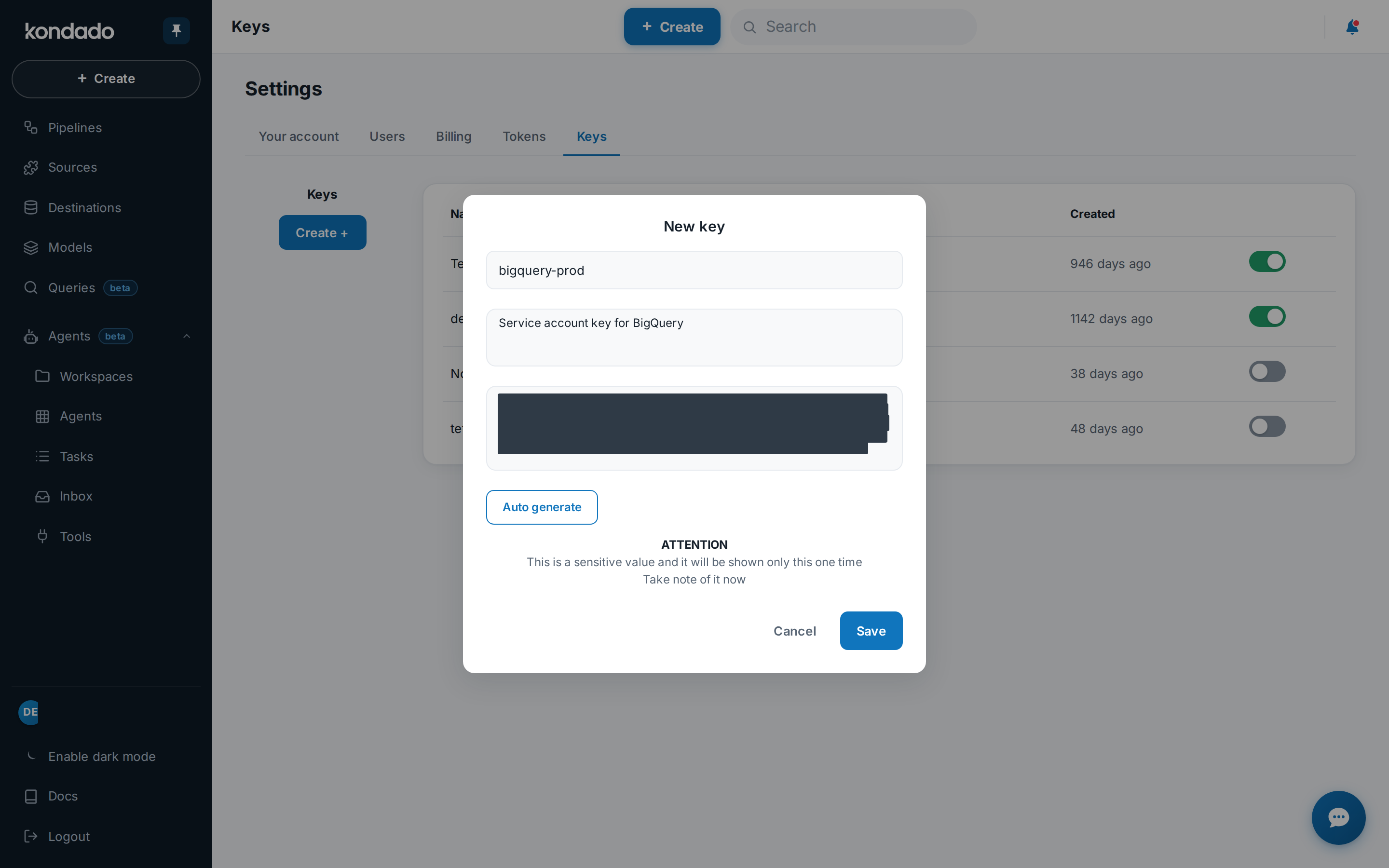
7) Once created, your new key will appear at the top of the key list. You can edit its name and description by clicking the pencil icon and activate or deactivate it using the toggle on the right. Remember that deactivated keys cannot be used in new functions: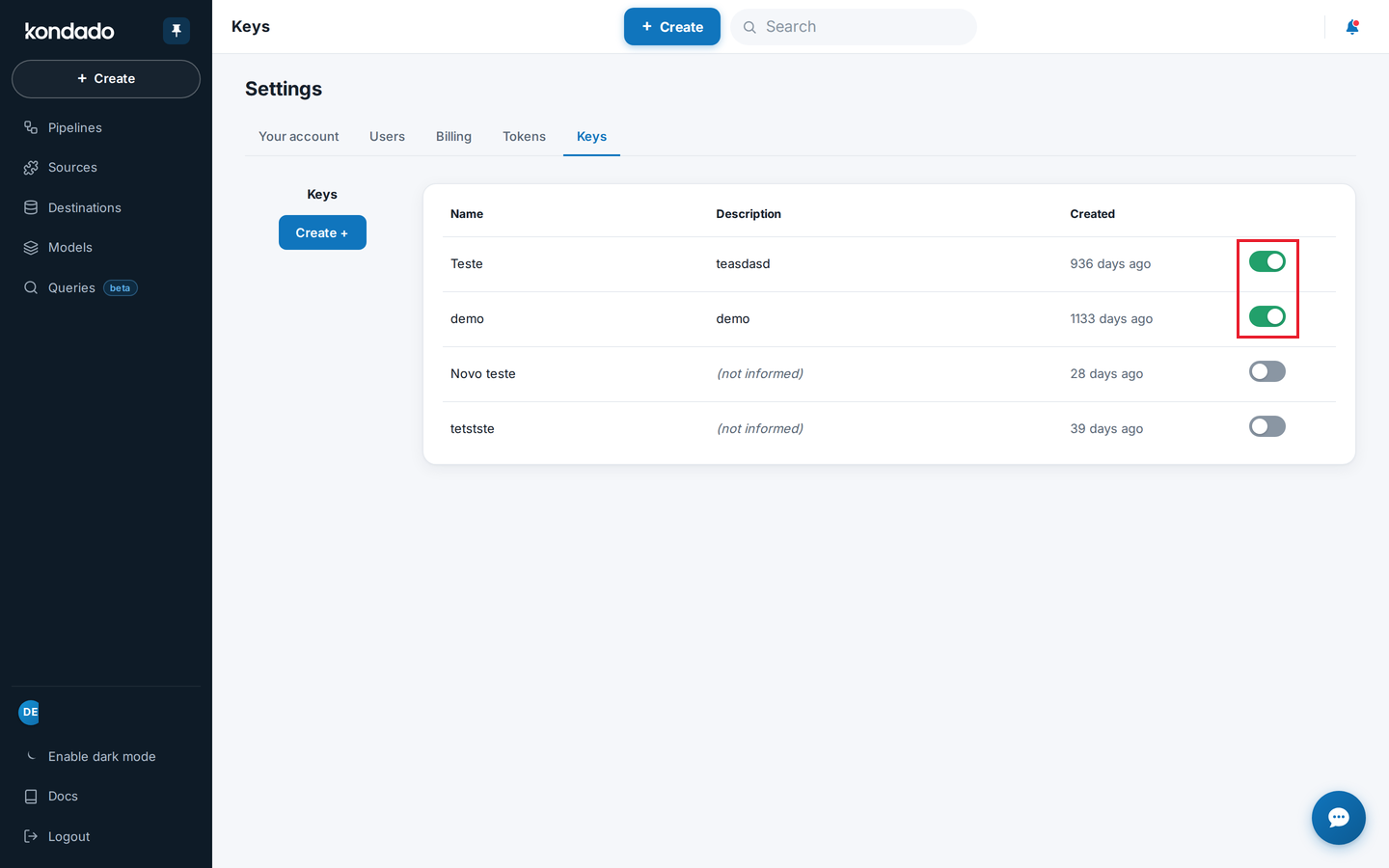
Create and Manage Keys in Kondado
Learn how to register, configure, and manage encrypted keys for use with Kondado's data transformation functions.
Access your account settings
Log in to your Kondado account and click the block with your email at the bottom of the side menu to open "Settings" and access your account configuration area.
Navigate to the Keys section
On the settings page, click the "Keys" tab to view your existing keys and access key management options. This is where sensitive texts are stored with the same security level as your data integration access credentials.
Create a new key
Click the "+ Create" button on the left side of the keys section. You can also explore data transformation capabilities to understand how keys will be used with functions.
Fill in key components
Complete the three fields: Name (required identifier), Description (optional details), and Text (the sensitive value). Alternatively, click "AUTO GENERATE" to let Kondado create your key automatically.
Save and manage your key
Click "CREATE" to save. Remember the key text will no longer be displayed afterward. You can then edit the name/description via the pencil icon or activate/deactivate the key using the toggle—deactivated keys cannot be used in new functions.
