AWS CloudWatch Metrics
Creating the data source
Prerequisites
- Active AWS account
- Permissions to create IAM users and policies
- AWS services with active CloudWatch metrics (RDS, EC2, etc.)
Creating an IAM Role for Kondado
To allow Kondado to access CloudWatch metrics, you need to create an IAM user with specific permissions.
Step 1: Access the IAM Console
- Log in to the AWS Management Console
- Navigate to the IAM service (Identity and Access Management)
- In the sidebar, click on Users
- Click the Add users button
Step 2: Configure the User
- Enter the username, for example:
kondado-cloudwatch-metrics - Under "Select AWS credential type", check Access key - Programmatic access
- Click Next: Permissions
Step 3: Create Permissions Policy
- Select Attach existing policies directly
- Click Create policy (will open in a new tab)
- Select the JSON tab
- Paste the following policy:
{ "Version": "2012-10-17", "Statement": [ { "Effect": "Allow", "Action": [ "cloudwatch:ListMetrics", "cloudwatch:GetMetricStatistics", "cloudwatch:GetMetricData", "cloudwatch:DescribeAlarms" ], "Resource": "*" }, { "Effect": "Allow", "Action": [ "ec2:DescribeInstances", "ec2:DescribeVolumes", "rds:DescribeDBInstances", "rds:DescribeDBClusters", "elasticloadbalancing:DescribeLoadBalancers", "elasticloadbalancing:DescribeTargetGroups", "lambda:ListFunctions", "s3:ListAllMyBuckets", "dynamodb:ListTables" ], "Resource": "*" } ] } - Click Next: Tags
- Add optional tags (e.g.,
Purpose=Kondado) - Click Next: Review
- Give the policy a name:
KondadoCloudWatchMetricsReadOnly - Add a description:
Allows CloudWatch metrics read access for Kondado - Click Create policy
Step 4: Attach Policy to User
- Return to the user creation tab
- Click the refresh button next to "Create policy"
- In the search, type
KondadoCloudWatchMetricsReadOnly - Check the created policy
- Click Next: Tags
- Add optional tags
- Click Next: Review
- Review the settings and click Create user
Step 5: Save Credentials
- On the success screen, you'll see the Access key ID and Secret access key
- IMPORTANT: This is the only time you'll be able to see the Secret access key
- Click Download .csv to save the credentials
- Or manually copy the Access key ID and Secret access key
- Store these credentials in a secure location
Configuring the Data Source in Kondado
- In Kondado, go to Data Sources → Add New Source
- Select AWS CloudWatch Metrics
- Fill in the fields:
- Source Name: Descriptive name (e.g., "AWS Production")
- AWS Access Key ID: Paste the IAM user's Access Key ID
- AWS Secret Access Key: Paste the IAM user's Secret Access Key
- AWS Region: Region where your resources are (e.g., us-east-1, sa-east-1)
- Click Test Connection to verify credentials
- If the test passes, click Save
Creating a Pipeline
After configuring the data source, you can create pipelines to collect metrics:
- Go to Pipelines → Create New Pipeline
- Select the created AWS CloudWatch Metrics data source
- Choose the pipeline type:
- Metrics (Incremental): Collects new data since last execution
- Metrics (Rolling Window): Always collects the last X days (e.g., last 7 days)
- Configure the parameters:
- Namespace: AWS service (e.g., AWS/RDS, AWS/EC2)
- Metric: Metric name (e.g., CPUUtilization, ReadLatency)
- Dimension: Optional filter (e.g., DBInstanceIdentifier)
- Dimension Value: Specific value or leave empty for all instances
- Statistics: Select one or more (Average, Sum, Minimum, Maximum, SampleCount)
- Period: Granularity in minutes (e.g., 5 minutes)
- Configure the destination (BigQuery, PostgreSQL, etc.)
- Schedule the pipeline execution
- Click Create Pipeline
Configuration Examples
Example 1: CPU of all RDS instances
- Namespace: AWS/RDS
- Metric: CPUUtilization
- Dimension: DBInstanceIdentifier
- Dimension Value: (leave empty for all)
- Statistics: Average, Maximum
- Period: 5 minutes
Example 2: Read latency of a specific database
- Namespace: AWS/RDS
- Metric: ReadLatency
- Dimension: DBInstanceIdentifier
- Dimension Value: database-name
- Statistics: Average
- Period: 1 minute
Important Notes
- If you leave "Dimension Value" empty, Kondado will automatically discover all instances and collect data from each one
- The dimension column (e.g., dbinstanceidentifier) will appear in the destination table with each instance's name
- For incremental pipelines, set an initial Savepoint (date from which to start collecting)
- For rolling window pipelines, configure the window size in days
- You can select multiple statistics - each will appear as a separate column
Troubleshooting
Error: "Invalid AWS credentials"
- Verify that the Access Key ID and Secret Access Key are correct
- Confirm that the IAM user was not disabled or deleted
Error: "Access denied"
- Verify that the IAM policy was correctly attached to the user
- Confirm that the specified region is correct
No metrics returned
- Verify that the specified AWS service has active metrics
- Confirm that the namespace is correct (e.g., AWS/RDS, not rds)
- For dimension-specific metrics, verify that the dimension value exists
Pipelines
Summary
Relationship chart
Click to expand
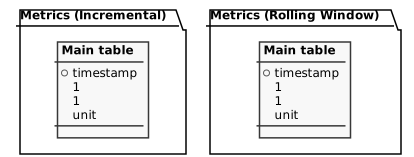
Metrics (Incremental)
Replication type: Incremental
Parameters:
- Namespace: AWS namespace (e.g., AWS/RDS)
- Initial Savepoint: Start date (YYYY-MM-DD)
- Dimension Name: Dimension name
- Dimension Value: Dimension value
- Statistics: Statistics (Average, Sum, etc.)
- Metric Name: Metric (e.g., CPUUtilization)
- Period (seconds): Granularity in seconds
Metrics (Rolling Window)
Replication type: Full
Parameters:
- Namespace: AWS namespace (e.g., AWS/RDS)
- Dimension Name: Dimension name
- Dimension Value: Dimension value
- Period (seconds): Granularity in seconds
- Statistics: Statistics (Average, Sum, etc.)
- Metric Name: Metric (e.g., CPUUtilization)
- Window Size (Days): Number of days (e.g., 7)
Notes
- Part of this documentation was automatically generated by AI and may contain errors. We recommend verifying critical information
Frequently asked questions
What does the AWS CloudWatch Metrics data source replicate?
Kondado replicates metric data points from AWS CloudWatch (CPU, memory, request counts, custom metrics, etc.) into your destination. You select the namespace, metric, dimensions, and statistic when configuring the pipeline.
What AWS credentials do I need?
You need an Access Key ID and Secret Access Key for an IAM user (or role) with read permissions on CloudWatch — typically cloudwatch:GetMetricData, cloudwatch:GetMetricStatistics, and cloudwatch:ListMetrics. Provide the AWS region as well.
Can I replicate metrics from multiple AWS regions?
Yes — create one Kondado source per region, since CloudWatch metrics are scoped to the region where they are emitted. Name each source clearly (for example, "CloudWatch us-east-1").
Where can I send CloudWatch metrics?
CloudWatch metrics can be sent to any of the supported destinations: Power BI, Looker Studio, Google Sheets, Excel, BigQuery, PostgreSQL, MySQL, SQL Server, Redshift, or S3. See destinations.
How often is the data refreshed?
Pipelines run at the frequency you choose in Kondado. Each run queries CloudWatch for the configured metric and statistic over the requested time window and writes the result into your destination.
Why might my CloudWatch values look different from the AWS console?
AWS CloudWatch aggregates and stores metrics with different granularities depending on how old they are, and the chosen statistic (Average, Sum, Maximum, etc.) materially changes the value. Make sure the statistic, period, and time window in your pipeline match what the AWS console is displaying.
