Creating the data source
Required permissions
- Kondado only reads your spreadsheets. Nothing is changed in your files.
- Kondado sees exactly the files the authorizing Microsoft user can open: their OneDrive, files shared with them and the SharePoint sites they can access.
- For work accounts (Microsoft 365), Microsoft requires by default that an administrator of your organization approves apps that access files and sites. If you see the "Need admin approval" screen, ask your Microsoft 365 administrator to approve the Kondado app once — see how, step by step.
How to connect
- On Kondado, add a new Excel data source.
- Click Sign in with Microsoft, sign in with your account and accept the permissions.
- Save the data source.
How to choose the spreadsheet
- When creating the integration, paste the Excel file address. Any of these works:
- the browser address bar with the file open in Excel Online;
- a sharing link to the file ("Share" → "Copy link").
- Pick the worksheet from the list. Each worksheet becomes one integration and one table.
The first filled row of the worksheet is the header: each title becomes a column. Use unique titles that contain letters (e.g. "Amount", "Sale date").
Pipelines
Summary
Relationship chart
Click to expand
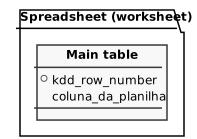
Spreadsheet (worksheet)
Replication type: Full
Parameters:
- Worksheet: Select the worksheet to replicate
- Excel file URL: Paste the Excel file address: the browser one with the file open in Excel Online, or a sharing link. Works with OneDrive and SharePoint
Rows of an Excel worksheet (OneDrive/SharePoint). The first non-empty row of the worksheet is the header.
| Campo | Tipo | |
|---|---|---|
|
int |
[en] Row number in Excel (row 1 is the first row of the worksheet). Changes if rows are inserted or deleted above it. |
|
|
text |
[en] One text column for each header title (first filled row) of the chosen worksheet, with a normalized name (lowercase, no accents, spaces become _). |
Notes
Important notes about Excel data:
- Every run reads the whole worksheet and replaces the table (the spreadsheet does not tell which rows changed).
- All columns arrive as text. Dates and times arrive as
YYYY-MM-DD,YYYY-MM-DD HH:MM:SSandHH:MM:SS; numbers arrive without currency or thousand formatting; formulas arrive already calculated. - The
kdd_row_numbercolumn is the Excel row number. Fully empty rows are skipped. - Columns are matched by title, not position: inserting or moving columns does not mix up data. A new column only comes in after editing the integration; a renamed or deleted column arrives empty.
- Files larger than 25 MB cannot be read by Microsoft.
- Avoid editing the spreadsheet while the integration is running.
Microsoft 365 administrator approval
Since 2025 Microsoft blocks, by default, regular users from authorizing third-party apps to read files and sites. In that case a Microsoft 365 administrator of your organization approves Kondado once, and after that any user can connect.
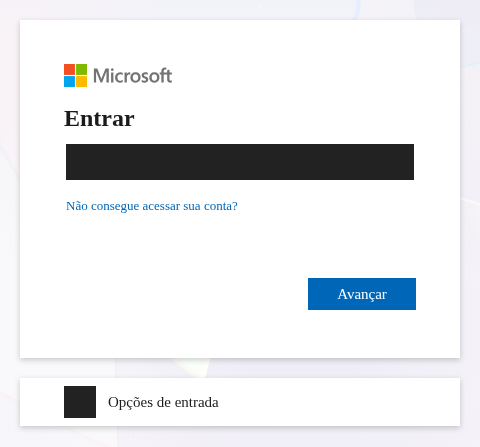
- The administrator opens this approval link and signs in with the organization's administrator account:
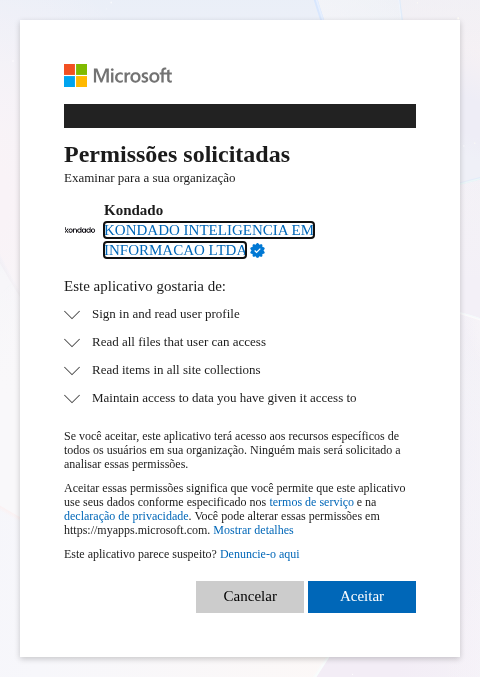
- On the "Permissions requested — Review for your organization" screen, check that the app is Kondado (KONDADO INTELIGENCIA EM INFORMACAO LTDA) and that the permissions are read-only, then click Accept:
- Done: go back to Kondado and connect as usual.
You can also approve it in the Microsoft Entra admin center: Enterprise applications → Kondado → Permissions → Grant admin consent.
- Part of this documentation was automatically generated by AI and may contain errors. We recommend verifying critical information