💡 Advanced tip: if you have columns with many empty values, IDs with leading zeros, or any field where Power Query is guessing the wrong type, use the schema-aware version: Correct Column Typing in Power BI/Excel with the Via Kondado Schema API.
How to Connect Via Kondado to Excel Desktop using Power Query
Step-by-step guide to import automated data directly into Excel using Power Query
What is Via Kondado?
Via Kondado is a Kondado platform destination that lets you access your integrated and modeled data through a simple API. With it, you can:
- Access 80+ data sources connected to Kondado
- Get data in CSV format through API links
- Automate updates in Excel without manual exports
- Build dynamic reports that refresh automatically
Ideal use case: Connect your ERP, e-commerce platform (Shopify, VTEX) or marketing tools (Meta Ads, Google Ads) directly to Excel and keep your spreadsheets always up to date.
What you need
Before you start, make sure you have:
- An active Kondado account with configured pipelines
- Excel 2016 or later (or Microsoft 365) with Power Query
- A Via Kondado destination created on the Kondado platform
- An access token for your Via Kondado destination
Step 1: Get the Access Link in Kondado
To connect Excel to your data, you first need to obtain the API access link:
1.1 Open your Pipeline
- Log in to the Kondado platform
- Click on Pipelines in the side menu
- Select the pipeline you want to connect to Excel
1.2 Copy the Access Link
- Inside the pipeline, click the View Data button
- In the modal window, click Connect to Power BI (this also works for Excel)
- Choose the decimal separator: comma or dot
- Select the desired table
- Click the copy icon next to the URL
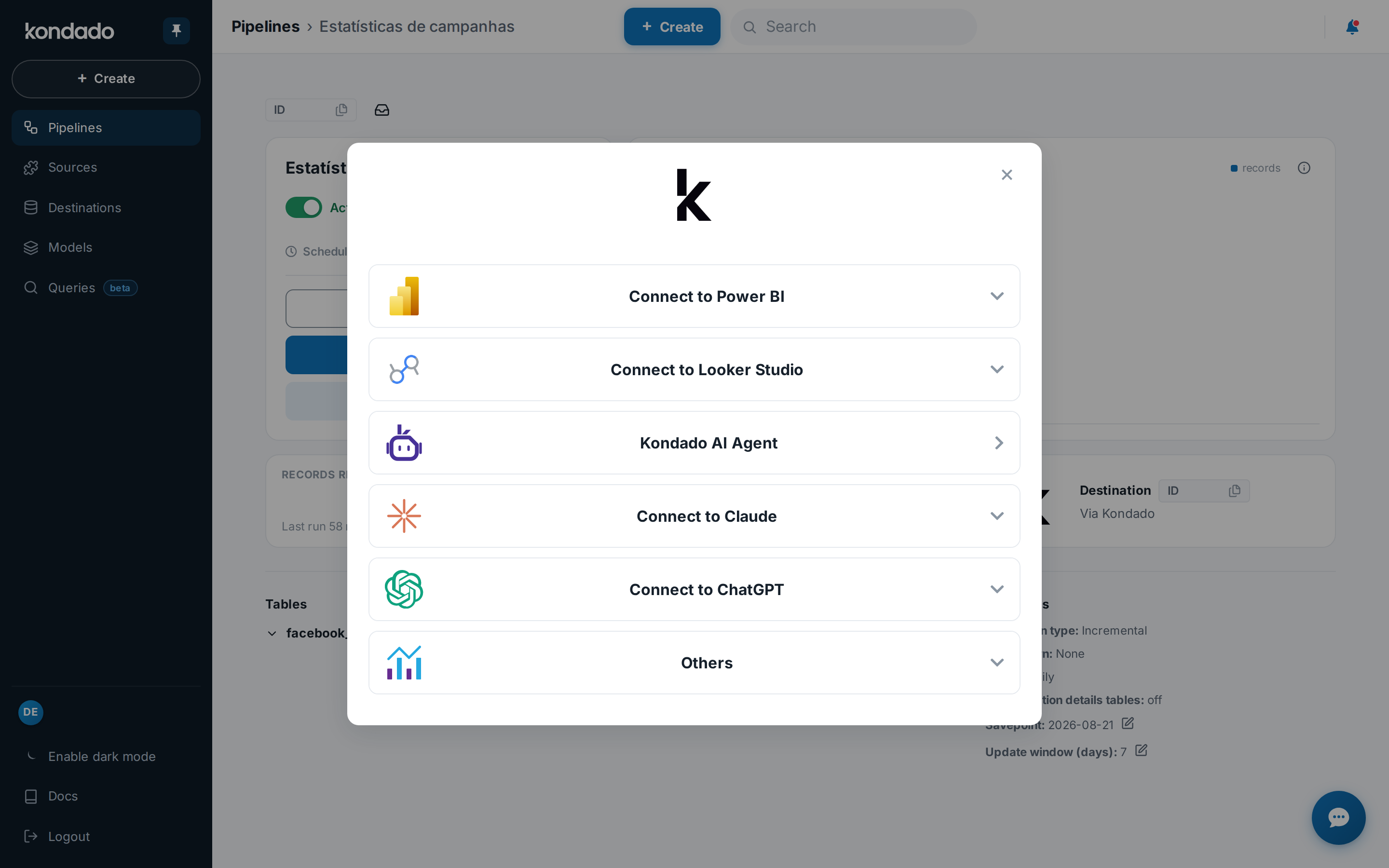
The URL will look like:
https://hub.kondado.io/data/table_name?token=your_token_here&decimal_sep=commaSave this URL — you will use it in Excel.
Step 2: Import Data into Excel with Power Query
Now let's connect Excel to your data using Power Query.
2.1 Open Power Query
- Open Excel Desktop
- Go to the Data tab
- Click Get Data → From Other Sources → From Web
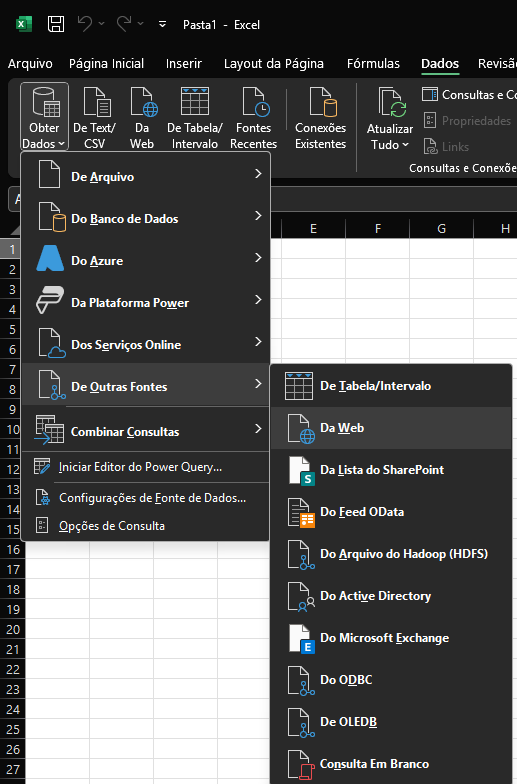
Tip: In newer Excel versions, you can find it directly at Data → Get Data → From Other Sources → From URL.
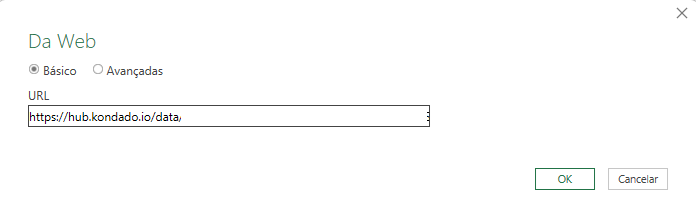
2.2 Paste the URL
- In the dialog, paste the URL you copied from Kondado
- Click OK
2.3 Configure Authentication
Power Query will ask for access credentials:
- Select the Anonymous tab
- Click Connect
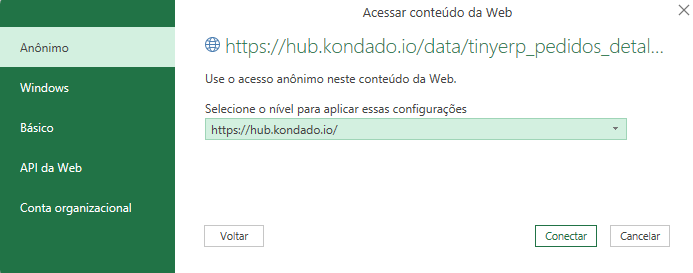
Note: Authentication is handled via the token embedded in the URL, which is why we select "Anonymous" here. Keep your token secure and never share it publicly.
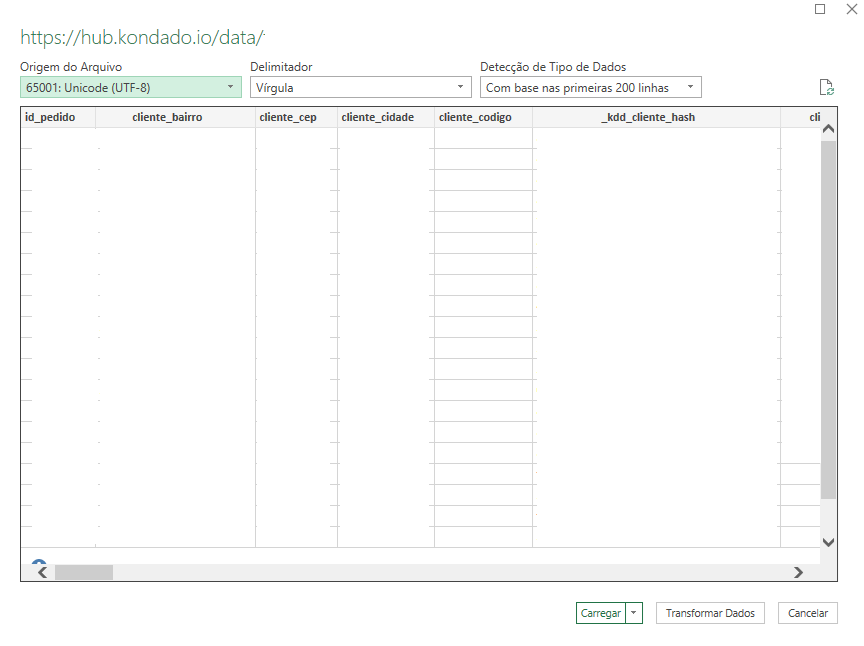
2.4 Preview and Transform Data
After connecting:
- Power Query will display a CSV preview of your data
- Verify that the columns are correct
- Click Transform Data to adjust data types if needed
- Or click Load to import directly
2.5 Adjust Data Types (Optional)
In the Power Query Editor:
- Select the columns that need adjustment
- Click the data type icon (e.g., "ABC", "123") on the column
- Pick the right type: Text, Decimal Number, Date, etc.
- Click Close & Load to import the data into Excel
Step 3: Data in Excel
Your data is now in the Excel spreadsheet! You will see:
- A formatted table with all the pipeline data
- Automatic refresh available
- The ability to create charts and reports
Step 4: Refresh Data Automatically
The real power of the integration is automatic refresh. You can:
Manual Refresh
Click Data → Refresh All to pull the latest data

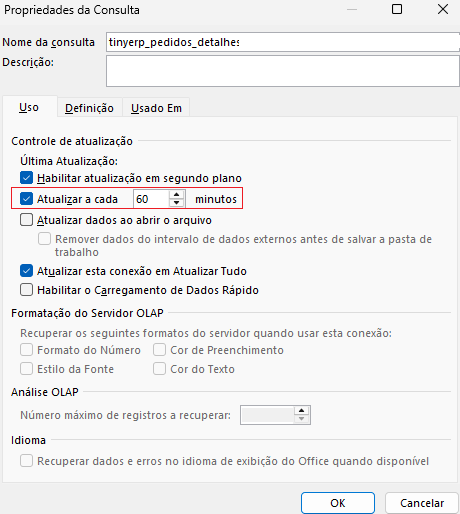
Automatic Refresh
- Click Data → Queries & Connections
- In the side pane, right-click the connection
- Select Properties
- Under Refresh, check Refresh every X minutes
- Set the desired interval (e.g. 60 minutes)
Tips & Best Practices
1. Decimal Format
If your numbers look wrong:
- Check that you picked the right separator in Kondado (comma vs dot)
- In Power Query, use Replace Values to fix separators
2. Large Data Volumes
For very large spreadsheets:
- Consider filtering data in Power Query before loading
- Use Load To → Only Create Connection + PivotTable for better performance
3. Token Security
- Never share your spreadsheet with the full link in public
- The token grants access to your data
- To share reports, export as PDF or remove the connection
4. Multiple Tables
You can repeat the process for several tables:
- Each table creates a separate connection in Excel
- Combine data using Merge Queries in Power Query
Troubleshooting
"Unable to connect"
- Check that the URL is complete (including the token)
- Confirm the Via Kondado destination is active in Kondado
- Test the URL in a browser first
"Data is not refreshing"
- Check that the Kondado pipeline is actually replicating data
- Click Data → Refresh All manually to test
- Confirm the automatic refresh settings
"Numbers appear as text"
- In Power Query, change the column type to Decimal Number
- Verify the decimal separator in the URL (comma vs dot)
"Special characters don't show up"
- Via Kondado normalizes characters for CSV compatibility
- This is expected to ensure universal compatibility
Next Steps
Now that your data is in Excel, you can:
- Build charts and dashboards using data that refreshes automatically
- Combine multiple sources via Power Query (Merge Queries)
- Schedule reports for periodic refresh
- Share insights with your team
Additional Resources
- Full Via Kondado documentation
- Create a Kondado account — 14-day free trial
Questions? Reach out to our support through the contact page.
Connect Via Kondado to Excel Desktop using Power Query
Import automated data from Kondado pipelines directly into Excel spreadsheets with automatic refresh using Via Kondado's API links.
Get the API access link from Kondado
Log in to the Kondado platform, open your pipeline, click View Data, then Connect to Power BI (also works for Excel). Choose your decimal separator, select the table, and copy the URL with your embedded token. You can explore data integration options to set up more sources.
Import data into Excel using Power Query
Open Excel Desktop, go to Data → Get Data → From Other Sources → From Web, paste your Via Kondado URL, select Anonymous authentication (the token in the URL handles security), then preview your CSV data.
Transform and load the data
In the Power Query Editor, verify columns and adjust data types if needed (Text, Decimal Number, Date). Click Close & Load to import the formatted table into Excel.
Set up automatic refresh
Right-click the connection in Data → Queries & Connections, select Properties, and enable Refresh every X minutes to keep your spreadsheet always up to date without manual exports.
Apply best practices for security and performance
Never share your token publicly; for large datasets, filter in Power Query before loading or use Only Create Connection + PivotTable. You can also learn more about importing to spreadsheets for additional destination options.
