Context: What's happening?
Recently, we've identified reports from some customers about a new Power BI requirement: when interacting with dashboard visuals, the system may request authentication with a corporate Microsoft account.
This behavior is different from what happened previously, when some local usage scenarios didn't require login. As of now, Microsoft has not published any official communication about this change.
While we await clarification, we've put together a temporary workaround that can help users continue viewing their reports functionally. It's important to note that this alternative does not replace the recommended use of a corporate Microsoft account and may render some Power BI features unavailable.
⚠️ Important: This is a temporary workaround.
Some Power BI functions may become unavailable.
The ideal approach is to use Power BI with a corporate Microsoft account.
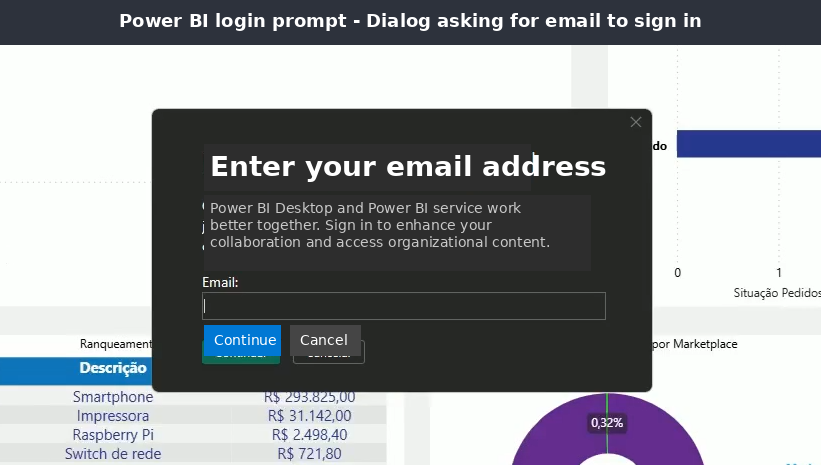
In recent months, some users have noticed that Power BI started requesting Microsoft account authentication even for local visualizations — a behavior that mainly impacts those using Power BI Desktop connected to external data sources.
This login requirement appears to be related to a recent update in the product's security and connectivity behavior. However, since there's no official documentation on this topic yet, Kondado has prepared a configuration workaround that can mitigate the issue while we await official information from Microsoft.
How to adjust Power BI to continue using your reports
Follow the step-by-step guide below to apply the adjustment:
1. Open Power BI Desktop
Start the application normally.
2. Access "Options and settings"
In the top menu, click on File → Options and settings.
3. Select "Options"
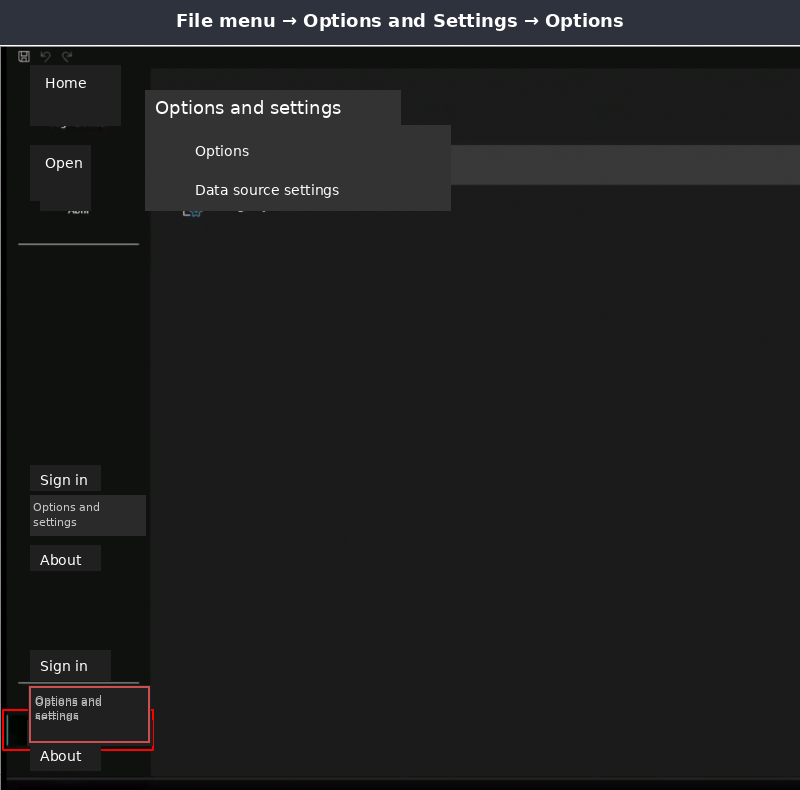
4. Go to "Preview features"
In the left sidebar, locate the Preview features section.
5. Uncheck "Transanalytic task flow"
Scroll down to the bottom of the page and uncheck the "Transanalytic task flow" feature.
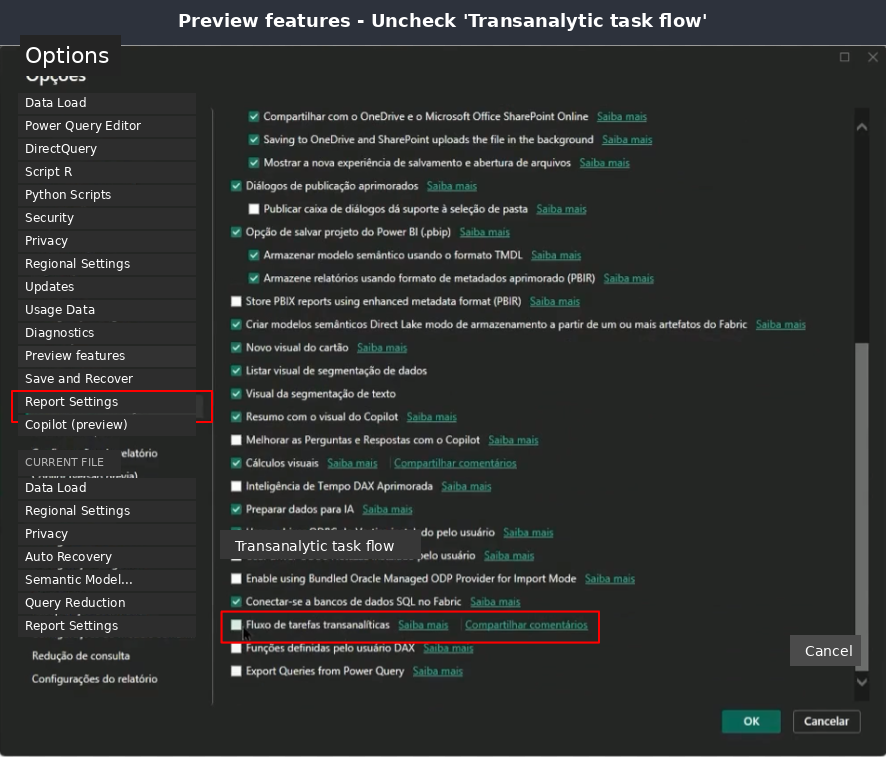
Then click OK.
6. Confirm the restart
When the message asking to restart Power BI appears, click OK.
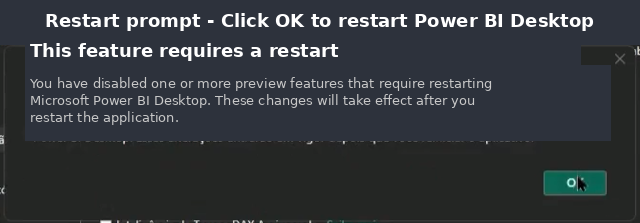
7. Restart Power BI Desktop
8. Enter your access token
After restarting, enter your token to load the data normally.
Done! After this adjustment, your reports should open normally, allowing interaction with visuals without Power BI interrupting the navigation flow.
What changes when applying this solution
This configuration usually works for most cases and allows opening and interacting with local dashboards.
However, it's important to understand the limitations:
- Some advanced features may not work.
- This is a temporary adjustment that may no longer be necessary once Microsoft releases official guidance.
- Using a corporate Microsoft account remains the ideal and recommended way to ensure Power BI's complete functionality.
Apply a temporary Power BI Desktop adjustment to avoid corporate authentication
Disable the 'Transanalytic task flow' preview feature in Power BI Desktop to temporarily restore report access without requiring a corporate Microsoft account login.
Open Power BI Desktop and access Options
Launch Power BI Desktop normally, then navigate to File → Options and settings → Options in the top menu to open the configuration panel.
Locate and disable the preview feature
In the left sidebar, select Preview features, scroll to the bottom, and uncheck Transanalytic task flow. Click OK to save the change.
Restart and authenticate with your token
When prompted, confirm the restart of Power BI Desktop. After reopening, enter your access token to load data and interact with visuals normally. For alternative data visualization approaches, explore other options.
Understand the limitations of this workaround
This temporary adjustment may disable some advanced Power BI features. The recommended long-term solution remains using a corporate Microsoft account for full functionality. Consider Kondado destinations for robust BI tool integrations.
