Before learning how to use functions, we expect you to be familiar with what functions are, how to create and manage keys, and how to create pipelines.
Functions are applied to fields in your pipeline. Their use and modification are performed during the creation or advanced editing of the pipeline.
To use functions in your pipeline, follow the steps below:
Click on "+ Create" > "Pipeline" (or "Edit" > "Advanced") and proceed to the step for configuring table and field names: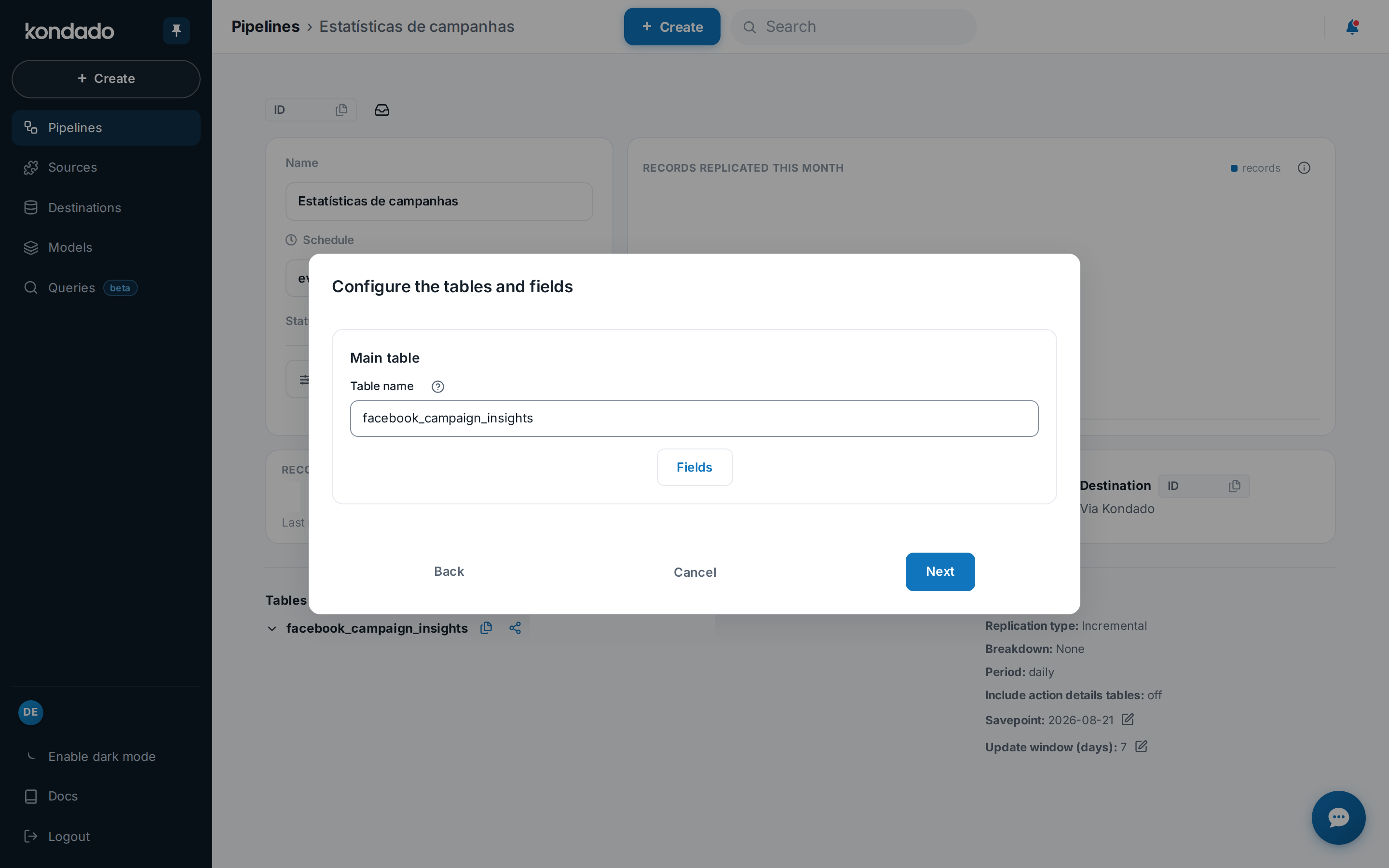
In the "Configure the tables and fields" step, click on Fields: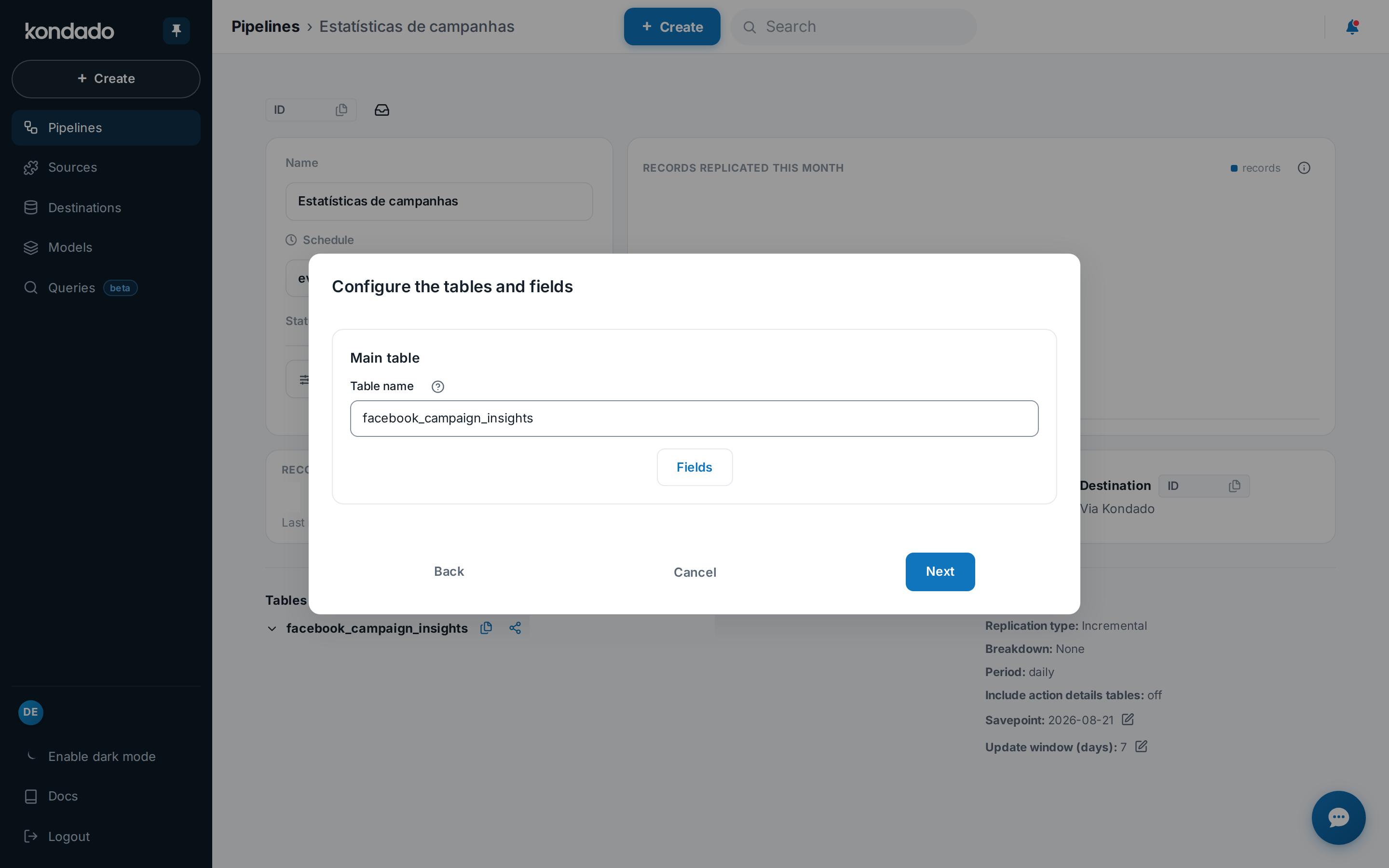
For each field, you will see a small "fx" icon on its left. Click this icon: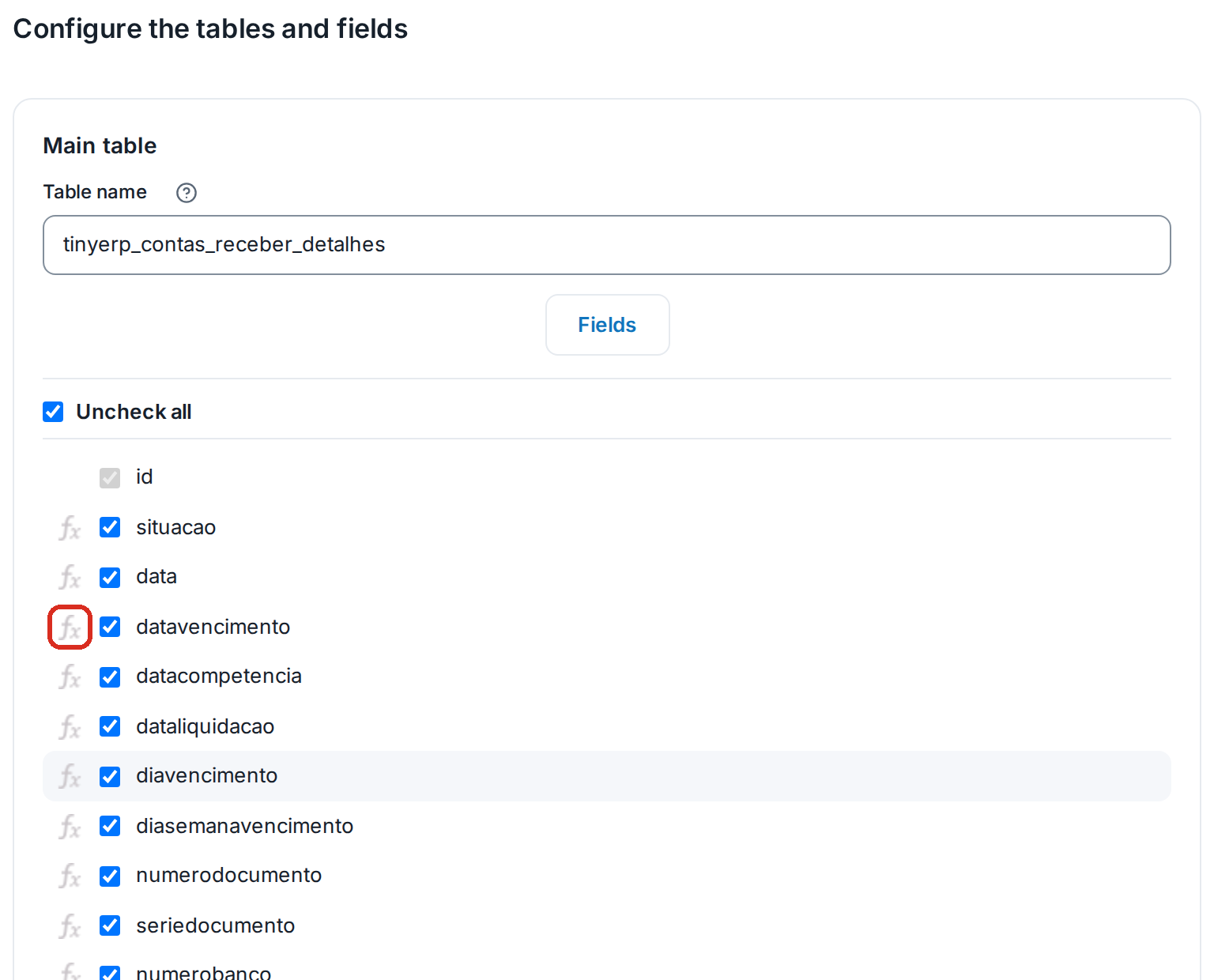
A new section will appear below the field in question along with a list. Click on it to view the functions available for your account: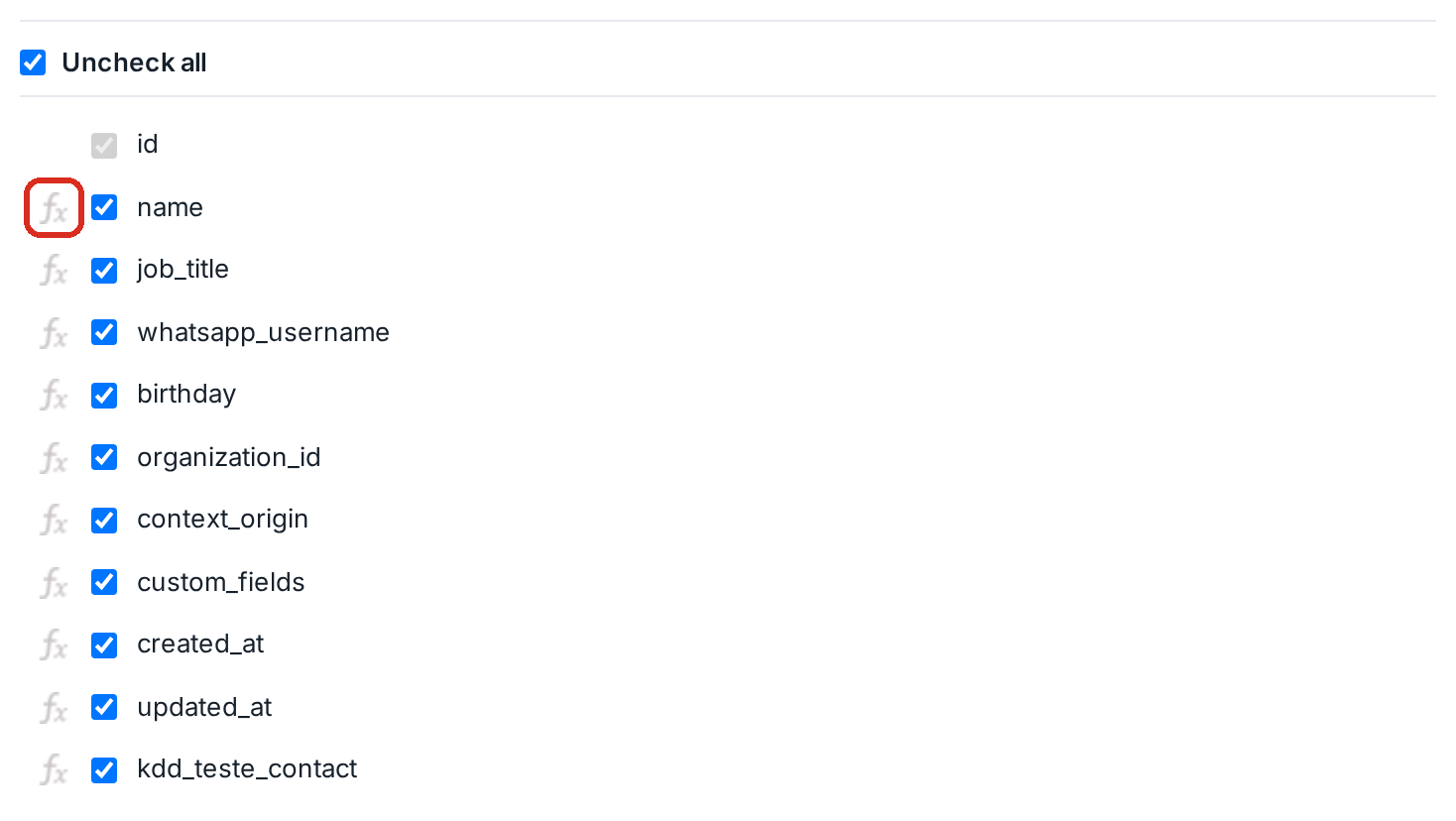
In this list, you will see the name of the function to be applied, a question mark ("?") icon that links to the function tutorial, its category (anonymization, pseudonymization, or transformation), and its description. Select the desired option: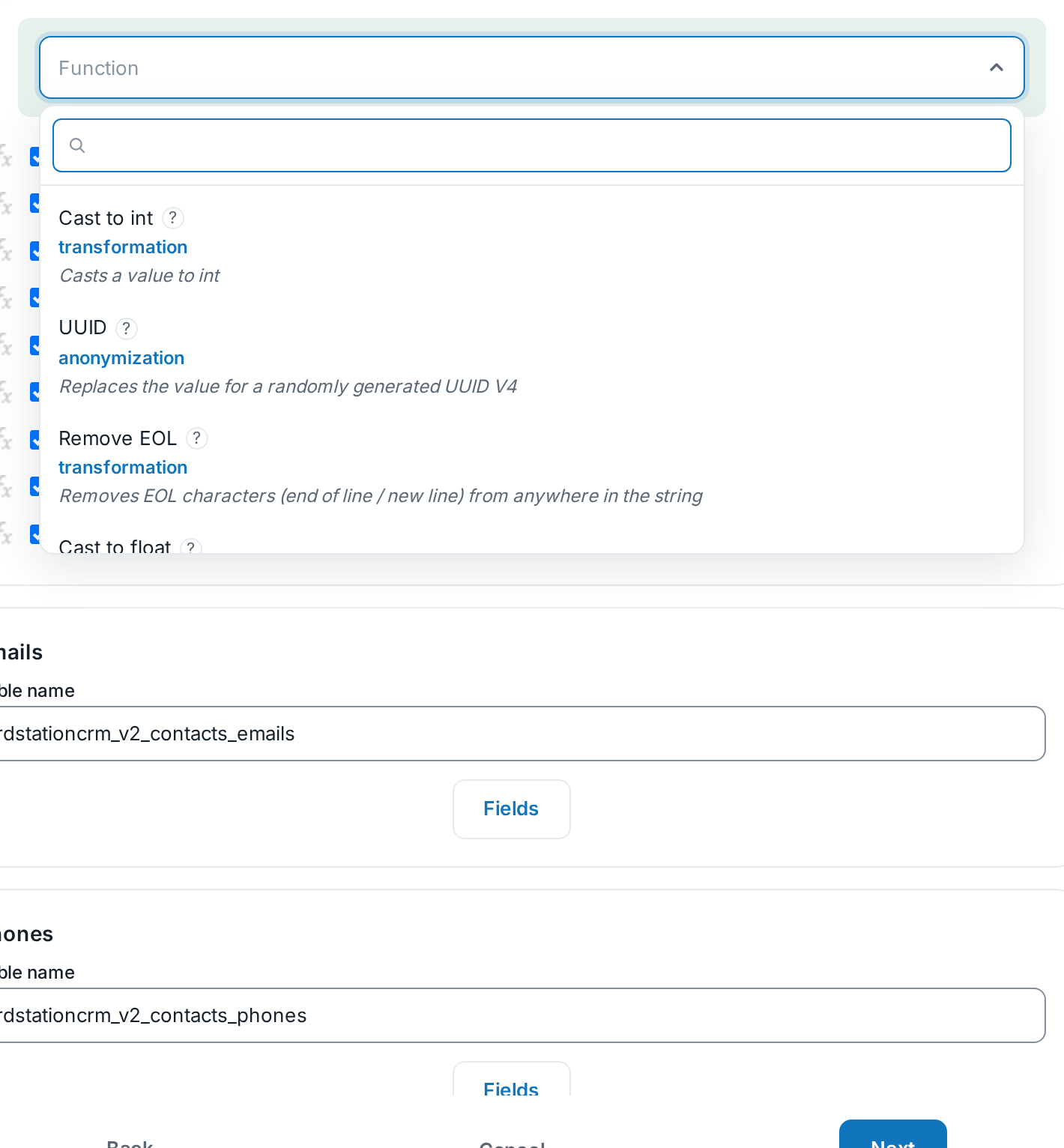
If the chosen function requires parameters (such as a key, for example), you will see the list of required arguments below the selection box. Fill in all the necessary parameters.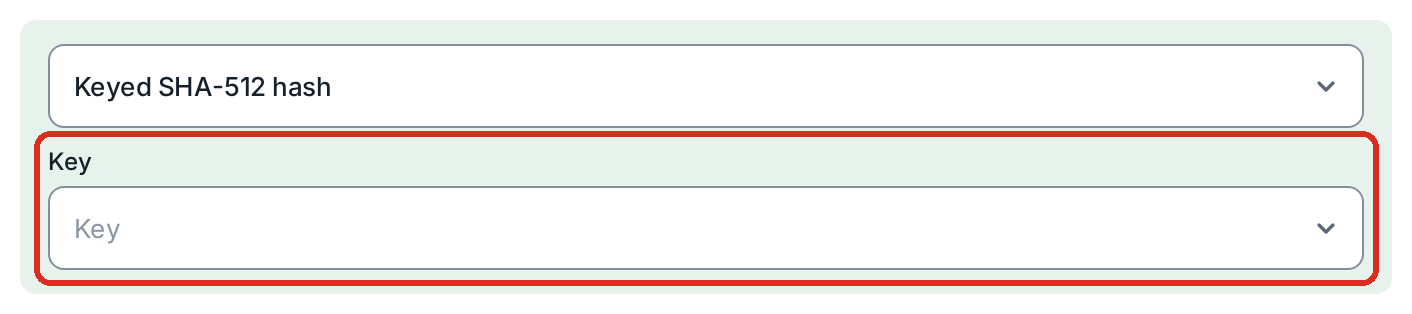
When the function parameters (arguments) are filled in, you will see the "SAVE" button at the bottom. If you are satisfied with the function and the selected parameters, click it to save the function to the field, or click "REMOVE" to clear the data you entered.
Once the function is added, the "fx" icon will appear, and the field type will turn green. This indicates that the field has functions applied. Additionally, the configuration of the previously selected function will also have a green background, and a new selection box will appear below the already added function. This new box allows you to add additional functions to create a chain: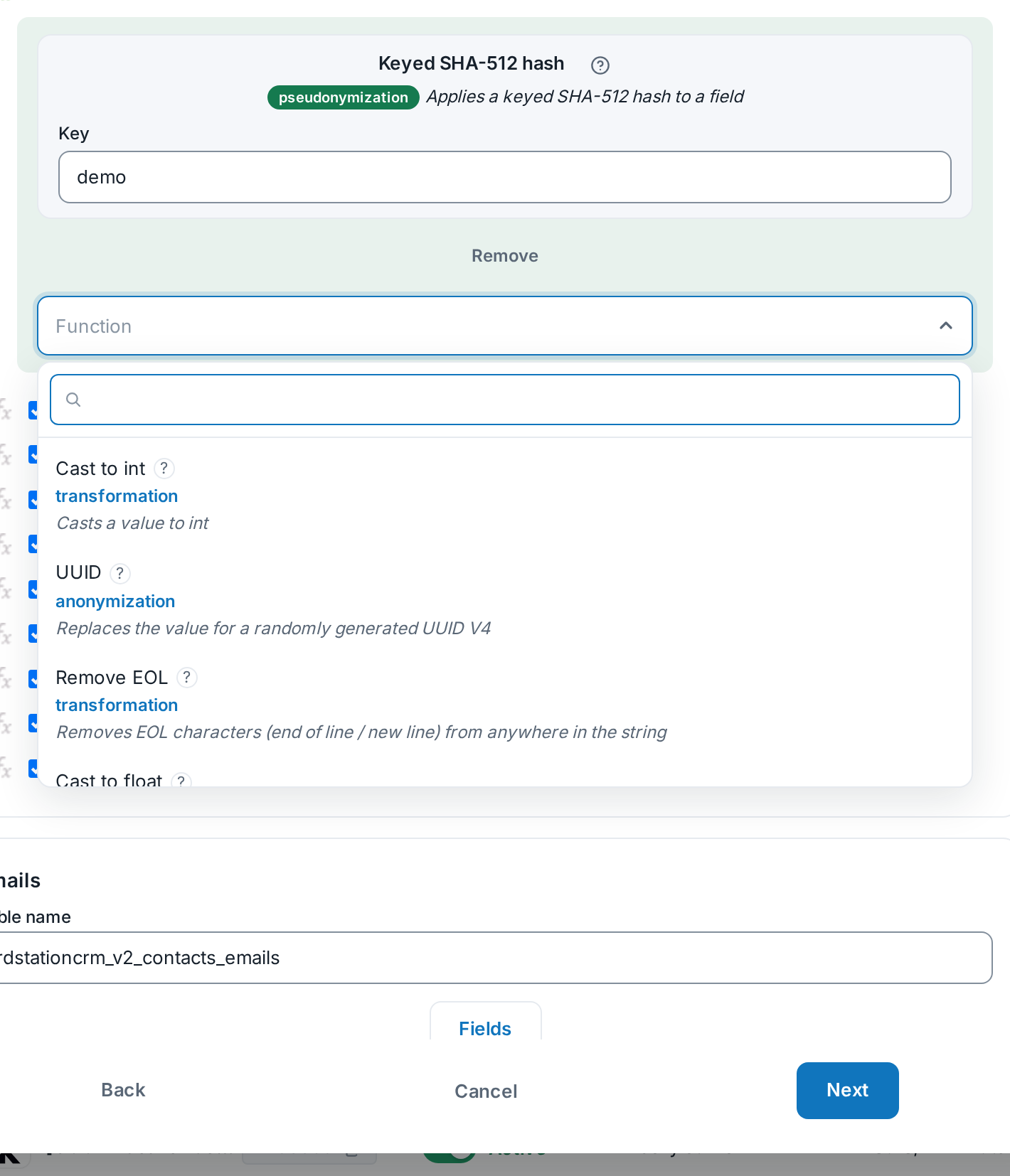
If you want to chain more functions, simply repeat steps 5 to 8 for each function in the chain. Remember that a function is only added to the chain after you click "SAVE." Additionally, only the last function in the chain can be edited at a time. This means that in a chain of five functions, if you need to edit the third one, you will have to remove the fourth and fifth, make the changes to the third, and then re-add the fourth and fifth: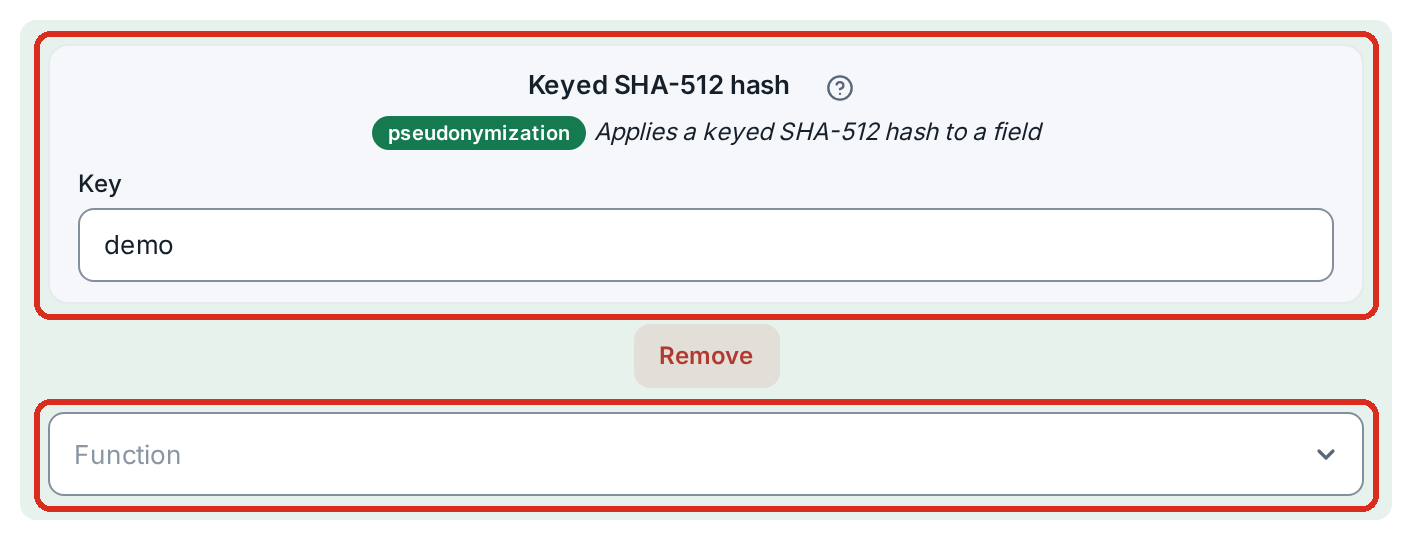
If you are satisfied with the applied function or chain of functions, simply click the "fx" icon again to hide the function editor for that field: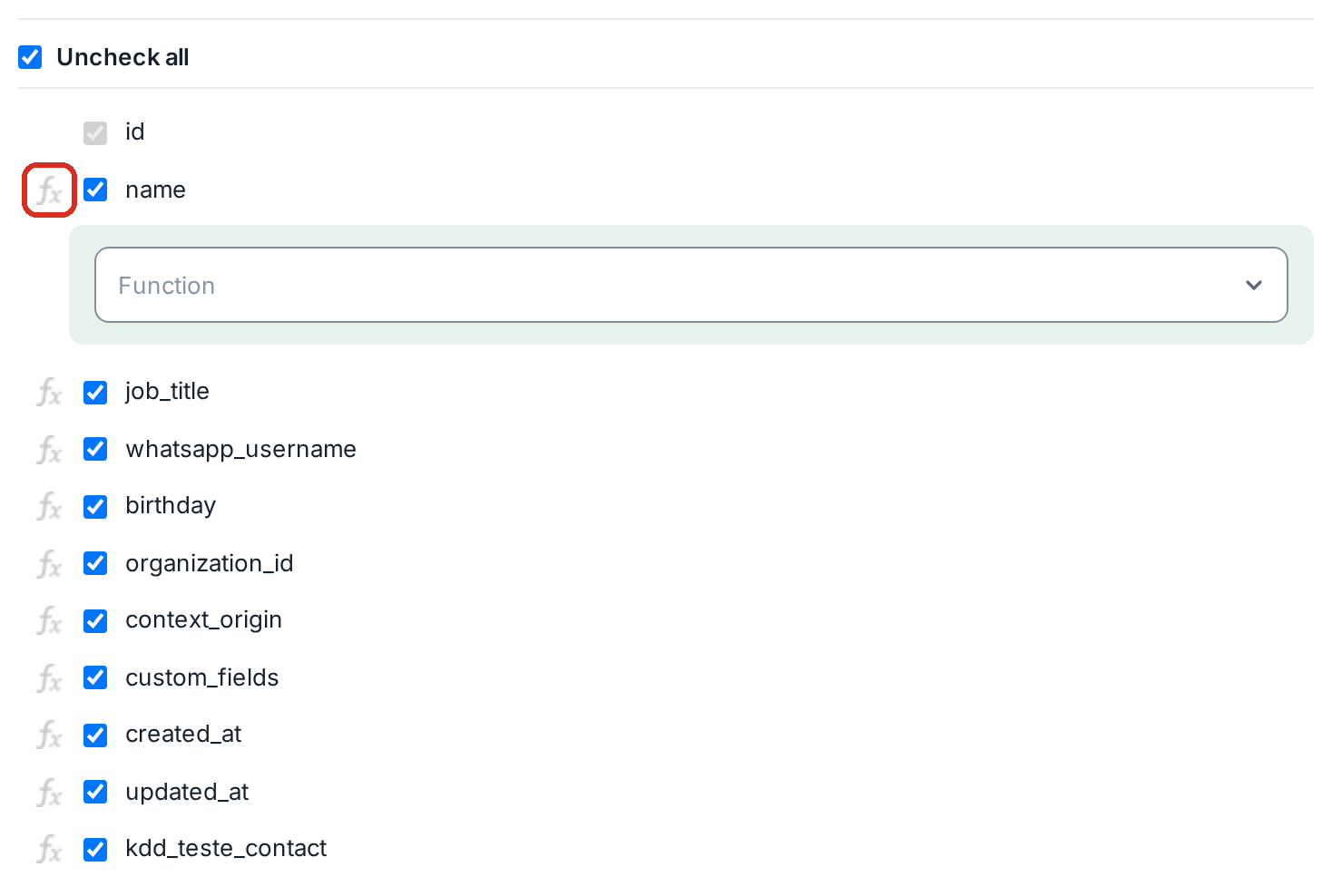
You can identify fields with applied functions by the green "fx" icon: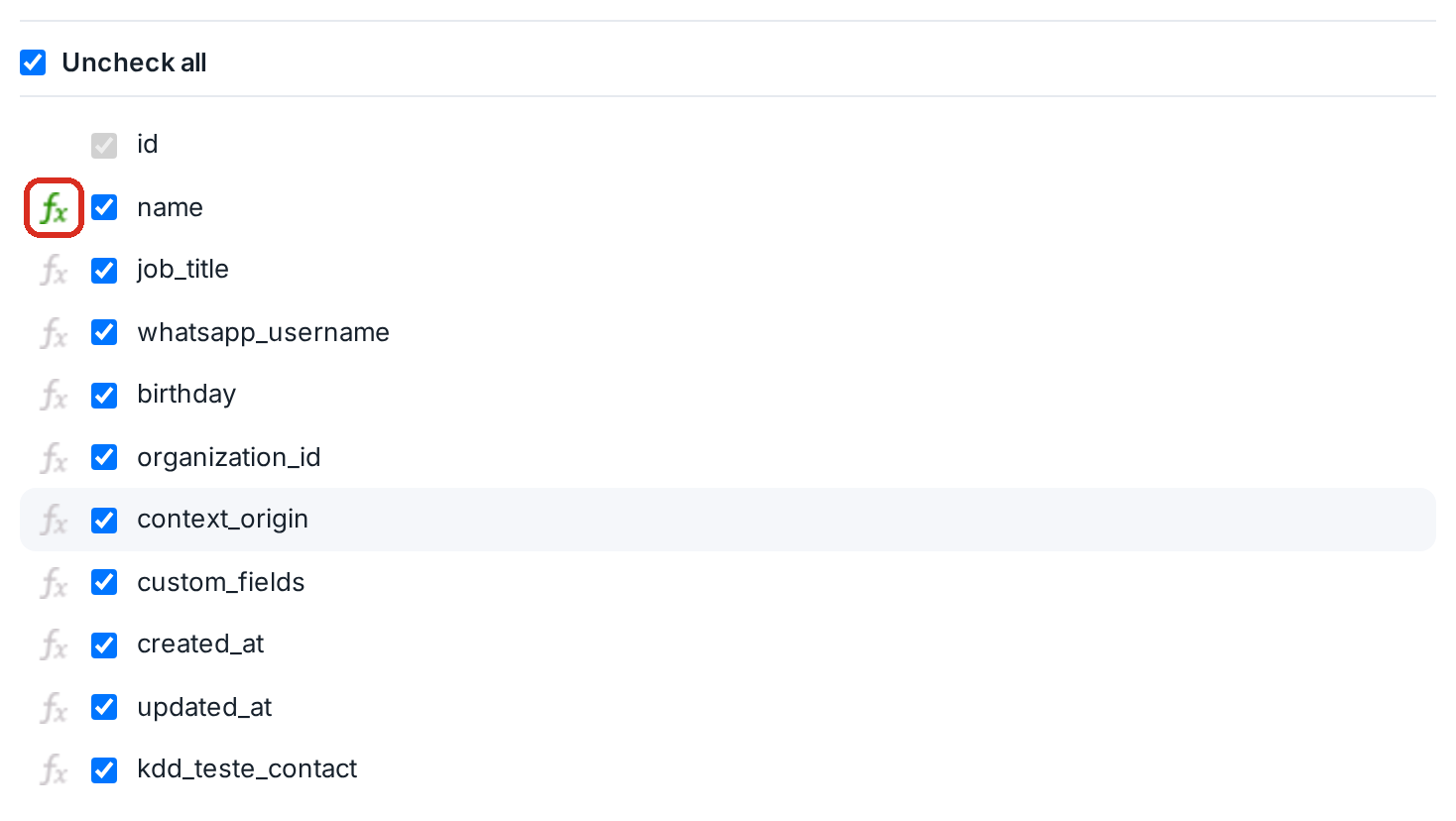
Then, click "Next" to proceed with the creation or editing of the pipeline.
Done! Your functions (or function chain) will be applied to your fields every time your pipeline is executed.
After the pipeline is created, you can also view the applied functions as follows:
Access the pipeline on the Kondado platform.
On the pipeline page, scroll to the Tables section: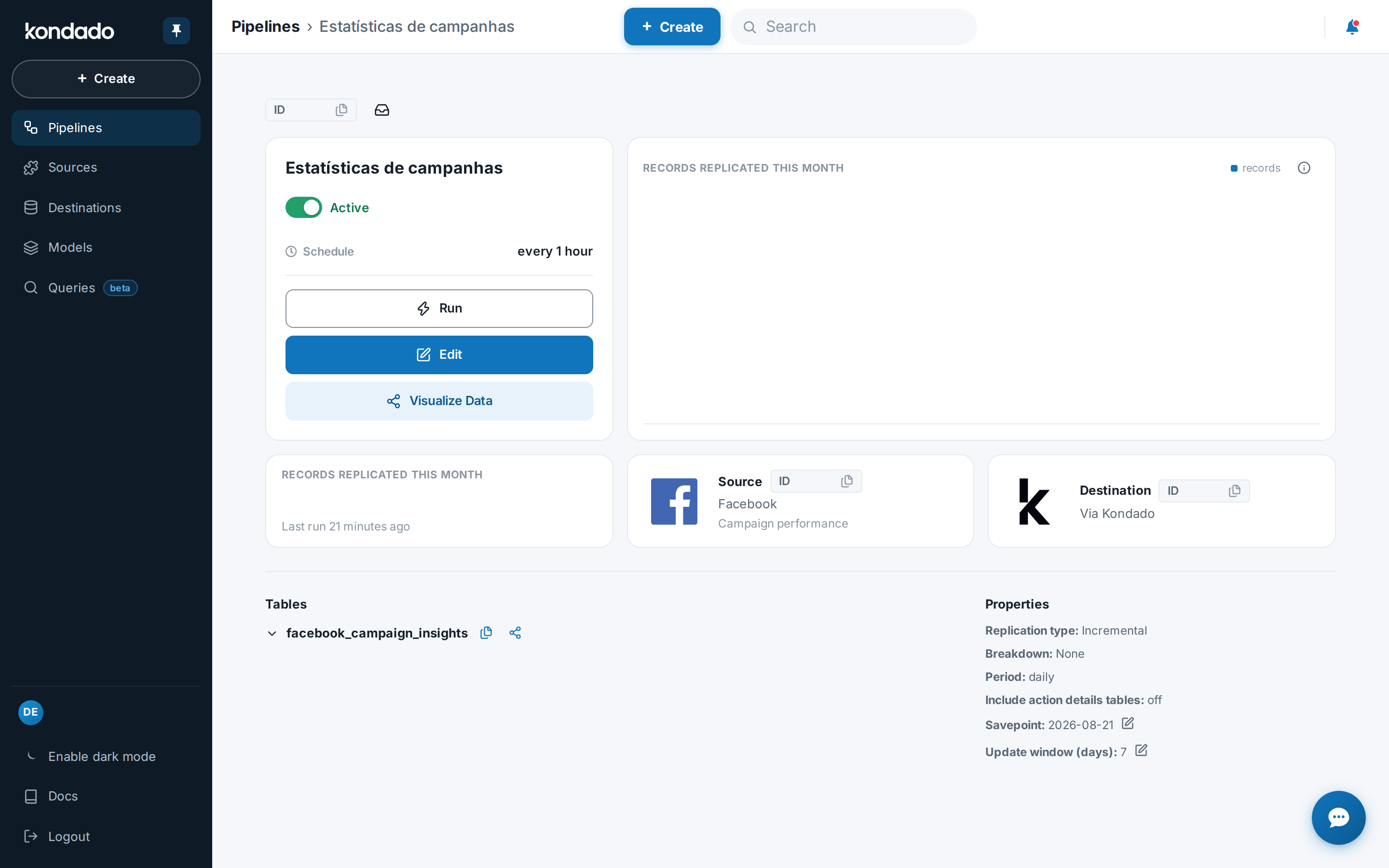
In the Tables section, click on the table you would like to view:
In the list of fields, you will notice that fields with applied functions will be highlighted in green and have the "fx" icon on the right side of the name in the source: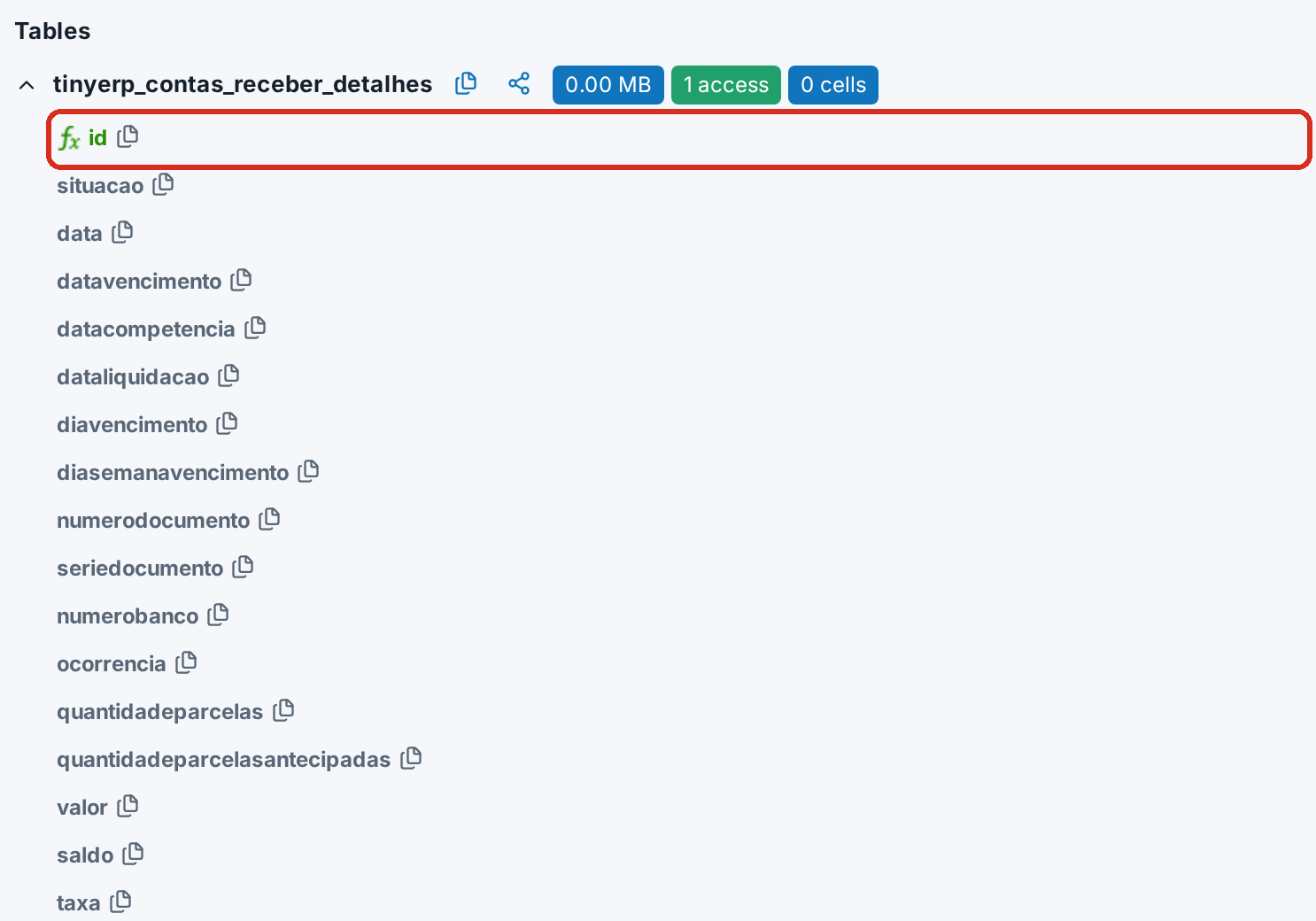
To view the applied functions, hover over the "fx" icon. You will be informed about the function chain, and if you want to see more details (such as which key is being used), open the advanced editor.
Apply functions to pipeline fields in Kondado
Learn how to add, configure, and chain functions to fields during pipeline creation or advanced editing on the Kondado platform.
Open pipeline creation or advanced editor
Click "+ Create" > "Pipeline" or "Edit" > "Advanced" to access the data integration flow where you can configure table and field names.
Access the Fields section
In the "Configure the tables and fields" step, click on Fields to view all available fields for your pipeline configuration.
Select a function for a field
Click the "fx" icon next to any field, then choose from the list of available functions categorized as anonymization, pseudonymization, or transformation.
Configure function parameters
Fill in all required arguments (such as a key) that appear below the selection box for your chosen function.
Save the function to the field
Click "SAVE" to apply the function, or "REMOVE" to clear your entries. The "fx" icon and green field type confirm successful application.
Chain multiple functions
Add additional functions by repeating the selection and save process. Remember that only the last function in the chain can be edited at a time—remove subsequent functions to edit earlier ones.
Hide and verify applied functions
Click the "fx" icon again to hide the editor, then proceed with pipeline creation. You can later view applied functions in pipeline details under "Objects" by hovering over the green "fx" icons.
