How to Create Reports in Power BI

How to Create Reports in Power BI

Power BI, developed by Microsoft, is one of the most popular and powerful platforms for data analysis and creating interactive visualizations. In this article, we’ll explore what Power BI is, the different types of reports you can create, a step-by-step guide to building a report, and how to integrate Kondado data directly into Power BI.

What is Power BI?

Power BI is a Business Intelligence (BI) platform that enables data analysis through dynamic reports and interactive reports, addressing various needs such as marketing metrics tracking and internal operations management. It connects to multiple data sources, offering an intuitive interface to help users transform complex data into easily understandable visualizations. 

Types of Reports in Power BI

Reports are panels that consolidate visualizations created from reports. They provide an overview of key performance indicators (KPIs) and critical metrics for an organization. Here are some main types of reports you can create in Power BI:

  • Operational Reports: Focused on monitoring daily operations, presenting real-time data for quick decisions.
  • Strategic Reports: Used for long-term analysis, focusing on strategic goals and overall company performance.
  • Analytical Reports: Provide detailed views of historical data and forecasts, used for in-depth analysis and trend-based decision-making.
  • Tactical Reports: Designed for managers to monitor team or department performance.


How to Create a Report in Power BI with Kondado

 Now that we understand Power BI and its types of reports, let’s go through the steps to create your own report with Kondado. If you don’t have a Kondado account, click here to create a free trial and continue the process:

First Method - Using a Ready-Made Report Template

  • On the Kondado platform, select your data source and follow the instructions to add it. 
Screenshot from 2024-10-25 10-33-26.png
Screenshot from 2024-10-25 10-33-57.png
  • After adding the data source, save the settings and wait for the connection test to complete. If successful, proceed to the next step. 
Screenshot from 2024-10-25 10-34-33.png
  • You’ll then be presented with ready-made report options for your data source.
  • Choose the pre-built report option you'd like, and the platform will set up the pipelines for you. Once it's ready, you'll receive an email with instructions on how to use it.
eng foto 2.png


Second Method - Creating Your Own Power BI Report 

  • Log in to the platform, select your data source, and follow the instructions to add it. 
Screenshot from 2024-10-25 10-33-26.png
Screenshot from 2024-10-25 10-33-57.png
  • After adding your data source, save it and wait for the connection test to complete. If successful, continue to the next step. 
Screenshot from 2024-10-25 10-34-33.png
  • Click on “More options” and choose “Connect to Power BI, Looker Studio, or a similar tool.” 
eng foto 1.png
eng foto 2.png
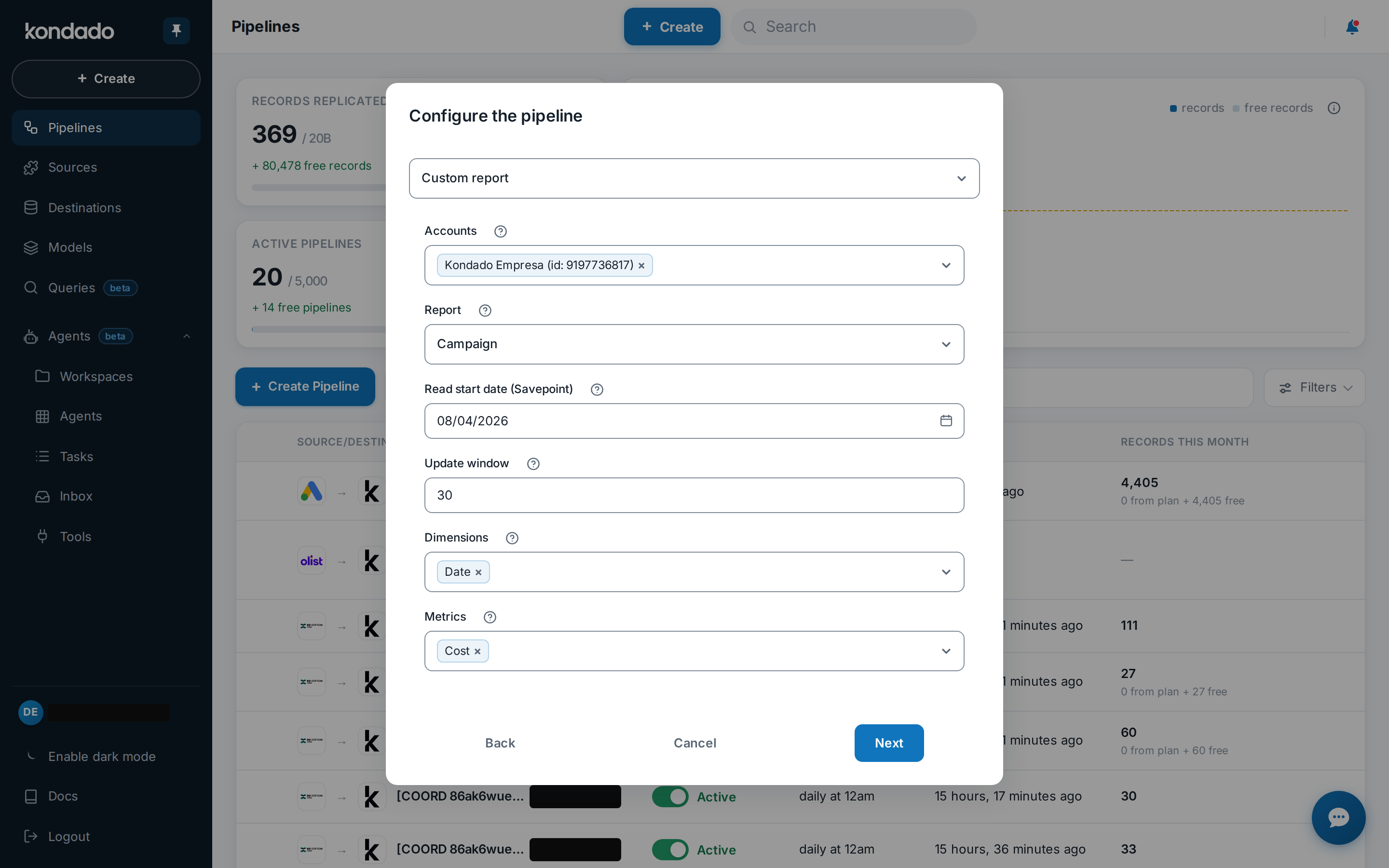
  • Follow the platform’s steps to create your pipeline. 
eng foto 3.png
  • Once your pipeline is saved and executed, you’ll see options on your screen. Select “Connect to Power BI.”
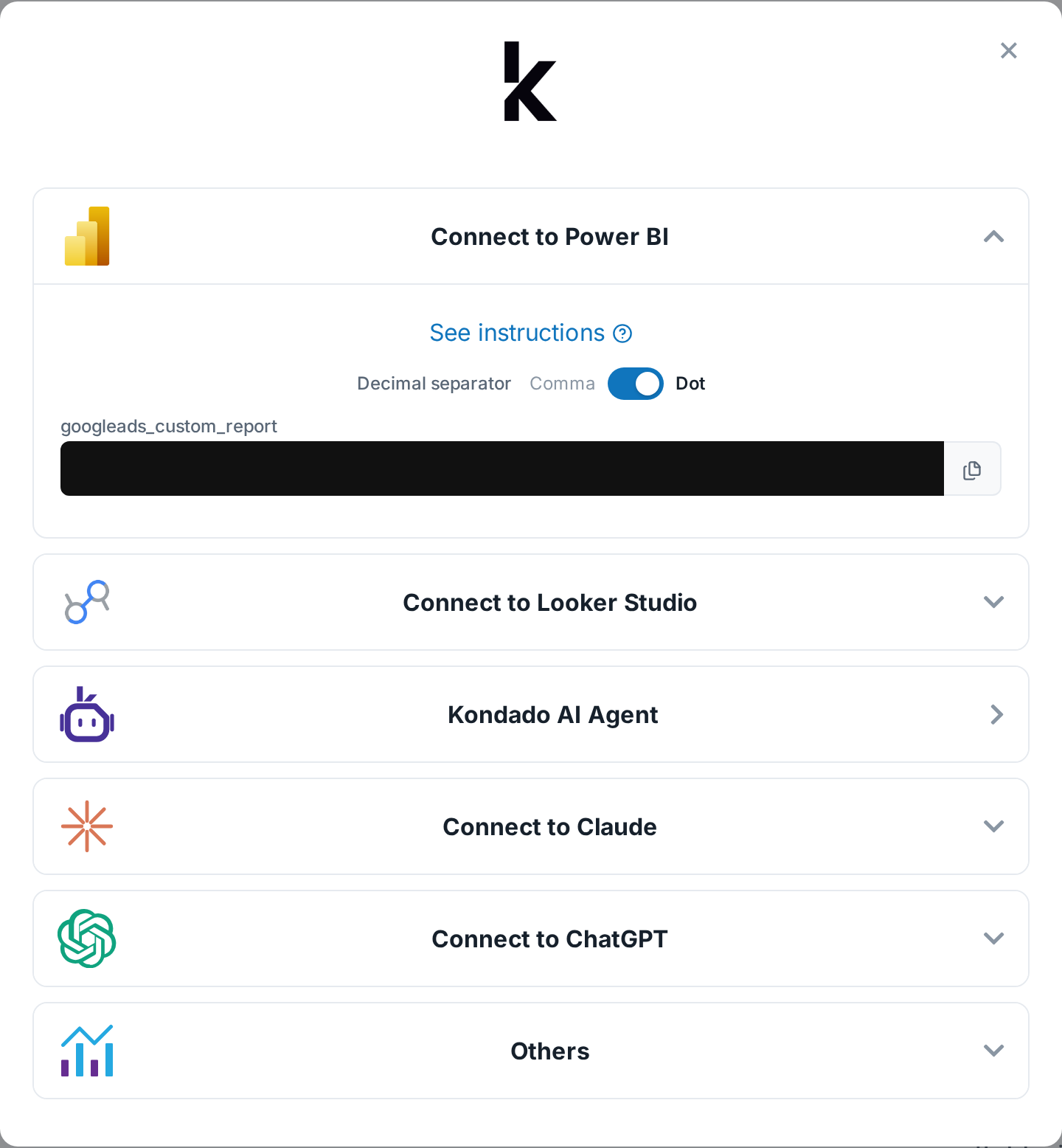
eng pbi foto 4.png
  • You will now have access to a link to enter into Power BI to visualize your data. To know where to insert the link in Power BI, click on "See instructions."
eng pbi foto 5.png


Kondado Report Templates

We’ve selected some of our ready-made templates, which can be easily integrated and customized to suit your needs. They are perfect for those looking to save time and gain practical insights. Check out some examples below:

VTEX 
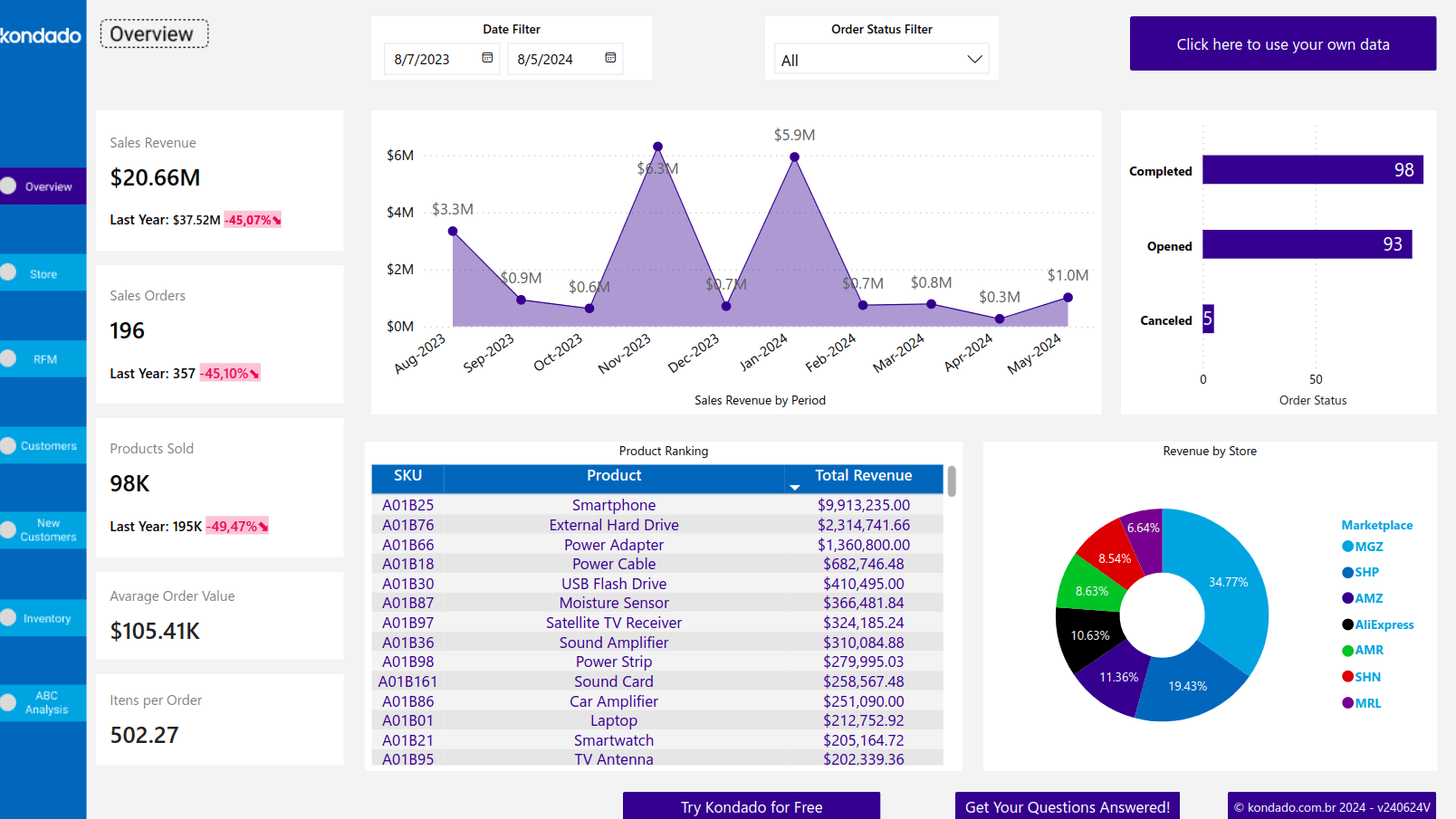
vtex pbi eng.png


Facebook Ads 

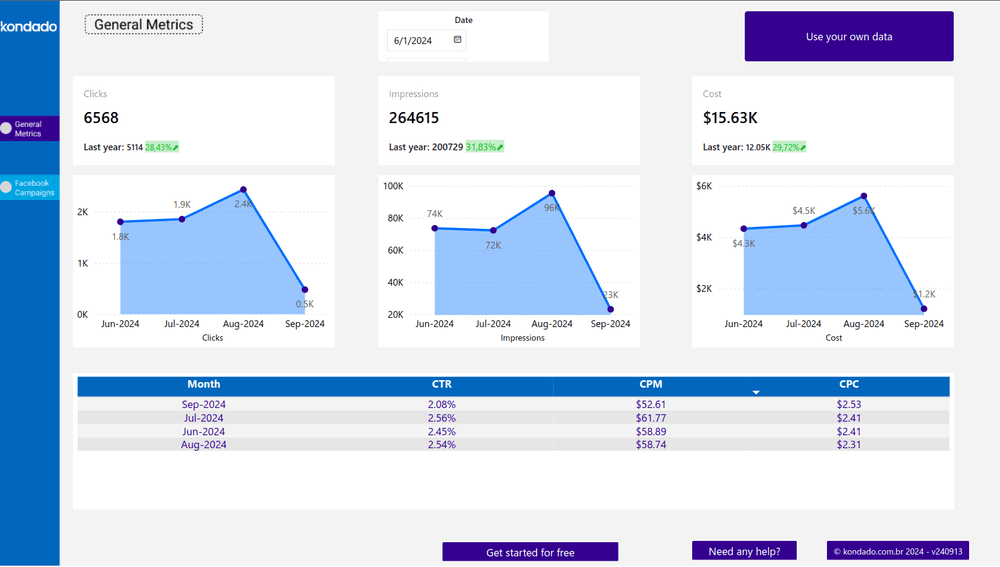
eng fc ads pbi.png


Google Ads 

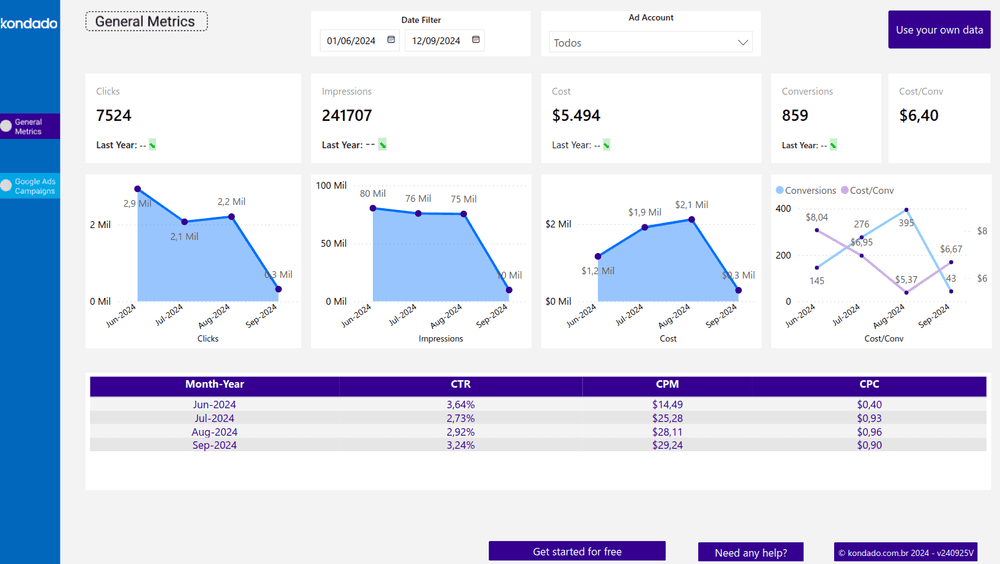
eng g.a pbi.png


Turn Your Data into Strategic Decisions with Kondado

At Kondado, we simplify data pipeline and analysis with a clear, dynamic platform designed for businesses of all industries to gain insights and boost their strategies. Our platform centralizes all your metrics in one place, streamlining your analysis process and enabling quick, informed decisions.

Create Power BI reports with Kondado and enjoy the benefits of fast data pipeline, customized visualizations, and strategic insights at your fingertips. 

 Try Kondado for free for 14 days  and discover how to improve your performance with data-driven decisions!

Conclusion

Creating reports in Power BI allows you to turn data into strategic actions. The flexibility of the tool, combined with Kondado’s ability to integrate multiple data sources, makes the process even simpler and more efficient.

Frequently asked questions

What types of reports can I create in Power BI with Kondado?
You can build four common report types in Power BI: operational for day-to-day monitoring, strategic for executive KPIs, analytical for deep-dive investigation, and tactical for project- or campaign-level views. Kondado feeds the underlying tables and refreshes them at the frequency you choose.
How do I use a ready-made Kondado template for Power BI?
Add your data source on the Kondado platform, wait for the connection test to pass, and open the ready-made dashboards page. Pick the Power BI template that matches your source and follow the import instructions.
Can I connect Kondado data to Power BI for a custom report?
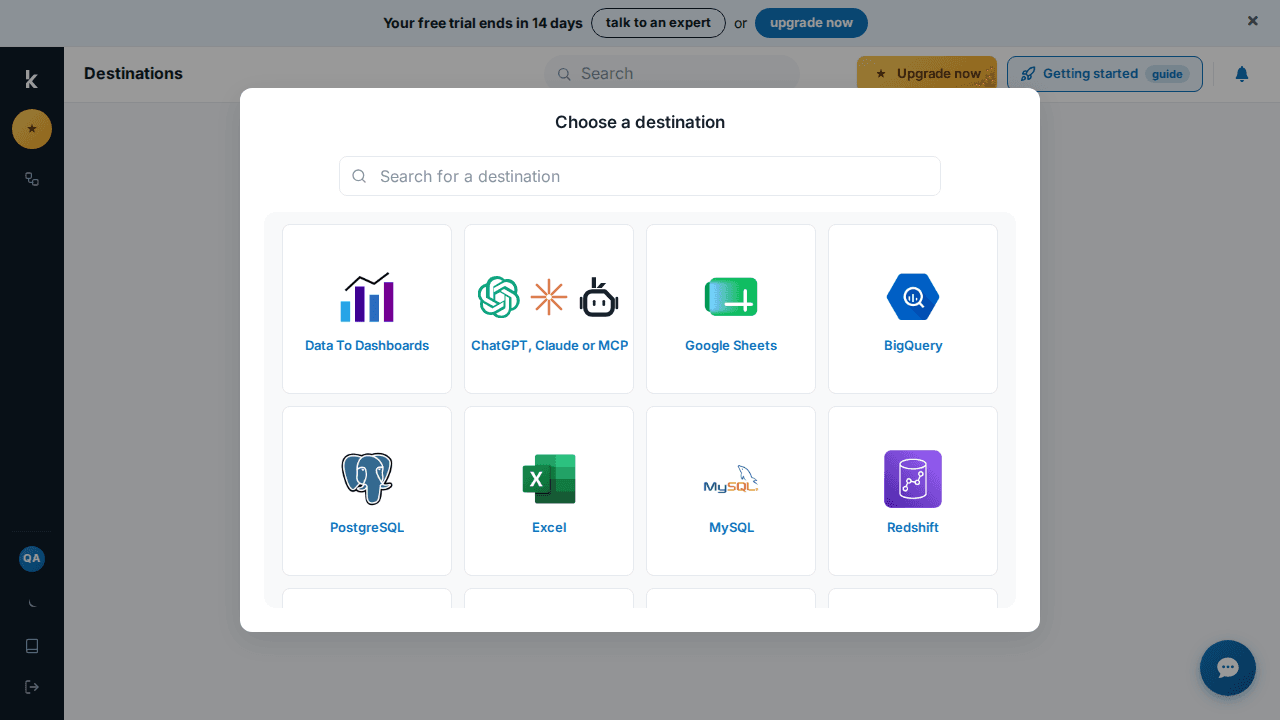
Yes. After adding your source on Kondado, click "More options" and choose "Connect to Power BI, Looker Studio, or a similar tool." Pick a Power BI–friendly destination such as PostgreSQL, BigQuery, or SQL Server, run the pipeline, and connect Power BI to that destination.
Which Power BI templates does Kondado offer?
Kondado offers ready-made Power BI dashboards for platforms such as VTEX, Facebook Ads, Google Ads, Google Analytics 4, RD Station, and others. See the complete list on the ready-made dashboards page.
Do I need technical skills to create Power BI reports with Kondado?
No advanced skills are needed. Kondado handles extraction, schema, and scheduling, so business users can either start from a ready-made template or build their own visuals on top of the loaded tables.
What other BI tools does Kondado support besides Power BI?
Kondado works with Looker Studio, Power BI, Google Sheets, Excel, and any tool that can read from BigQuery, PostgreSQL, MySQL, SQL Server, Redshift, or S3. Browse the full list on the destinations page.

Written by·Published 2024-10-25·Updated 2026-04-26