When the system you want to use is not on the tool list, you can create a custom connection to its API. The agent helps you build the operations, and each one only takes effect after you approve it.
Create a custom connection
- In Agents, open the Connections tab and click New connection.
- Choose Custom connection.
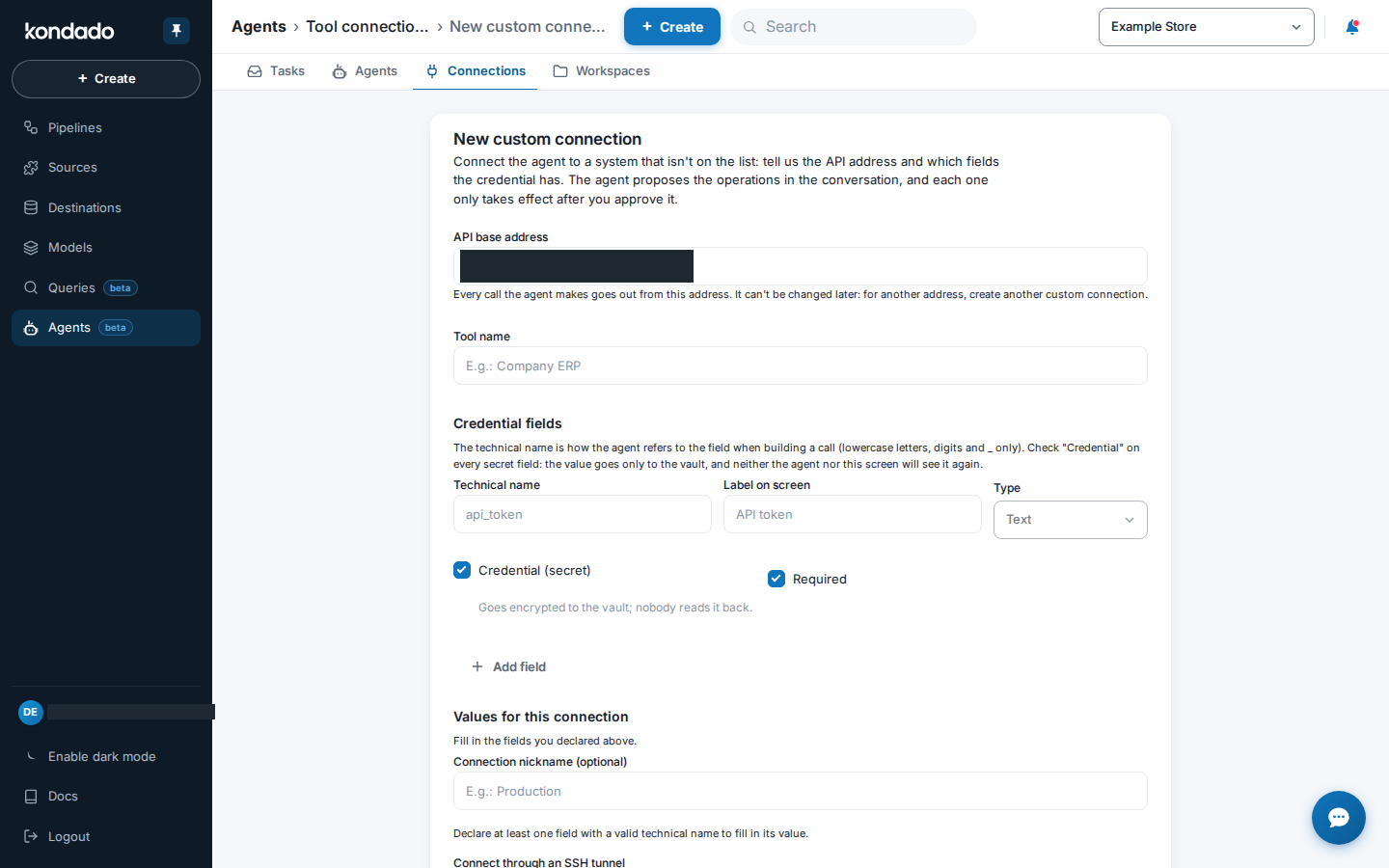
- Enter the base address of the system's API. It cannot be changed later.
- Give the tool a name.
- Declare each credential field (technical name, on-screen label and type) and mark secret fields, such as an API key, as credentials.
- Fill in the values for this connection and, if you want, a nickname.
- Click Create connection.
Build the operations with the agent
With the connection created, ask the agent in a task what you want to do with that system, for example: "query today's orders in our sales system API". The agent proposes the operations in the conversation, and you review and approve each one. Only approved operations become available.
Then turn the connection on in the agent's Tools tab and set the permissions, like any other tool.
Limits of this version
- In this first version, custom connections are read-only: the agent queries, but does not write to the system.
- If the API only answers inside your company's network, first add a tunnel in the SSH tunnels section of the Connections tab and use it in the connection.
Create a custom connection for an agent
Connect the API of a system that is not on the list and approve the operations.
Open New connection
In Agents, open Connections and click New connection.
Choose Custom connection
Enter the API address and the credential fields.
Ask the agent for operations
In a task, describe what you want to do; the agent proposes the operations.
Approve the operations
Review and approve each proposed operation.
Turn on and set permissions
Turn the connection on in the agent's Tools tab and set the permissions.