13. Agents: user management and roles
Beta. Agents are in beta: the screens and features described here may change as we evolve the product. If something looks different on your screen, contact our support from the logged-in area of the platform.
People join Agents as members of a workspace. The workspace role sets what each person can do in general, and each agent's Access tab details what they can do with that agent.
Add a person
- In Agents, open the Workspaces tab and enter the workspace.
- Go to Members and click Add member, or invite by email.
- Choose the role and confirm.
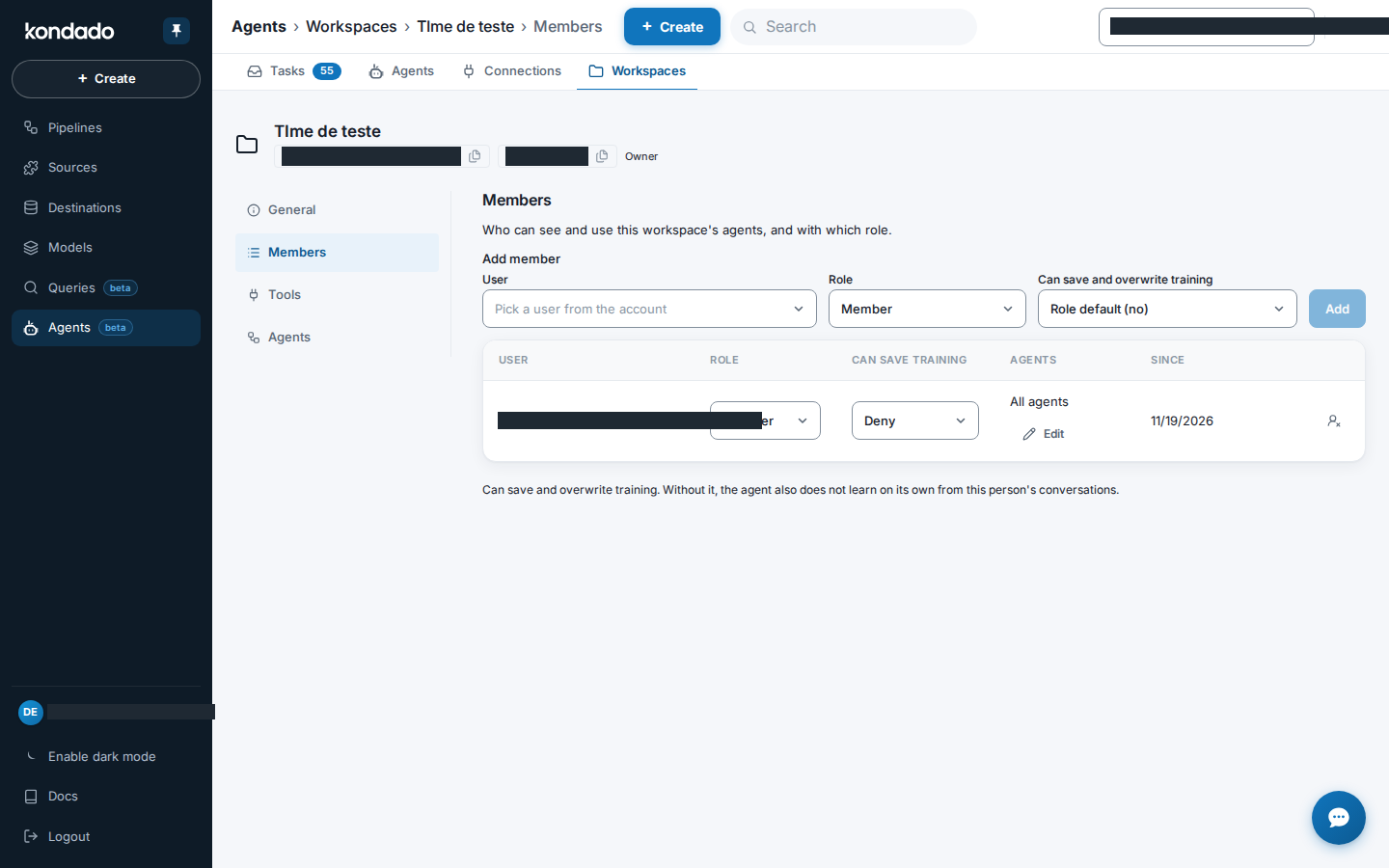
Workspace roles
| Role | Best for |
|---|---|
| Admin | Whoever manages the workspace: members, tools, email rules and permissions. |
| Member | Whoever uses the agents day to day. |
| Viewer | Whoever only needs to follow along. |
Access per agent
In the agent's Access tab, set what each person can do with it:
- the allowed actions, such as creating agents, editing trainings, managing members and permissions, managing webhooks and creating or editing scheduled tasks;
- the tools they can use through the agent;
- the website logins the agent can use in their tasks;
- whether they can save trainings.
The permissions of each operation can also be adjusted per person. See Tool permissions.
Remove a person
An admin can remove a member in Members. A removed person does not get back in on their own: to restore access, they must be added again.
Add a person to an agents workspace
Invite the person, choose the role and adjust access per agent.
1
Open the workspace
In Agents, open Workspaces and enter the workspace.
2
Add the member
In Members, click Add member or invite by email.
3
Choose the role
Select Admin, Member or Viewer.
4
Adjust access
In each agent's Access tab, set what the person can do.
Frequently asked questions
How do I invite someone to Agents?
In the workspace, go to Members and click Add member, or invite by email.
What are the workspace roles?
Admin, Member and Viewer.
How do I limit what a person does with an agent?
In the agent's Access tab, set the actions, tools, website logins and whether they can save trainings.
Can a removed person come back on their own?
No. An admin must add them again.