12. Agents: workspaces
Beta. Agents are in beta: the screens and features described here may change as we evolve the product. If something looks different on your screen, contact our support from the logged-in area of the platform.
The workspace is the home of your agents: every agent and every task belongs to a workspace. Use workspaces to separate teams or subjects, for example one for finance and another for marketing, each with its own people, tools and agents.
Create a workspace
- In Agents, open the Workspaces tab.
- Click New workspace and give it a name.
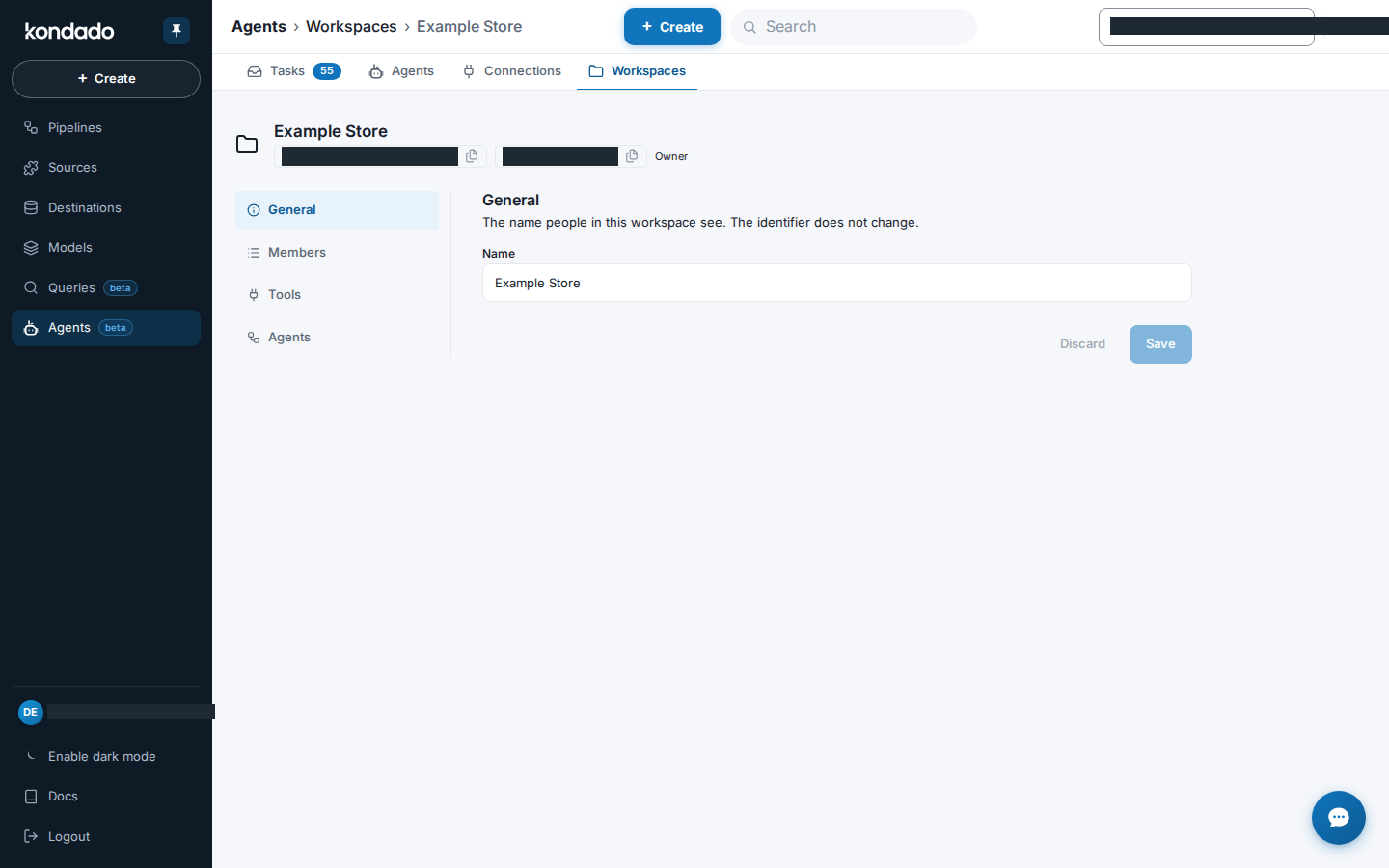
What is inside a workspace
- General: the workspace name.
- Members: the people and each one's role. See User management.
- Tools: which of the account's connections are available to this workspace's agents. Turning a tool off here applies to every agent in it.
- Agents: the workspace's agents.
At the top of the screen, an indicator shows which workspace is in use.
Good to know
- The agent's workspace is chosen at creation and does not change.
- Connections belong to the account; the workspace only decides which ones are on for its agents.
Create and set up an agents workspace
Create a workspace and set its members, tools and agents.
1
Open Workspaces
In Agents, open the Workspaces tab.
2
Create the workspace
Click New workspace and give it a name.
3
Add members
In Members, add people and choose each one's role.
4
Choose the tools
In Tools, turn on the connections this workspace's agents can use.
Frequently asked questions
What is a workspace in Agents?
It is the space that groups agents, tasks, people and tools. Every agent and every task belongs to a workspace.
How do I create a workspace?
In Agents, open the Workspaces tab and click New workspace.
Does turning a tool off in the workspace affect the agents?
Yes. A tool turned off in the workspace becomes unavailable to every agent in it.
Can I move an agent to another workspace?
No. The workspace is chosen when the agent is created and does not change.