MCP (Model Context Protocol) on Via Kondado lets you connect ChatGPT — in any of its products — directly to your data integrated in Kondado. Once connected, you can ask ChatGPT to list tables, describe fields, and run queries in natural language without leaving the chat.
This article covers how to set up the connection in ChatGPT (Web and Desktop) and in Codex (OpenAI's CLI). For the general MCP concept on Via Kondado and the alternative token-based path, see the MCP section of the main Via Kondado article. To connect the Claude family (Anthropic), see the Claude article.
https://mcp.kondado.io/mcpSame URL for every customer — authentication resolves which account each call belongs to.
ChatGPT (Web)
The walkthrough below was validated on a free personal account in October 2026. The same steps work on paid plans.
Step 1. Open ChatGPT Web, click your account name in the bottom-left sidebar, and go to Settings. In the sidebar, click Plugins.
Step 2. Under Plugins, click Explore catalog. Shortcut: chatgpt.com/plugins.
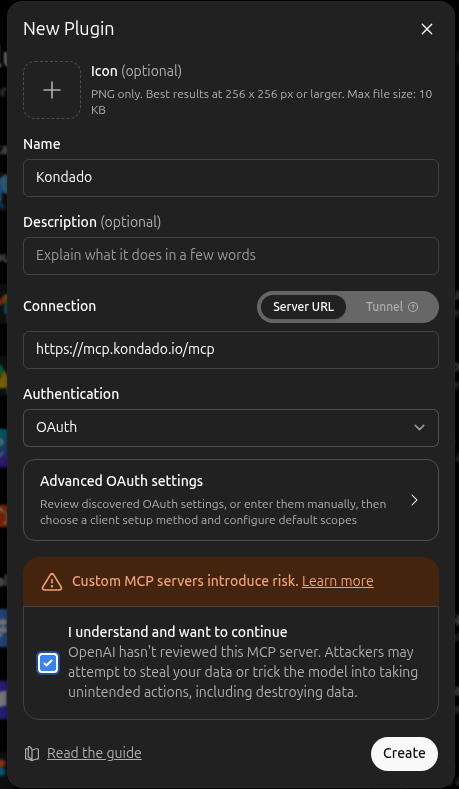
Step 3. On the catalog page, click the Add button in the top-right corner, then Create custom MCP server. The connector creation modal opens.
Step 4. In the modal, fill in:
- Name: Kondado (or any name of your choice)
- Connection: keep Server URL selected (not Tunnel) and paste
https://mcp.kondado.io/mcp - Authentication: leave it on OAuth — there is no need to expand Advanced OAuth settings; ChatGPT discovers the auth server automatically.
- Tick the "I understand and want to continue" checkbox (risk acknowledgment) and click Create as plugin (label may vary slightly).
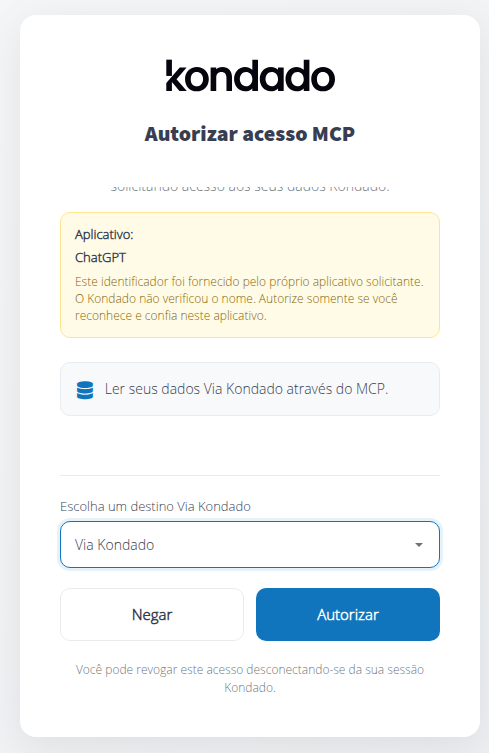
Step 5. When you click Create as plugin, ChatGPT opens a new tab at app.kondado.com.br with the "Authorize MCP access" screen. Confirm that the connected email is yours, pick the destination Via Kondado from the dropdown, and click Approve.
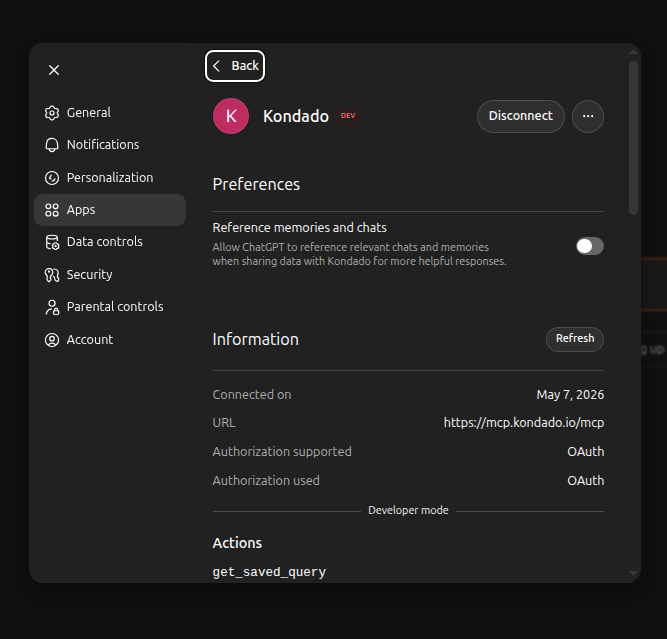
Step 6. The authorization tab closes itself and the Kondado app appears connected inside ChatGPT. The Kondado tools are immediately available for use.
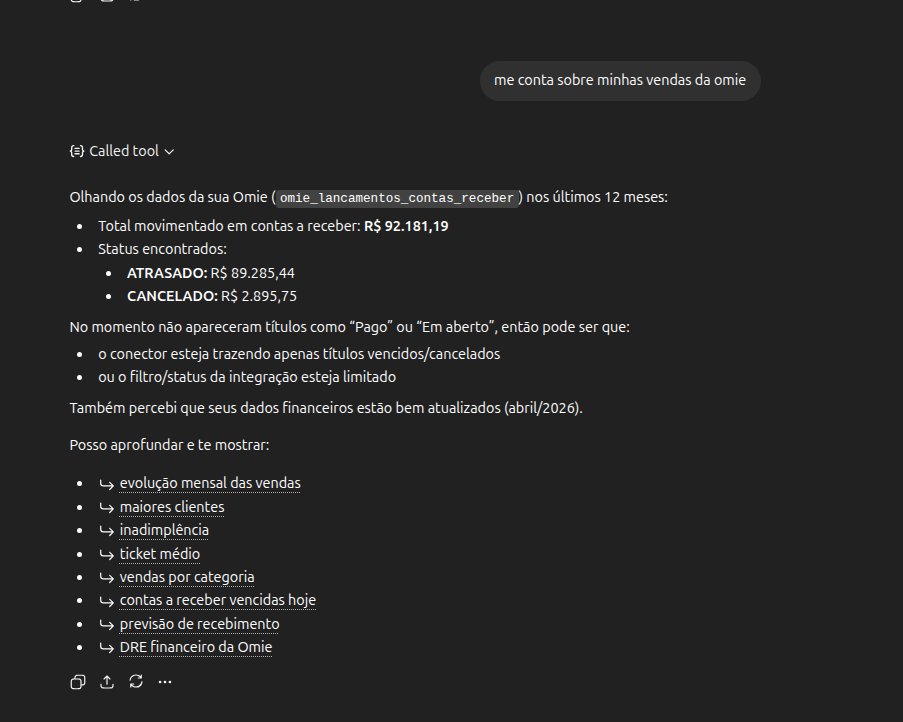
Step 7. Open a chat and ask something about your data. If ChatGPT doesn't call Kondado on its own, select the Kondado app among the chat tools.
That's it. Ask a question about your data — for example, "tell me about my Omie sales". ChatGPT will call the Kondado tools, run the queries, and return the results in the chat.
ChatGPT (Desktop)
The Desktop version of ChatGPT (Mac and Windows) uses the same account and the same connectors configured on the Web:
- Connectors added on the Web automatically show up on Desktop (and vice versa).
- The OAuth flow (Kondado sign-in + destination pick + Approve) also runs in your system's default browser.
- If your Desktop version exposes its own Connectors menu, the registration is identical to the Web (same Name + same URL
https://mcp.kondado.io/mcp).
If your Desktop app doesn't yet expose the custom-connector UI, configure it on the Web and the connection will propagate to the app.
Codex (OpenAI CLI)
Codex is OpenAI's terminal CLI (the counterpart of Anthropic's Claude Code). It accepts MCP servers via a direct command or via the ~/.codex/config.toml file.
Option A — direct command
In the terminal:
codex mcp add kondado --url https://mcp.kondado.io/mcp
codex mcp login kondado
The codex mcp login kondado command opens the browser at the Kondado sign-in screen and then at the "Authorize MCP access" screen. After picking the Via Kondado destination and clicking Approve, the token is stored locally by Codex and refreshed automatically.
Option B — config file
Add this to your ~/.codex/config.toml:
[mcp_servers.kondado]
url = "https://mcp.kondado.io/mcp"
Then run codex mcp login kondado to do the OAuth consent once. From there on, Codex uses the stored credentials on every subsequent call.
Useful commands
codex mcp list— lists the registered MCP servers.codex mcp logout kondado— removes the stored OAuth credentials (useful for switching to a different Via Kondado destination).codex mcp remove kondado— removes the registered server.
codex mcp add complains about a flag or subcommand, update the CLI to the latest version and try again. The server URL (https://mcp.kondado.io/mcp) and the OAuth flow (sign-in + destination pick + Approve) do not change.
Other OpenAI clients
As OpenAI adds MCP support to new products (SDKs, Apps, etc.), the pattern is always the same:
- Register the MCP server with the URL
https://mcp.kondado.io/mcp. - On the first call, the client opens the Kondado consent screen at
app.kondado.com.br. - You pick the Via Kondado destination and approve.
For third-party MCP clients or server-to-server integrations that do not support OAuth, you can use the legacy Via Kondado token — see the MCP section of the Via Kondado article.
Tips and troubleshooting
- Switch Via Kondado: remove the Kondado app at chatgpt.com/plugins (or run
codex mcp logout kondado) and add it again. Going through consent again lets you pick a different destination in the dropdown. - Token expired: ChatGPT and Codex refresh the token automatically via the refresh token. If you still see an authentication error, redo the connection (remove + add).
- I don't see all my tables: the connector only sees tables in the destination you picked on the consent screen. Make sure you selected the right destination during consent.
- I can't find where to create the connector: the path is Settings → Plugins → Explore catalog → Add → Create custom MCP server. Don't look for Developer mode: OpenAI removed that step in October 2026. On Business / Enterprise workspaces, your admin may have blocked custom MCP servers: ask them to allow it.
- v1 limitations: MCP is read-only (queries only) and uses KSQL. You cannot write, update, or delete data in Via Kondado through MCP.
Next steps
- Via Kondado — destination overview
- MCP section in the Via Kondado article — differences between OAuth and the legacy token
- Claude — how to connect the Claude family (Web, Desktop, Code) to Via Kondado
Connect Via Kondado to ChatGPT via MCP
Set up a custom MCP server in ChatGPT (Web, Desktop, or Codex) to access your Via Kondado on any plan, including the free one.
Open Plugins
In ChatGPT, go to Settings → Plugins and click Explore catalog (or open chatgpt.com/plugins). You don't need to turn on Developer mode.
Create the MCP server
In the catalog, click Add → Create custom MCP server. Fill in Name (Kondado), Server URL https://mcp.kondado.io/mcp, and Authentication OAuth, tick "I understand and want to continue" and click Create.
Authorize Via Kondado
ChatGPT opens the Authorize MCP access screen at app.kondado.com.br. Confirm your email, pick the destination Via Kondado, and click Approve.
Use in natural language
Open a chat and ask for the queries in natural language. No per-query approval is needed: the authorization applies to the app.
Frequently asked questions
codex mcp logout kondado in the Codex CLI) and add it again, picking a different Via Kondado.codex mcp logout kondado then codex mcp remove kondado.https://mcp.kondado.io/mcp — and OAuth authentication follows the same pattern as Web/Desktop.