💡 Advanced tip: Google Sheets parses numbers according to the spreadsheet's locale. If your sheet uses a dot as the decimal separator (e.g. English), use decimal_sep=dot in the URL (or omit the parameter); if it uses a comma, use decimal_sep=comma. This prevents numeric values from being imported as text.
How to Read Via Kondado Data in Google Sheets using IMPORTDATA
Step-by-step guide to import automated data directly into Google Sheets with the native IMPORTDATA function
What is Via Kondado?
Via Kondado is a Kondado platform destination that lets you access your integrated and modeled data through a simple API. With it, you can:
- Access 80+ data sources connected to Kondado
- Get data in CSV format through API links
- Automate updates in Google Sheets without manual exports
- Build dynamic spreadsheets and reports that refresh automatically
Ideal use case: Connect your ERP, e-commerce platform (Shopify, VTEX) or marketing tools (Meta Ads, Google Ads) directly to Google Sheets and keep your spreadsheets always up to date — with nothing to install, using just a formula.
What you need
Before you start, make sure you have:
- An active Kondado account with configured pipelines
- A Google account with access to Google Sheets
- A Via Kondado destination created on the Kondado platform
- An access token for your Via Kondado destination
Step 1: Get the Access Link in Kondado
To connect Google Sheets to your data, you first need to obtain the API access link:
1.1 Open your Pipeline
- Log in to the Kondado platform
- Click on Pipelines in the side menu
- Select the pipeline you want to connect to Google Sheets
1.2 Copy the Access Link
- Inside the pipeline, click the View Data button
- In the modal window, click the Others option (the generated link is the same for any tool, including Google Sheets)
- Choose the decimal separator: comma or dot (match your sheet's locale)
- Select the desired table
- Click the copy icon next to the URL
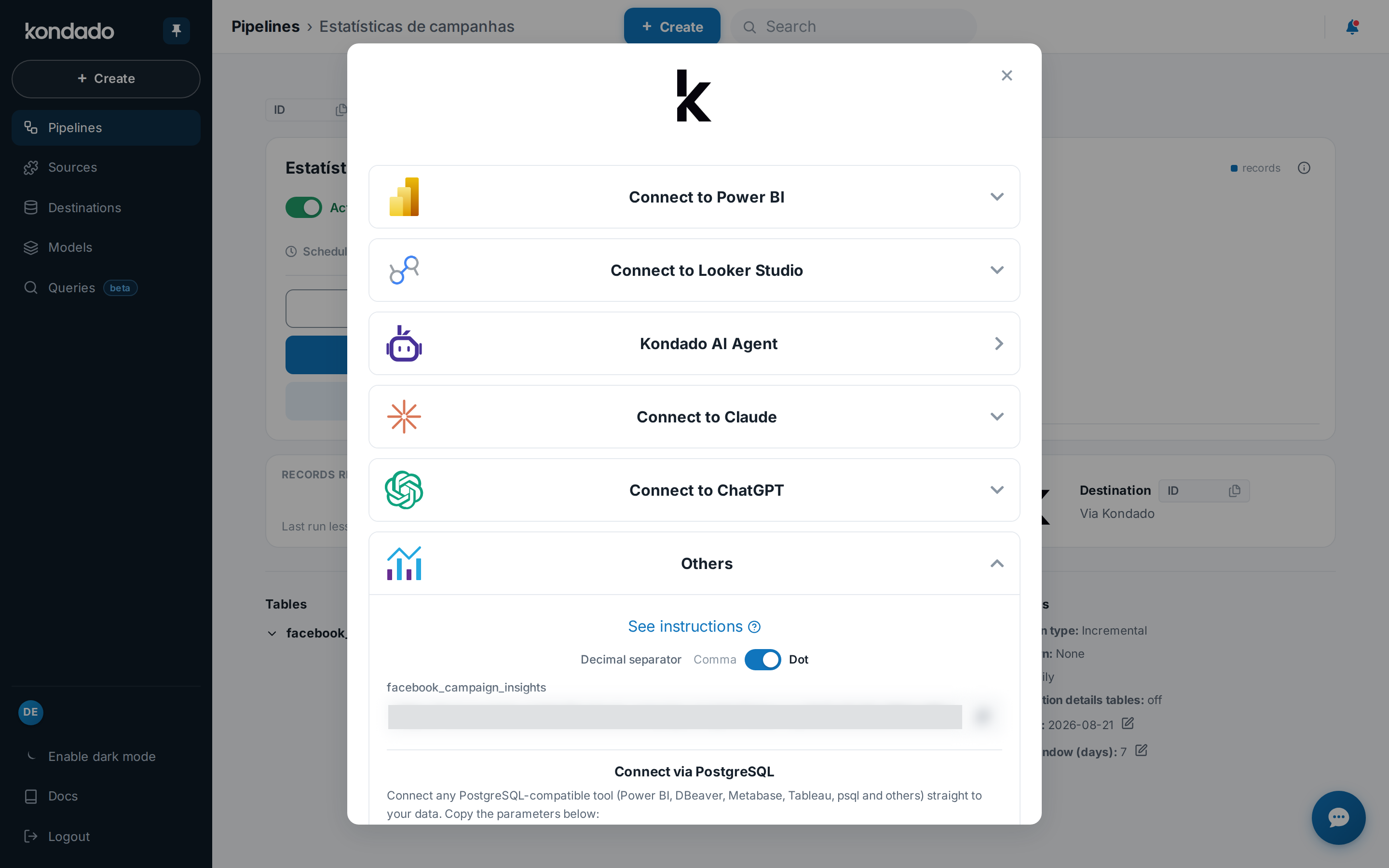
The URL will look like:
https://hub.kondado.io/data/table_name?token=your_token_here&decimal_sep=commaSave this URL — you will use it inside the formula in Google Sheets.
Step 2: Use the IMPORTDATA Function in Google Sheets
Google Sheets has a native function called IMPORTDATA that imports a CSV file (like the one Via Kondado exposes) directly into the spreadsheet — with no add-ons to install.
- Open a spreadsheet in Google Sheets
- Click the cell where the data should start (e.g. A1)
- Type the formula below, replacing the URL with the one you copied from Kondado:
=IMPORTDATA("https://hub.kondado.io/data/bling_categorias_produtos?token=xxxxxx&decimal_sep=comma")- Press Enter
Google Sheets will download the CSV and automatically fill the cells from the formula's position, building a table with all the rows and columns of your pipeline.
Tip: keep the cells to the right of and below the formula empty. IMPORTDATA needs that space to expand the result. If data is in the way, Sheets shows the error "Array result was not expanded...".
Step 3: First Time — Authorize Access to External Data
The first time you use an import function (such as IMPORTDATA) in a spreadsheet, Google Sheets shows a security warning at the top of the sheet, telling you the formula is trying to connect to an external service:

⚠️ Important — do not dismiss this warning: a yellow bar will appear with the message "Warning: Some formulas are trying to send and receive data from external parties." Click the "Allow access" button on the right of the bar so the data loads. This warning is normal — it appears for any formula that fetches data from the web (IMPORTDATA, IMPORTRANGE, IMPORTHTML, etc.) and you only need to authorize it once per spreadsheet.
After clicking Allow access, your Via Kondado data appears immediately in the spreadsheet.
Step 4: Automatic Data Refresh
The great advantage of IMPORTDATA is that it reprocesses the data automatically. You don't need to re-import manually.
Automatic Refresh (default)
- Google Sheets recalculates import functions approximately every 1 hour, and also every time the spreadsheet is opened.
- This means your spreadsheet stays in sync with the latest version of the data replicated by Kondado, transparently.
Force a Manual Refresh
If you want to pull the latest data right away, without waiting for the automatic cycle:
- Reload the page (F5) — reopening the sheet re-runs IMPORTDATA; or
- Click the cell with the formula, delete the leading
=, press Enter, then type the=back in — this re-runs the formula; or - Adjust the recalculation frequency in File → Settings → Calculation and choose "On change and every minute" or "On change and every hour".
Tip: Google caches the IMPORTDATA result for a short period. If you just ran the pipeline in Kondado and the sheet still shows old data, wait a few minutes and reload.
Token Security
🔒 Never share the URL with the token publicly. The token embedded in the URL grants access to your data. When you share the spreadsheet, remember that anyone with edit permission can see the formula — and therefore the URL with the token.
- To share only the results, copy the data and paste it as values (Paste special → Values only) into another spreadsheet, or export as PDF.
- If you suspect the token has been exposed, change the token of your Via Kondado destination in Kondado — the old token stops working immediately.
- Protect access to your Kondado account with two-factor authentication.
Troubleshooting
"The permission warning doesn't appear / data won't load"
- Confirm you clicked Allow access on the yellow bar at the top of the sheet.
- If you dismissed the warning, delete and retype the formula so it reappears.
"#N/A — Array result was not expanded"
- There is data occupying the cells where IMPORTDATA needs to expand. Clear the cells to the right of and below the formula, or move the formula to an empty tab.
"Numbers appear as text (left-aligned)"
- The decimal separator in the URL doesn't match the spreadsheet locale. For sheets that use a dot, use
decimal_sep=dot(or omit the parameter); for sheets that use a comma, usedecimal_sep=comma. - Check the spreadsheet locale under File → Settings → Locale.
"Import error / couldn't load the URL"
- Check that the URL is complete (including the
token). - Confirm the Via Kondado destination is active in Kondado.
- Paste the URL into a browser to test — it should download a CSV file.
"Special characters don't show up"
- Via Kondado normalizes accents and special characters to ensure universal CSV compatibility. This is expected.
Next Steps
Now that your data is in Google Sheets, you can:
- Build charts and dashboards that refresh along with the data
- Combine multiple tables — use one IMPORTDATA per tab and join them with
QUERY,VLOOKUPorXLOOKUP - Apply filters and pivot tables on top of the imported data
- Share insights with your team (paste as values so you don't expose the token)
Additional Resources
- Full Via Kondado documentation
- How to connect Via Kondado to Excel (Power Query)
- Create a Kondado account — 14-day free trial
Questions? Reach out to our support through the contact page.
Read Via Kondado data in Google Sheets with IMPORTDATA
Import data from your Via Kondado destination straight into a Google Sheets spreadsheet using the native IMPORTDATA function.
Get the access link
In Kondado, open the pipeline, click View Data, choose the decimal separator and copy the table URL with the token.
Use IMPORTDATA
In Google Sheets, in an empty cell, type =IMPORTDATA("URL") with the URL you copied from Kondado and press Enter.
Allow access
The first time, click Allow access on the yellow warning bar in Google Sheets to authorize the connection to the external service.
Automatic refresh
Google Sheets reprocesses IMPORTDATA roughly every 1 hour and when the sheet is opened; reload the page to force a refresh.
Protect the token
Never share the URL with the token; to share results, paste as values or export as PDF.
Frequently asked questions
decimal_sep=dot or omit the parameter; for sheets that use a comma, use decimal_sep=comma.