In Your account you adjust the settings of your own user in Kondado: e-mail, time zone, notifications, two-factor authentication (MFA) and the teams you belong to. This article also explains how to change your password.
Settings that apply to every user in the company (creating users, permissions, login methods and requiring MFA for the whole account) are in User management.
- How to open Your account
- E-mail, time zone and notifications
- Change your password
- Two-factor authentication (MFA)
- Your teams
How to open Your account
Click the block with your e-mail at the bottom of the side menu. You land on Settings, in the Your account tab:
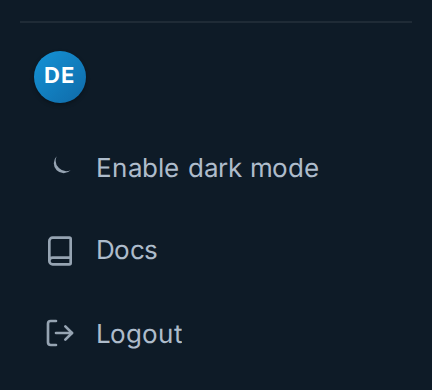
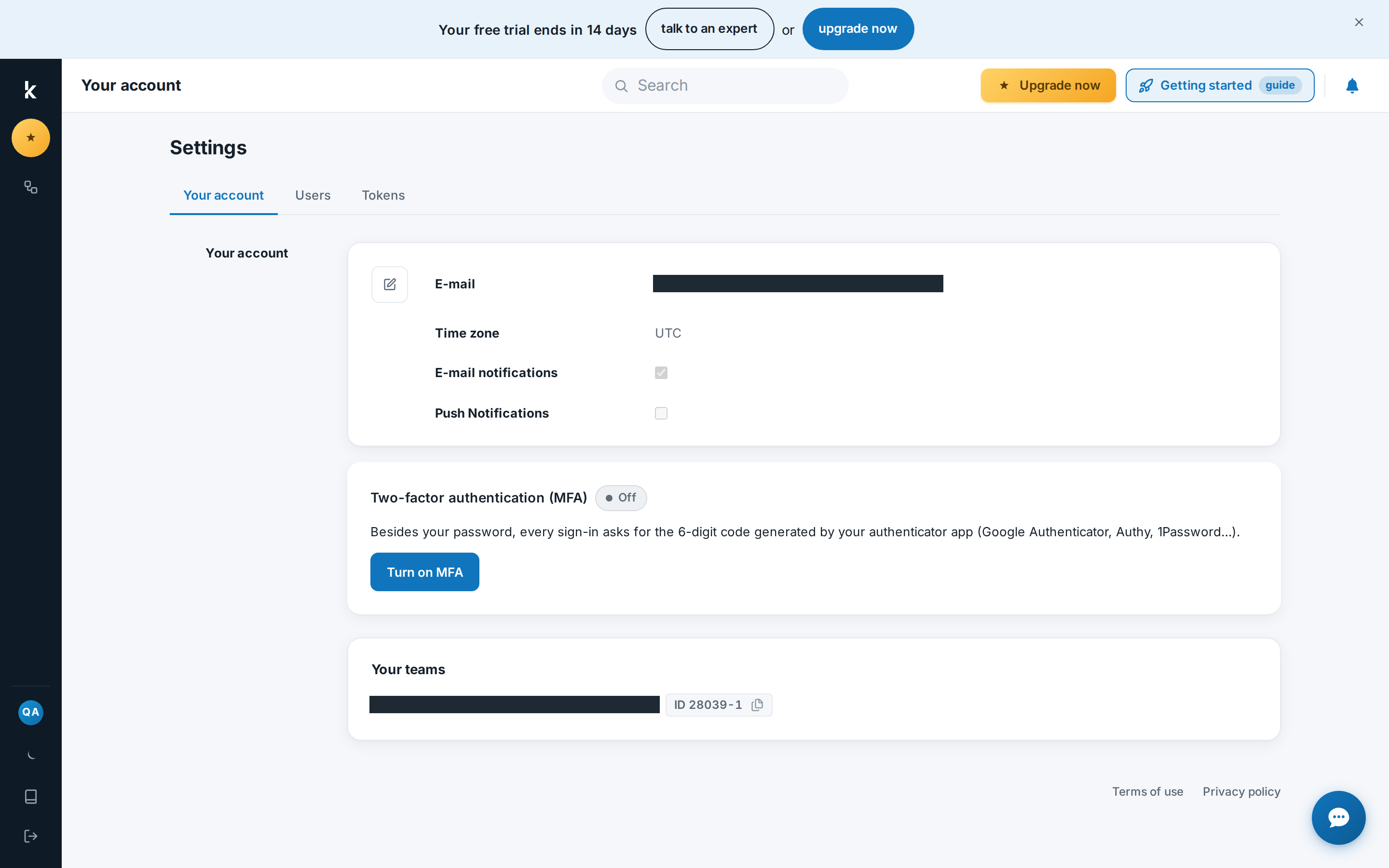
The page has three cards: your details (e-mail, time zone and notifications), Two-factor authentication (MFA) and Your teams. The footer links to the Terms of use and the Privacy policy.
E-mail, time zone and notifications
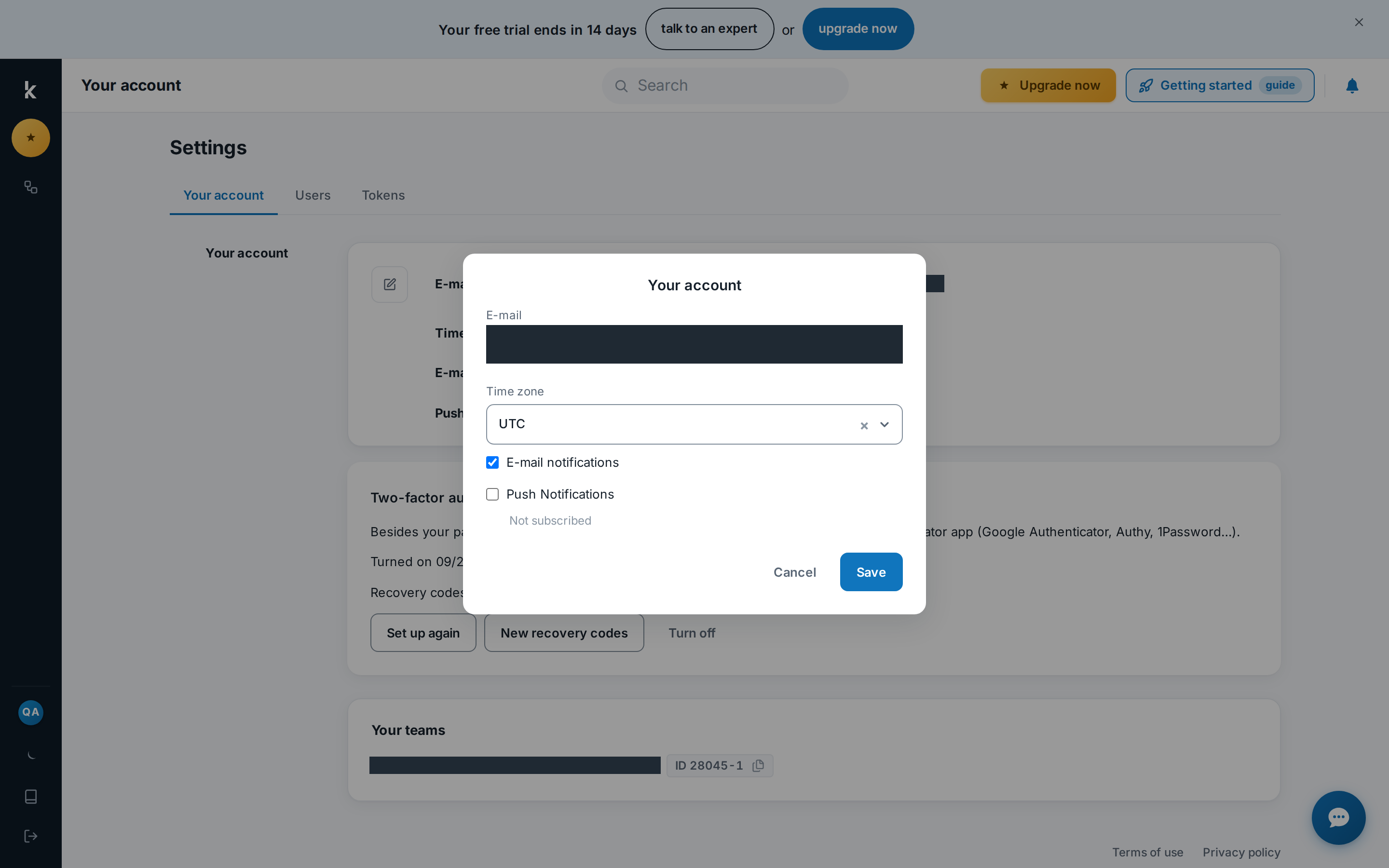
The first card shows your details. To change them, click the pencil icon to the left of E-mail. The fields are:
- E-mail: your Kondado login. It is shown in the edit window but cannot be changed there.
- Time zone: since you choose when your pipelines run, the selected time zone must match yours. For example, when it is 3 PM in São Paulo, it is not 3 PM in Acre.
- E-mail notifications: whether you receive the platform's automatic e-mails about your pipelines. In-app notifications (the bell) are explained in Notifications.
- Push Notifications: browser notifications. When you check the option, your browser asks for permission to show them; below the option you see whether you are subscribed or Not subscribed.
When you are done, click Save.
Change your password
Password changes are not made in Your account: they are done from the login screen.
- Sign out and, on the login screen, click Forgot your password?
- Enter your e-mail. You will receive a link to set the new password.
- Create the new password: it must have at least 8 characters, including one uppercase letter, one lowercase letter and one number.
If you have always signed in with Google, Microsoft, LinkedIn, Facebook or the e-mail access link, the same steps let you create a password and also sign in with e-mail and password (if your company allows that method).
Two-factor authentication (MFA)
With MFA turned on, besides your password Kondado asks, at every sign-in, for a 6-digit code generated by an authenticator app on your phone or computer, such as Google Authenticator, Authy or 1Password. This way, you add an extra layer of security to your account and your data.
This is Kondado's own MFA, which is different from the MFA of your login provider (Google, Microsoft, etc.). The difference between the two is explained in User management.
Turn on MFA
- In Your account, on the Two-factor authentication (MFA) card (status Off), click Turn on MFA.
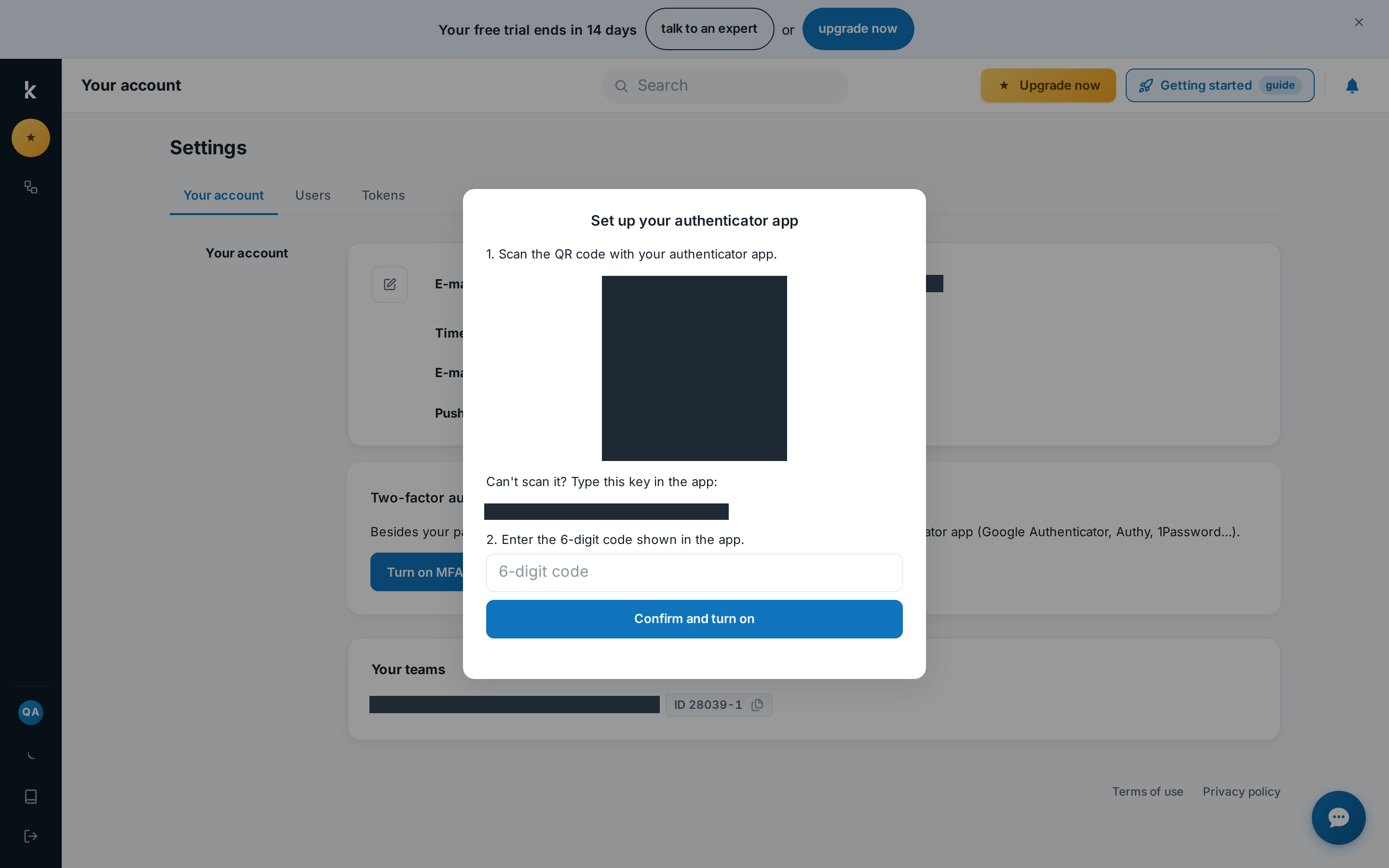
- The Set up your authenticator app window opens. Scan the QR code with your authenticator app. If you can't scan it, use Can't scan it? Type this key in the app and type the key into the app.
- Enter the 6-digit code shown in the app and click Confirm and turn on.
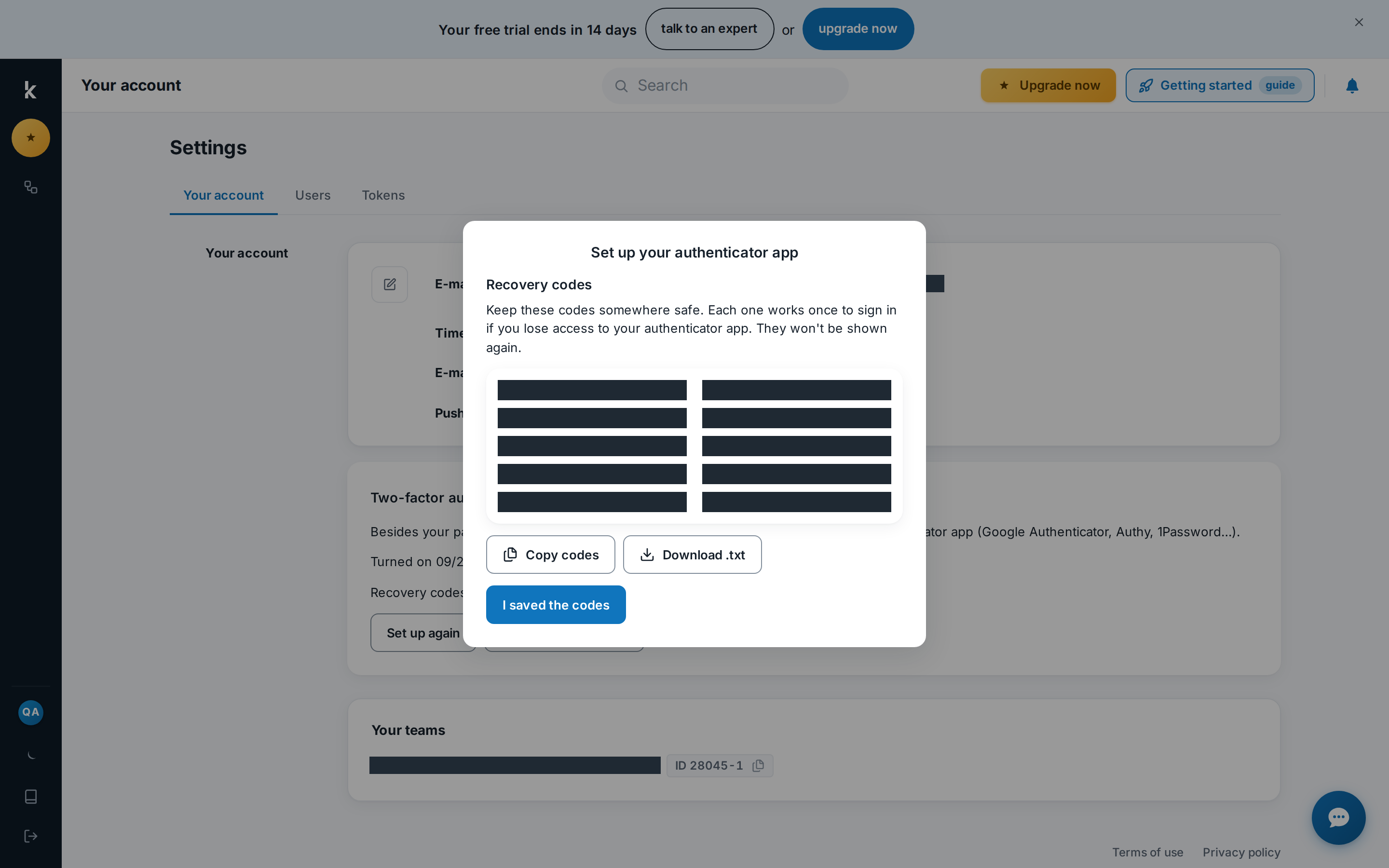
- Your Recovery codes are shown next. Keep them somewhere safe: each code works once to sign in if you lose access to your authenticator app, and they won't be shown again. Use Copy codes or Download .txt and, once they are saved, click I saved the codes.
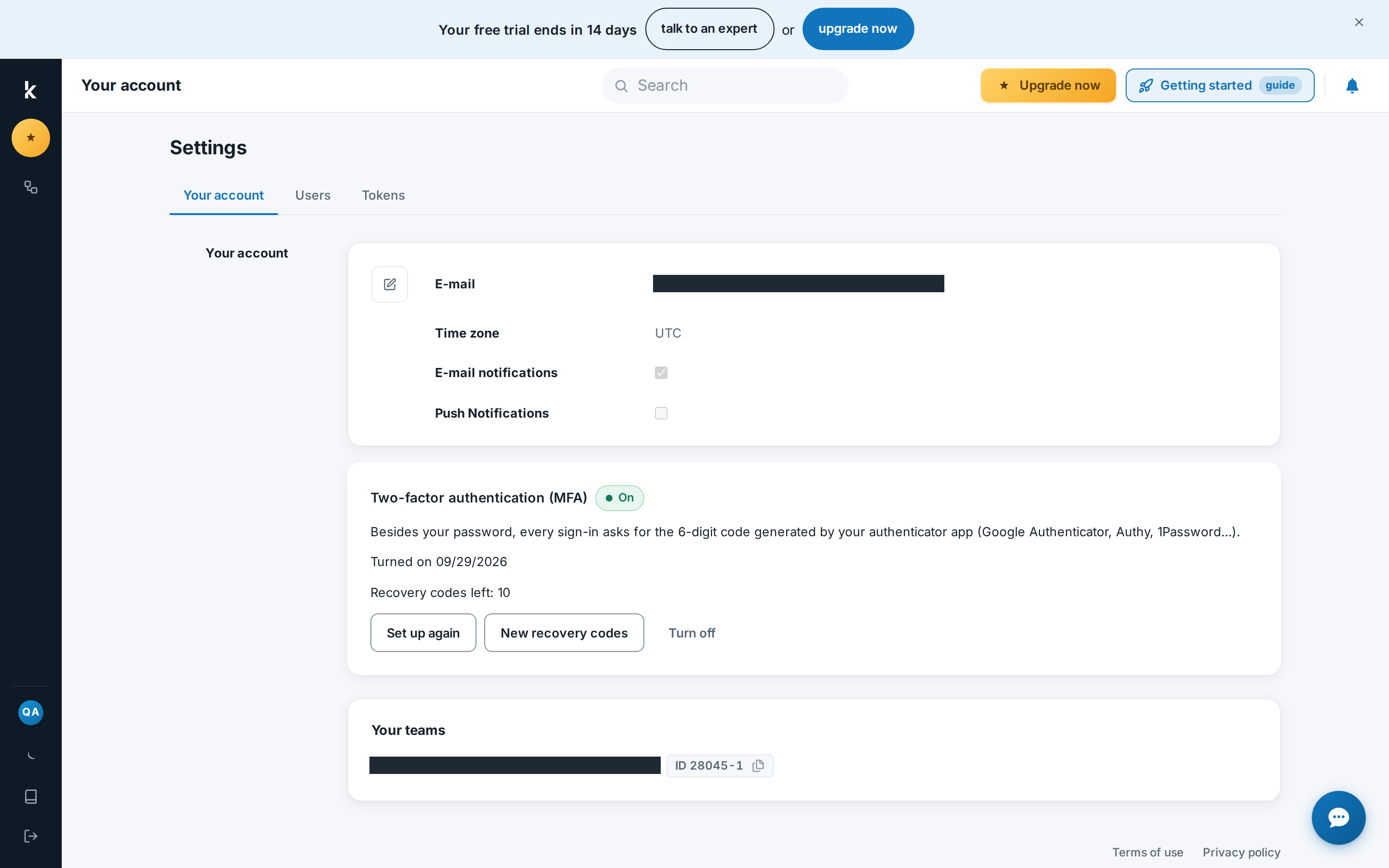
Done: the card now shows the status On, the date MFA was turned on and how many recovery codes are left.
Signing in with MFA
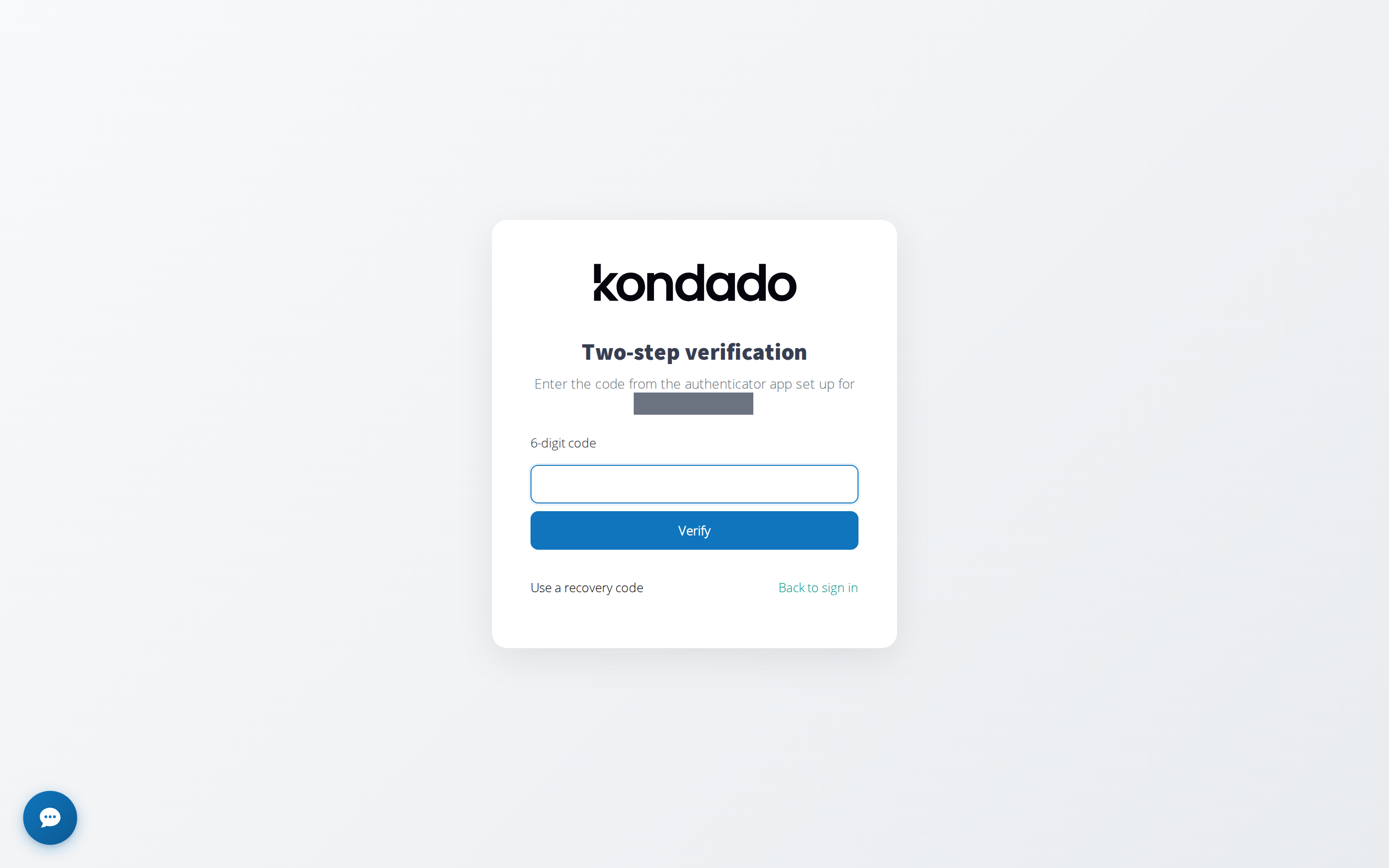
After your password, Kondado opens the Two-step verification screen. Enter the 6-digit code from the app and click Verify. If you don't have the app with you, click Use a recovery code and enter one of the codes you saved.
- MFA is also required when you sign in with Google, Microsoft, LinkedIn, Facebook or the e-mail access link.
- After 5 wrong codes, access is blocked for 15 minutes.
- Access to the Kondado API with Token and Key does not go through MFA.
Set up again, new codes or turn off
With MFA on, the card offers three actions:
- Set up again: redoes the authenticator app setup, for example when you change phones.
- New recovery codes: creates a new list. The old codes stop working.
- Turn off: turns MFA off.
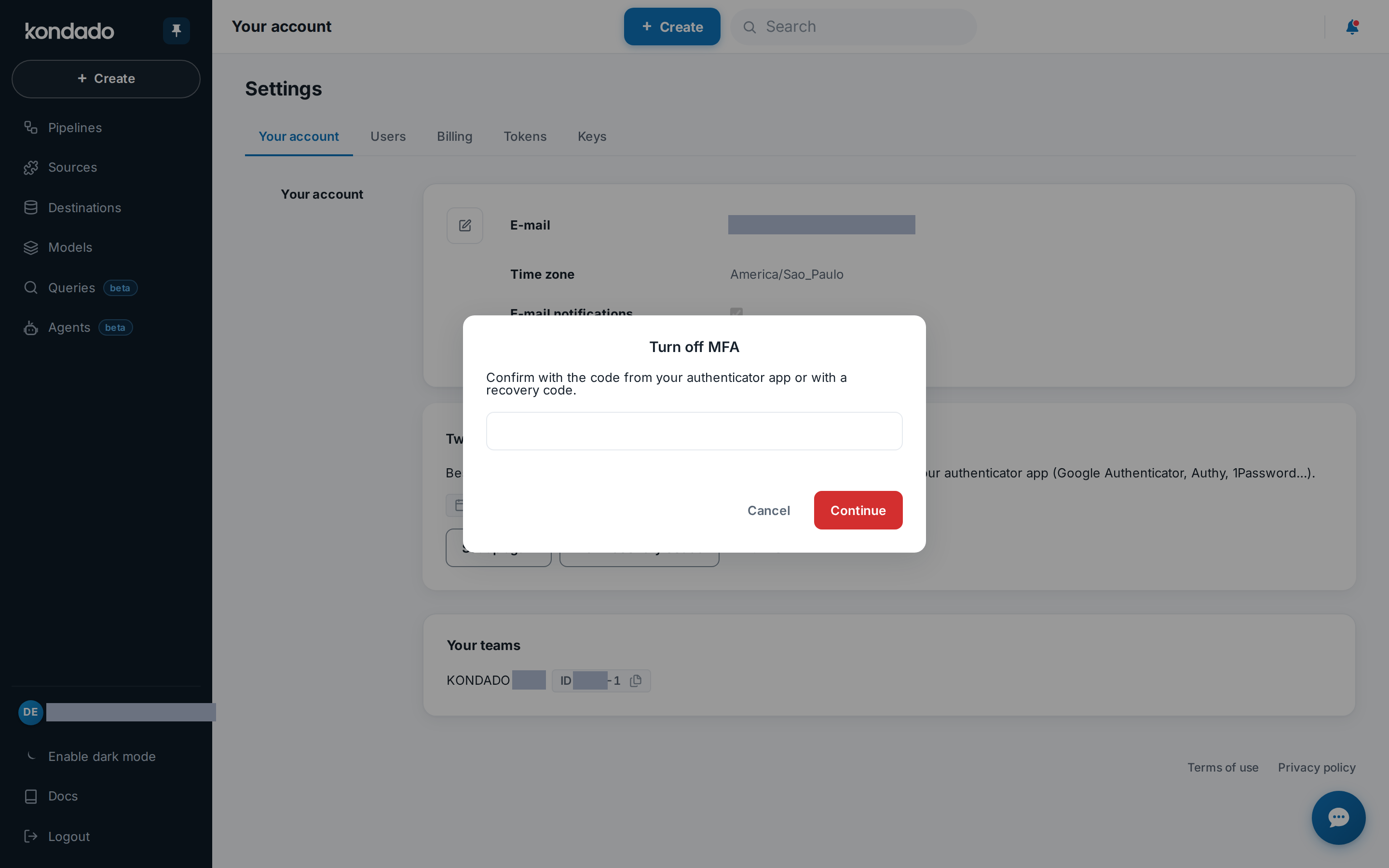
When you click Turn off, the Turn off MFA confirmation opens: enter the code from your authenticator app or a recovery code and click Continue.
When your account requires MFA
Your company can require MFA from every user (see Required MFA). In that case:
- Until the deadline set by the company, the banner “One of your accounts requires MFA. Turn it on by (date) to keep signing in.” is shown at the top of the platform, with a Turn on MFA button. The MFA card in Your account shows the same notice, naming the account that requires it.
- After the deadline, signing in takes you to the Your account requires MFA screen, and you only get in after setting up MFA.
- You cannot turn MFA off while any of the accounts you have access to requires it: the Turn off button is unavailable, with the message “You can't turn it off: one of your accounts requires MFA.”
- If you have access to more than one account in Kondado, MFA is mandatory for you, with no deadline, and cannot be turned off.
Your teams
The Your teams card lists the accounts (teams) your user belongs to, each with its ID, which you can copy.
- Accept: shown when a company has added you as a user. You only see the new account, and become subject to its login settings, after accepting the invitation.
- Remove: shown when you have more than one team. Removing a link can be useful, for example, when one company's login settings block your access to your other accounts. Kondado asks for confirmation first: only the team can undo this, by adding you again.
When you have a single team, the card shows only its name and ID, with no buttons.
Turn on two-factor authentication (MFA) in Kondado
Protect your user with an authenticator app code requested at every sign-in.
Open Your account
Click the block with your e-mail at the bottom of the side menu to open Settings, Your account tab.
Click Turn on MFA
On the Two-factor authentication (MFA) card, click Turn on MFA to open the Set up your authenticator app window.
Scan the QR code
Scan the QR code with your authenticator app, or type into the app the key shown below it.
Confirm the code
Enter the 6-digit code shown in the app and click Confirm and turn on.
Save your recovery codes
Copy or download the recovery codes, keep them somewhere safe and click I saved the codes.