BigQuery is a Bigdata solution created by Google that enables large-scale data storage and analysis. In this article, we'll show you how to register a BigQuery database as a destination on Kondado's platform, so you can centralize data from all your company's tools.
In this tutorial we show you how to add BigQuery with your email account.
2) Click AUTHORIZE
3) Select the account you will use
4) On the next screen, check ALL permissions that are required and click Continue
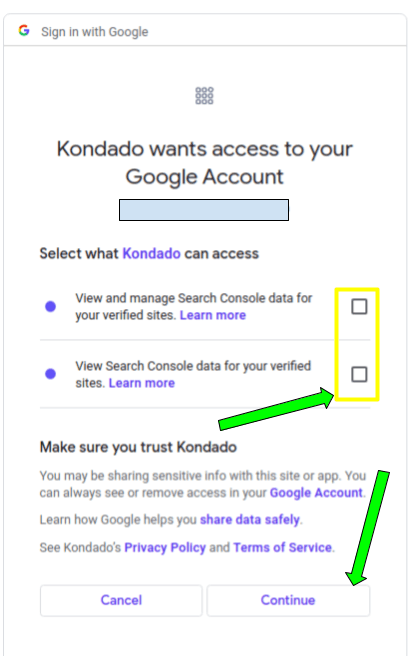
5) You will be redirected to Kondado's page with your access already authorized. Continue in this tutorial to find the remaining information you need
6) Access your BigQuery console on GCP and copy the project IDs (in red in the picture below) and the dataset (in green)
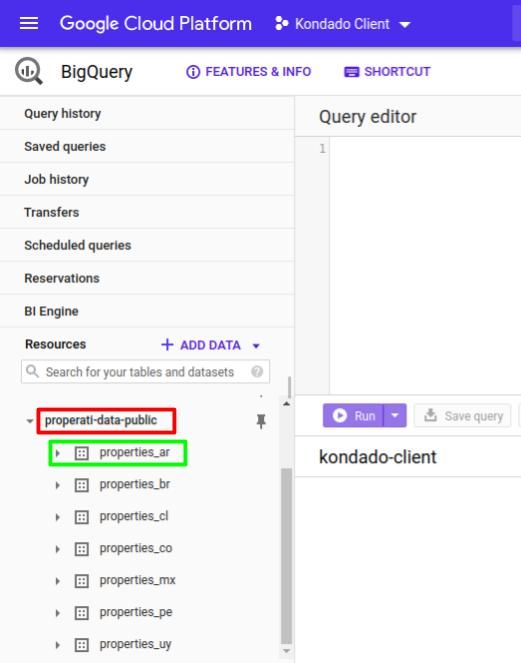
7) Again on the page of step (5), paste the project and dataset values obtained in step (6) and name your destination
ATTENTION: Make sure that the Dataset ID DOES NOT contain the project ID separated by “:”. For example, “id_project:id_dataset” is wrong. The correct thing is that the Project ID and Dataset ID are each separately in their respective fields
Now you can save your destination and start creating your data pipelines! Don't forget to click on “TEST CONNECTION” to check if our connection with your BigQuery destination is successful!
Add BigQuery as a Destination on Kondado
Follow these steps to register your Google BigQuery database as a data destination on the Kondado platform and start centralizing your company's data.
Open the destinations page and select BigQuery
On the Kondado platform, navigate to the add new destinations page and choose Google BigQuery as your data destination.
Authorize your Google account
Click AUTHORIZE and select the Google account you want to use. On the permissions screen, check ALL required permissions and click Continue.
Verify billing is active on GCP
Before proceeding, ensure your Google Cloud project has active billing enabled to avoid connection failures.
Copy project and dataset IDs from BigQuery
Access your BigQuery console on GCP and copy the Project ID and Dataset ID values that you will need for the next step.
Paste IDs and name your destination
Return to Kondado's authorization page, paste the Project ID and Dataset ID into their respective fields, and name your destination. Make sure the Dataset ID does NOT contain the project ID separated by ":".
Test and save your connection
Click "TEST CONNECTION" to verify Kondado can successfully connect to your BigQuery destination, then save and start building your data pipelines.
