An agent only acts on your company's systems through the tools you connect to it. There are three steps, in this order:
- Add the connection, in the Connections tab.
- Turn the tool on for the agent, in its Tools tab.
- Set the permission of each operation.
1. Add the connection
- In Agents, open the Connections tab and click New connection.
- In the Choose a tool window, search for and pick the tool.
- Fill in the requested credential or, for tools with authorization, click Connect to … and authorize access on the service's own screen.
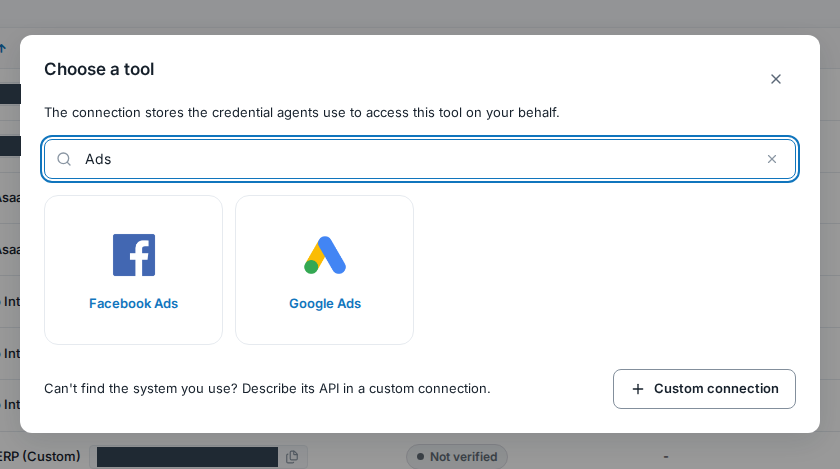
- The credential is stored securely and is not shown on screen again.
- If you already have a pipeline with this tool in Kondado, you can reuse it instead of entering the credential again. Each pipeline feeds a single connection.
- To give the agent access to the data in a Via Kondado destination, choose Via Kondado: there is nothing to fill in.
- The tool you need is not on the list? See Custom connections.
2. Turn the tool on in the agent
Open the agent and go to the Tools tab. Turn on the tools it should use. While a tool is off, the agent does not see it and answers that it has no access.
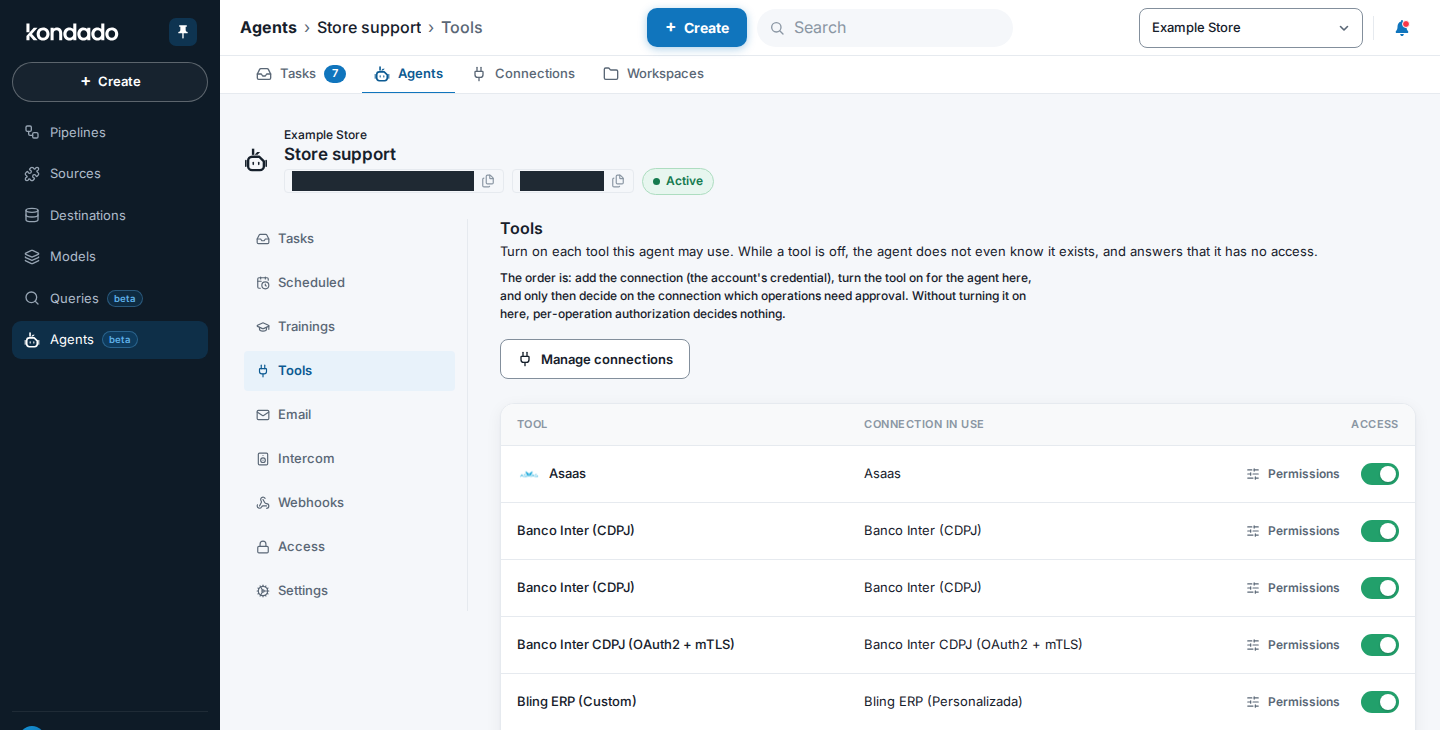
The connection belongs to the account, and each workspace can turn a tool on or off for its agents (see Workspaces). New agents come with the workspace's connections turned on.
3. Set the permissions
In the connection, the Per-operation permissions tab lists the tool's operations (for example, querying orders or posting a bill). Each one can run Without asking, Always ask for approval or be Denied. Details in Tool permissions.
The agent says it has no access
- Check that the tool is on in the agent's Tools tab.
- Check that it was not turned off in the workspace.
- Check that the operation is not Denied.
- Mention the connection with @ in your message; if it is off, the screen offers to turn it on.
Connect a tool to a Kondado agent
Add the connection, turn the tool on in the agent and set the permissions.
Create the connection
In Agents, open Connections and click New connection.
Choose and authorize the tool
Choose the tool and fill in the credential or authorize on the service's screen.
Turn it on in the agent
Open the agent and turn the tool on in the Tools tab.
Set the permissions
Choose Without asking, Always ask or Denied for each operation.