Every request made to an agent becomes a task. A task is a conversation: you describe what you need, the agent answers, and you can correct, add information or approve actions until it is done.
Where to create a task
- Side panel (Agents assistant): available on any page of the platform. Pick the agent, type in the Describe what you need… use @ to mention field and send. The panel also shows your recent tasks, a task search and a shortcut to the Agents area.
- Tasks tab: in Agents › Tasks, choose the workspace and click New task. Inside an agent, its Tasks tab does the same. Fill in the optional title and what you want to ask, then click Create task.
You can pin the panel next to the page, minimize it or expand it, so you keep using the platform while the agent works.
Screen context
When you create the task from the side panel, it attaches what is open on the screen, such as a query, a pipeline, a source or a destination. If you do not want to send that context, remove it before sending.
Mention items with @
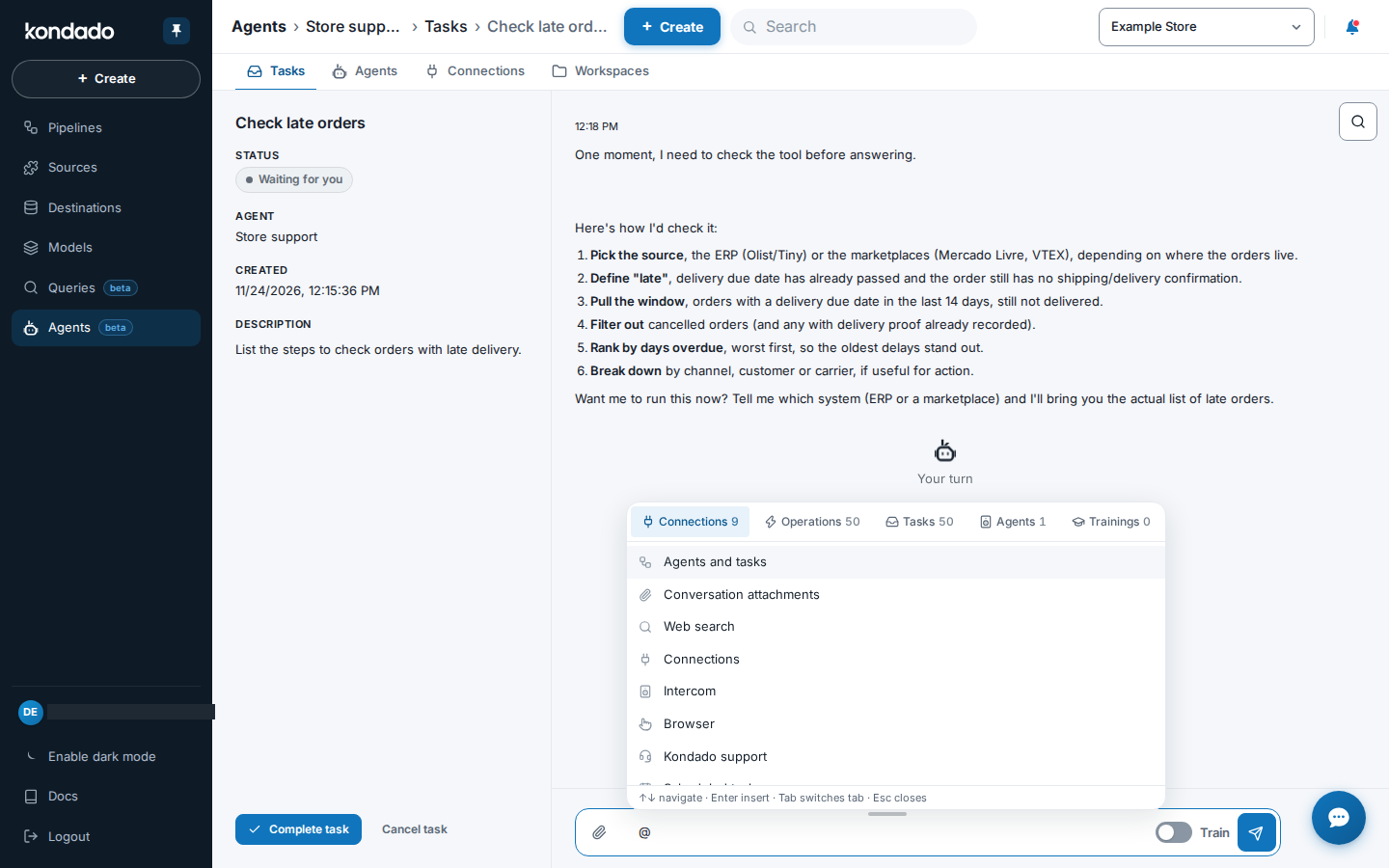
Type @ in the message field to open the mention menu. It has the Connections, Operations, Tasks, Agents and Trainings tabs.
- Use the ↑ and ↓ arrows to navigate, Enter to insert, Tab to switch tabs and Esc to close.
- The chosen item becomes a chip inside the message.
- Mentioning a connection or an operation tells the agent to use it.
- Mentioning a task or an agent is only a reference: it does not send them a message. For agents to talk to each other, use the Intercom.
- If you mention something that is turned off for the agent, the screen warns you and offers to turn it on.
Task status
The Status column shows where each task stands: in progress, Waiting for you (the agent asked a question), waiting for authorization (an action needs approval, see Tool permissions), done, failed or canceled. If a task did not finish, you can reply in it to try again. The Tasks tab shows what is read and unread, has the Search by task or agent box, Filters and Mark all as read.
Tips for a good request
- Say what result you expect ("a table with…", "a 5-line summary").
- Mention the right connection or operation with @ when there is more than one similar option.
- If the agent gets something wrong that it should always remember, retrain it directly in the task.
Create a task for a Kondado agent
Ask an agent for something from the side panel and mention items with @.
Open the side panel
Open the Agents assistant and pick the agent.
Describe the request
Type what you need in the Describe what you need field.
Mention items with @
Type @ and choose the connection, operation or other item the agent should consider.
Send and follow
Send the message and follow the task status.
Reply and approve
Answer the agent's questions and approve or deny actions that ask for authorization.